


How are the templates installed?
Installing a template is a fairly simple process to follow..
Step 1: A theme can be installed using WordPress Administrator by following these steps.
First, access your WordPress admin panel..
Proceed to the "Appearance" menu and select "Themes."
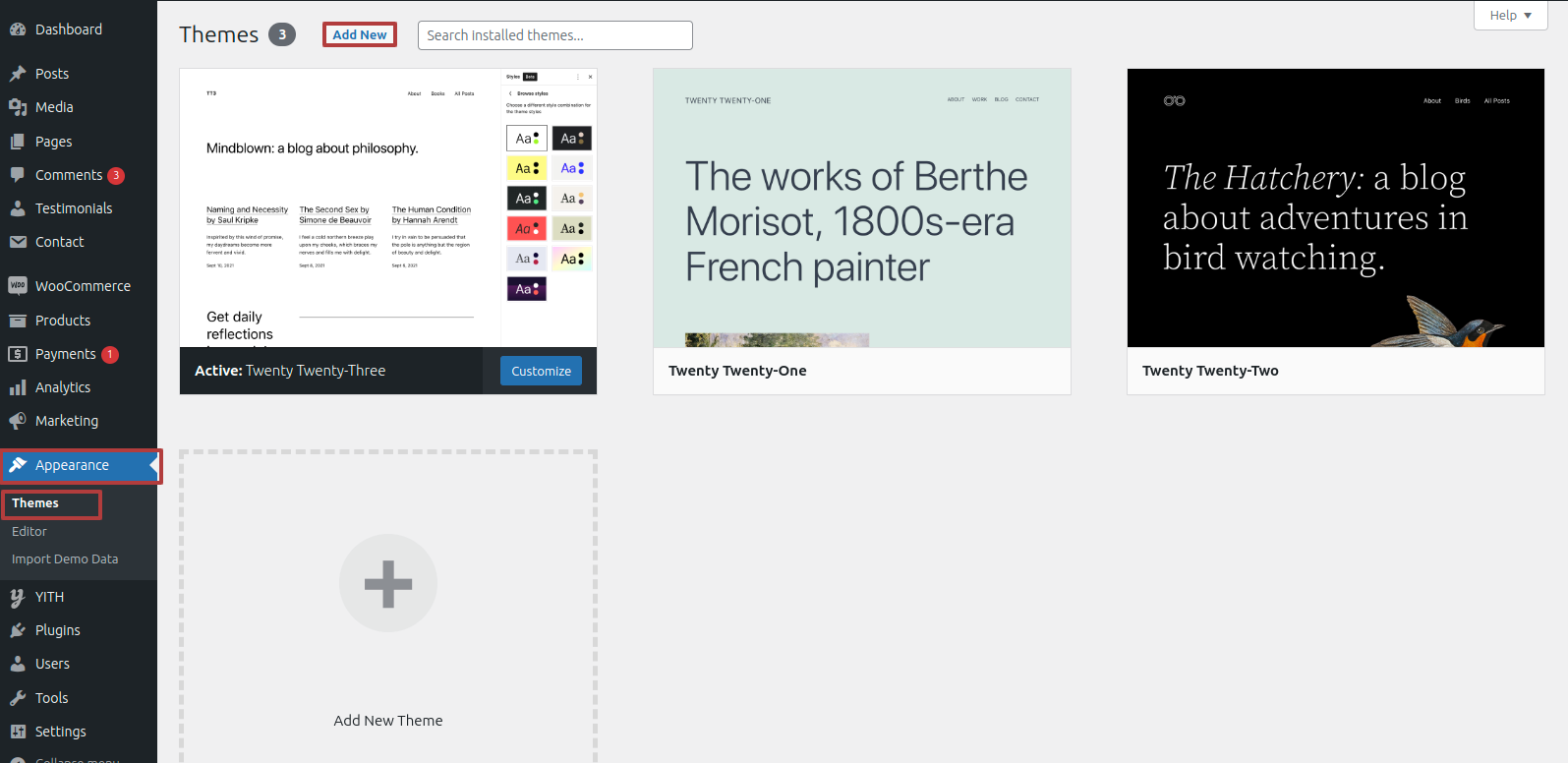
Once on the themes page, select"Add New" from the menu at the top of the page.
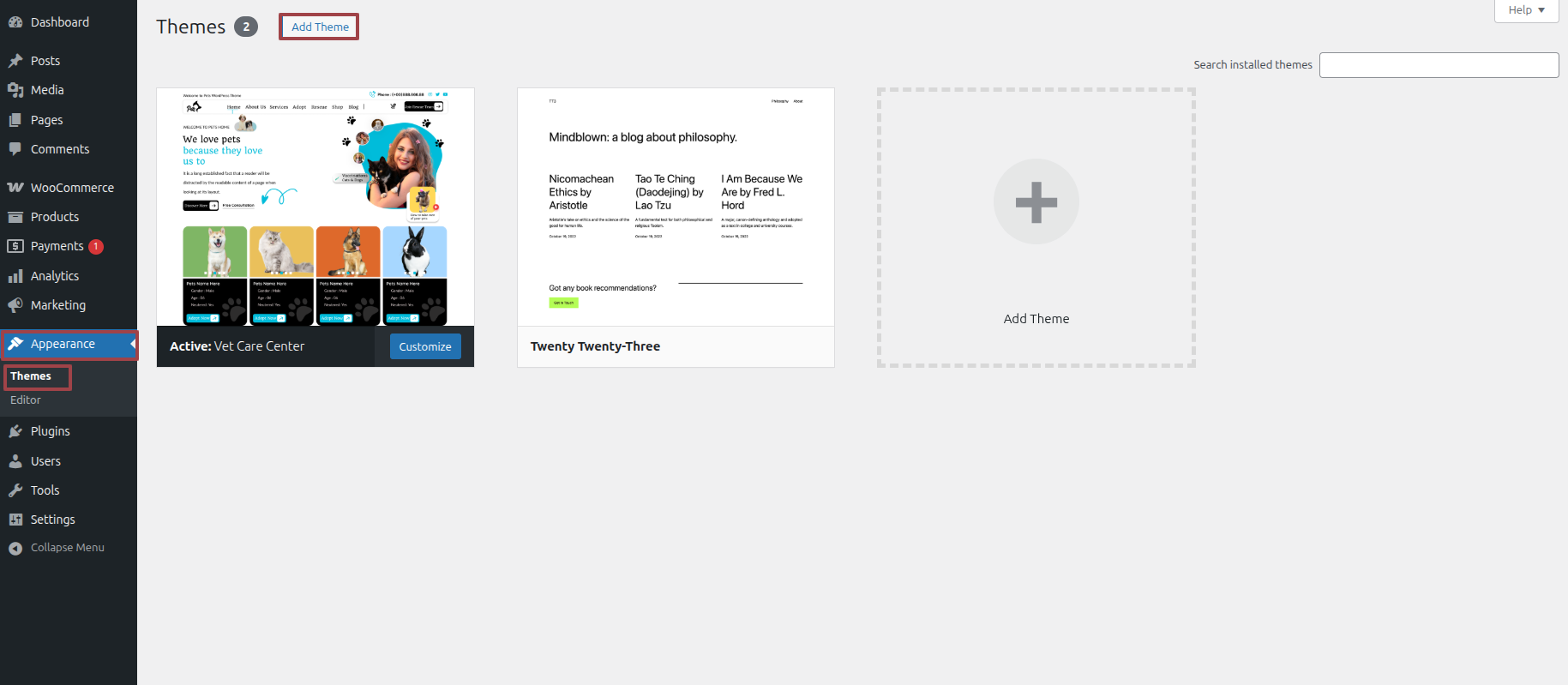
Clicking the "Upload Theme". button is necessary.
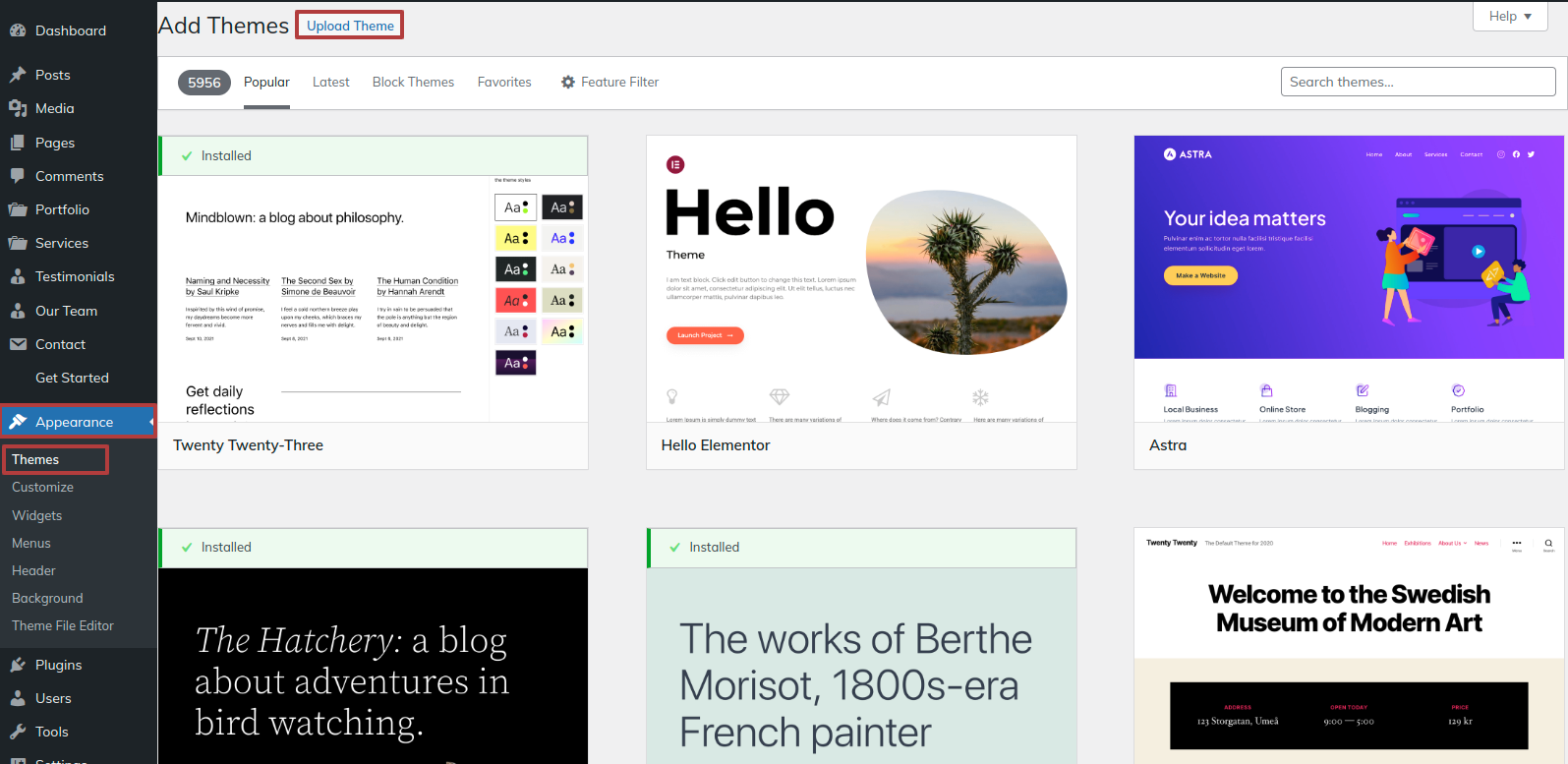
After choosing your preferred vet-care-center theme, click the Browse button and click the Now Installing button.
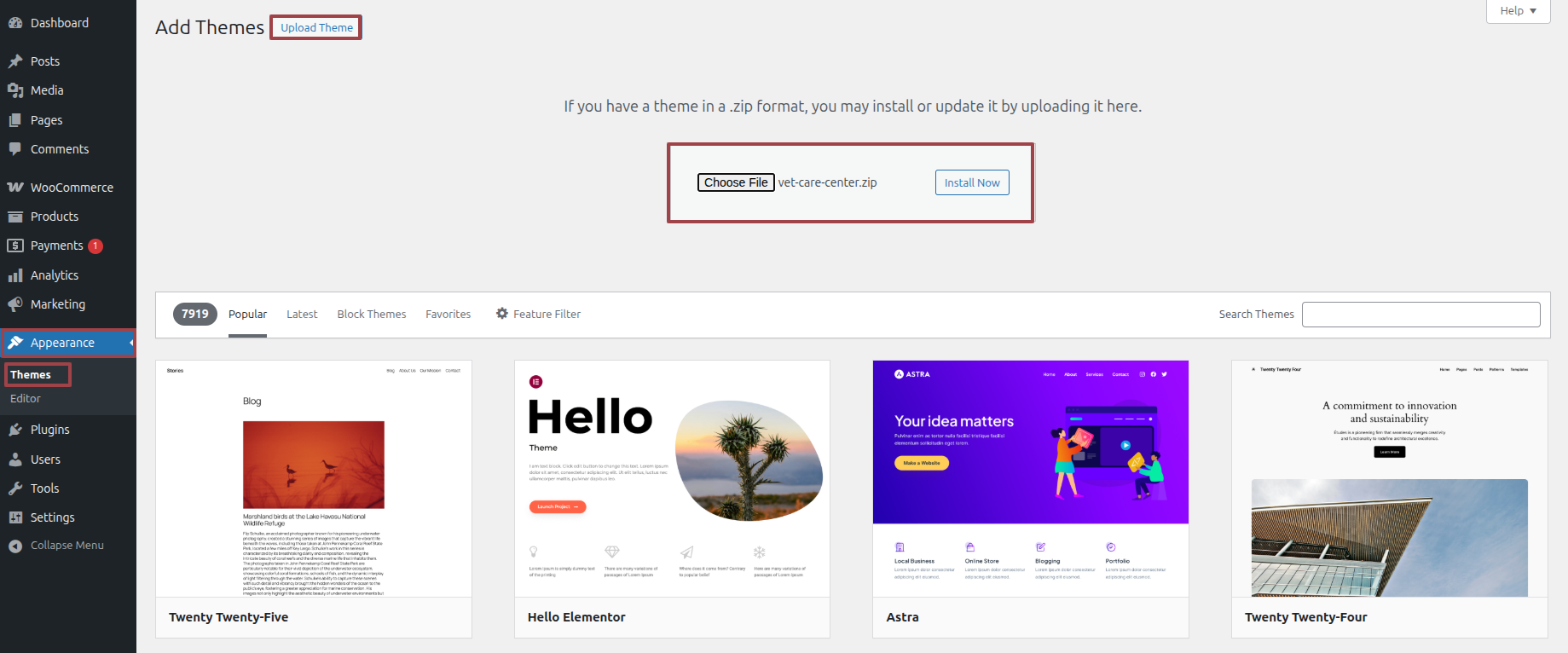
At this point, WordPress will install the theme of your choice and display a success message with options to activate or view a live preview of the theme.
Section on Developing The Demo Import
Regarding Demo Import Configuration.
Establish your website rapidly by importing demo content with a single click. These sample pages provide a pre-designed structure and clear guidance, streamlining customization and effectively demonstrating theme capabilities for a swift and impactful website deployment.
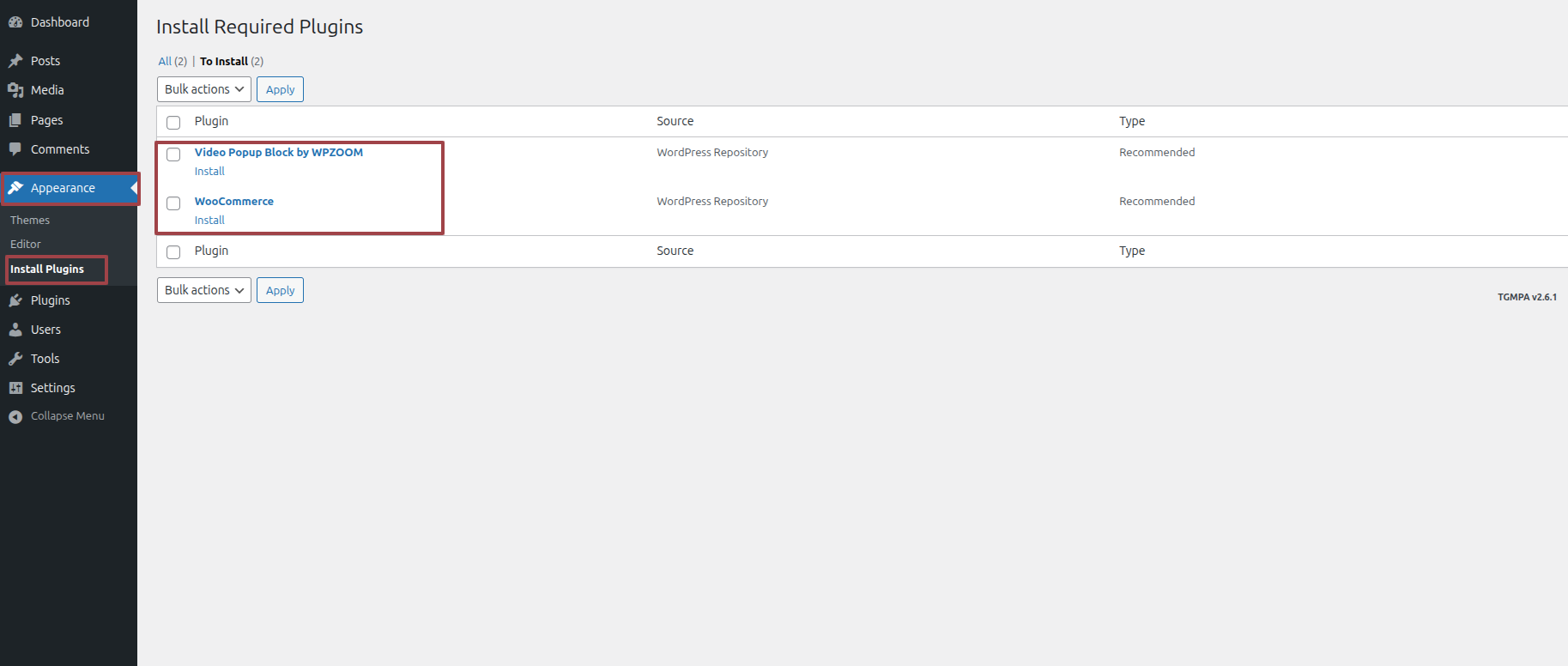
.1) To modify your theme options open"Dashboard" By going to "Appearance" Proceed to "About Vet Care Center" .
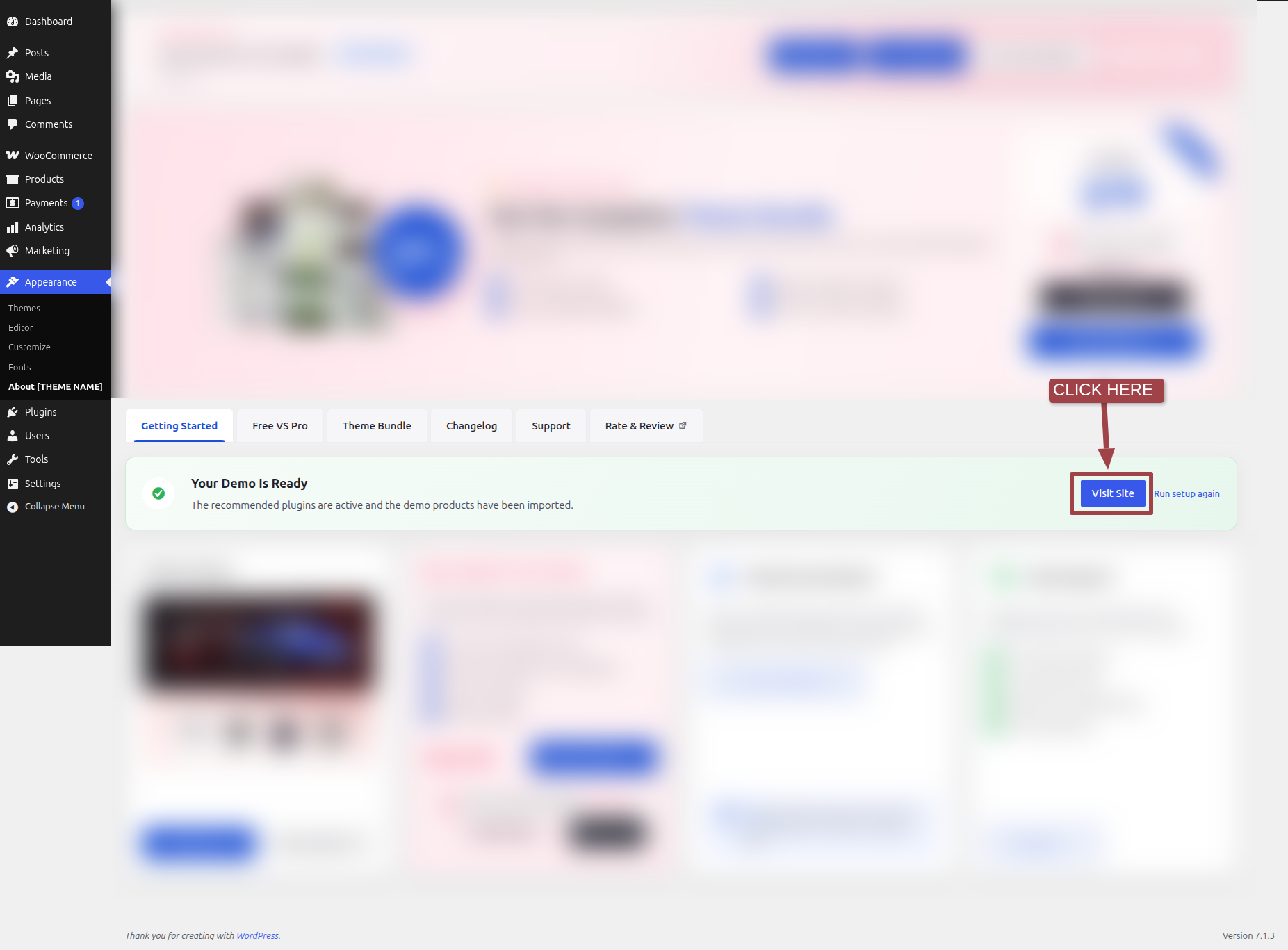
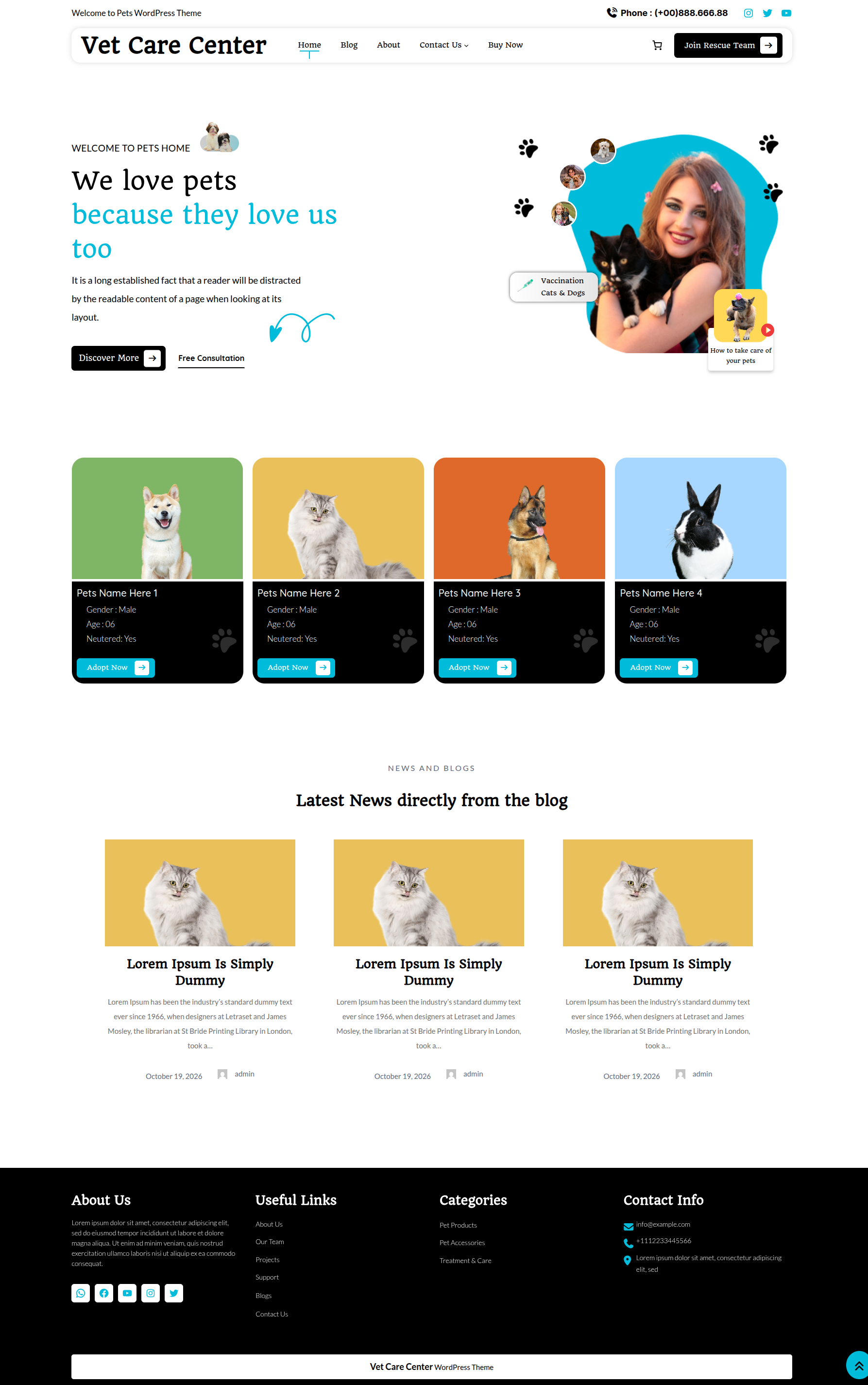
This is how the Front page will display it.
Section on Developing The Navigation
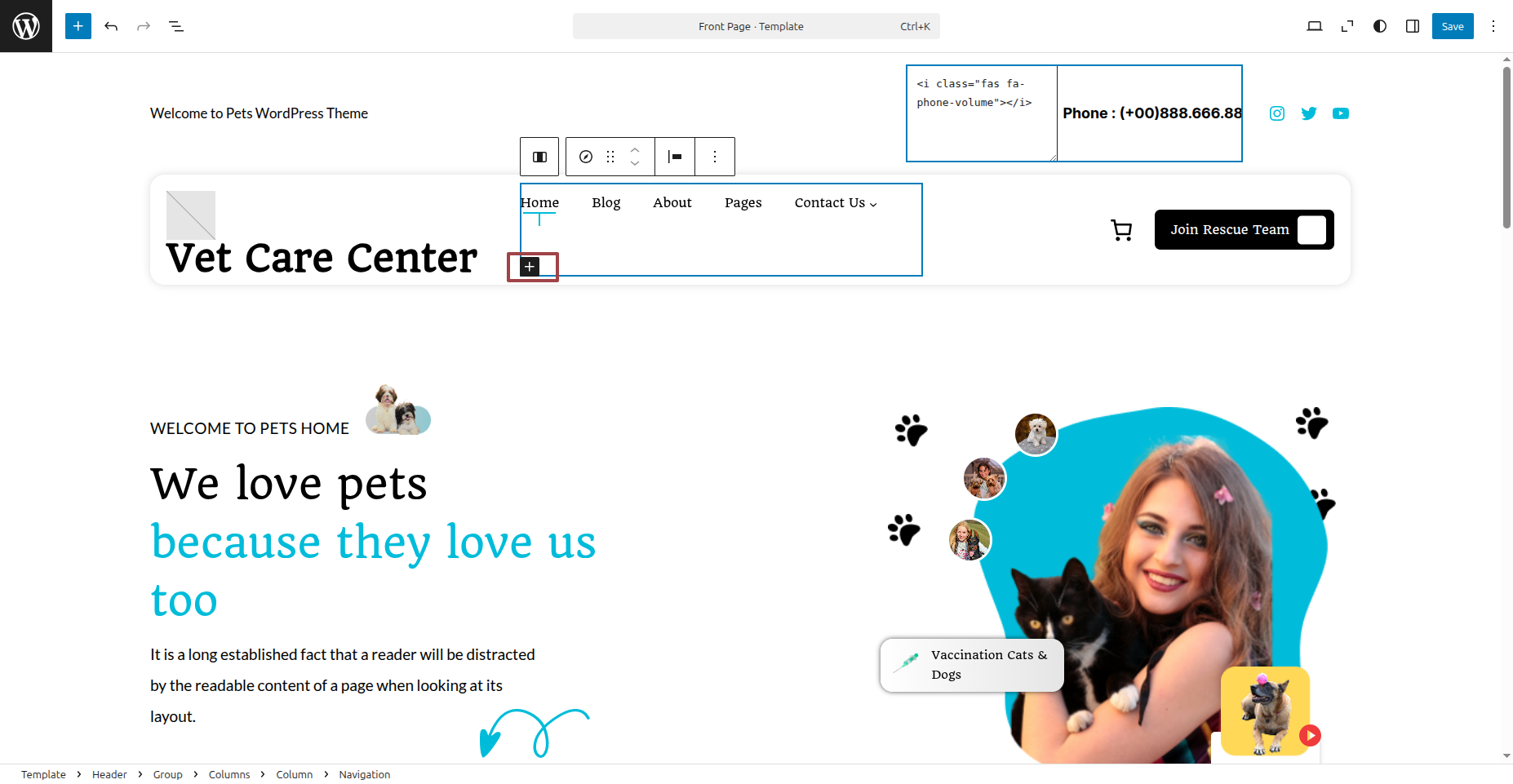
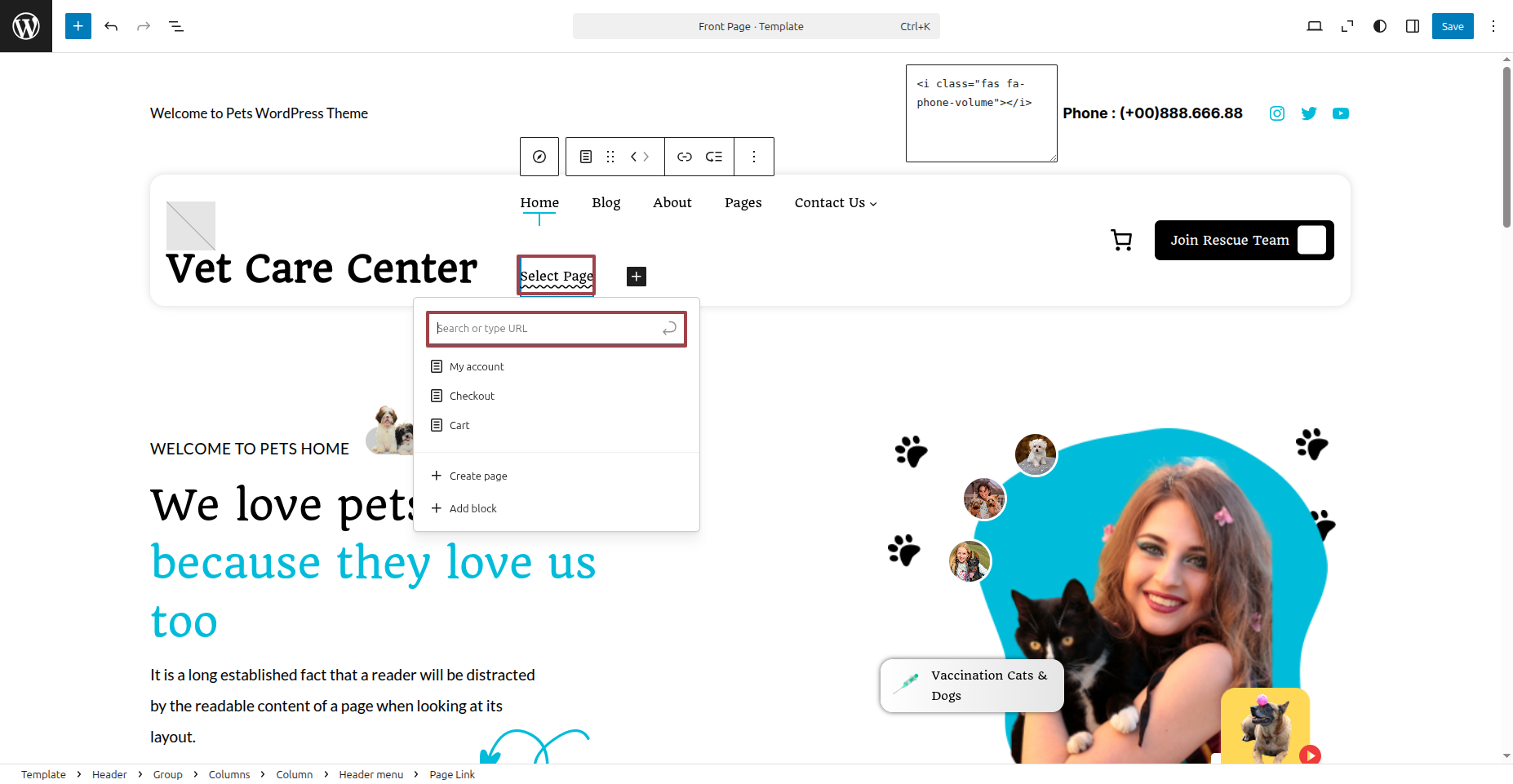
To modify your theme options open"Dashboard" By going to "Appearance" By going to "Editor".
For a clearer understanding, view this screenshot.
Section on Developing The Site Identity
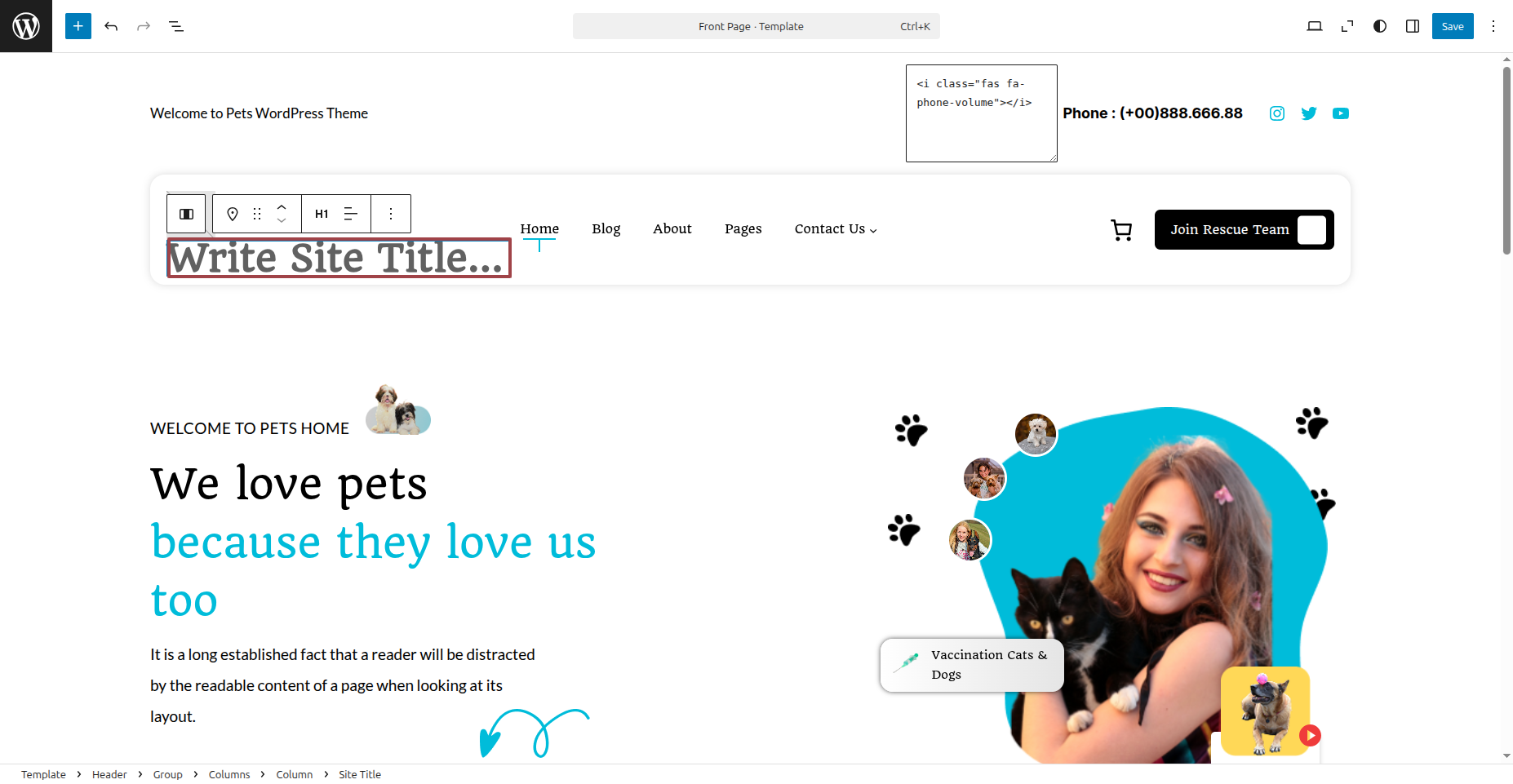
Putting the logo in the header.
To modify your theme options open"Dashboard" By going to "Appearance" By going to "Editor" .
For a clearer understanding, view this screenshot.
Section on Developing The Main Header Options
Regarding Main Header Options Configuration.
To modify your theme options open"Dashboard" By going to "Appearance" By going to "Editor" .
For a clearer understanding, view this screenshot.
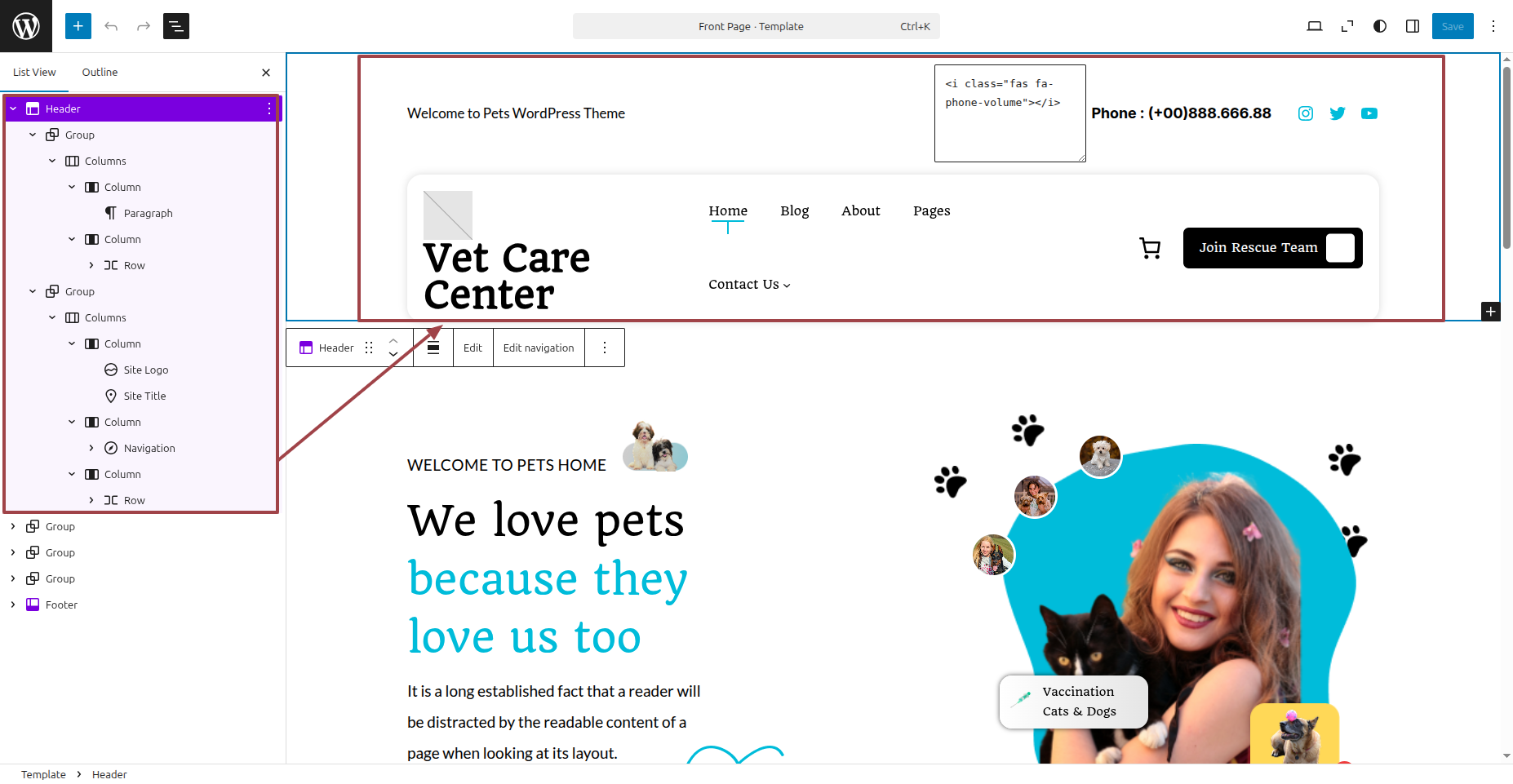
This is how the Header Section will display it.

Section on Developing The Main Slider Options
Regarding Main Slider Options Configuration.
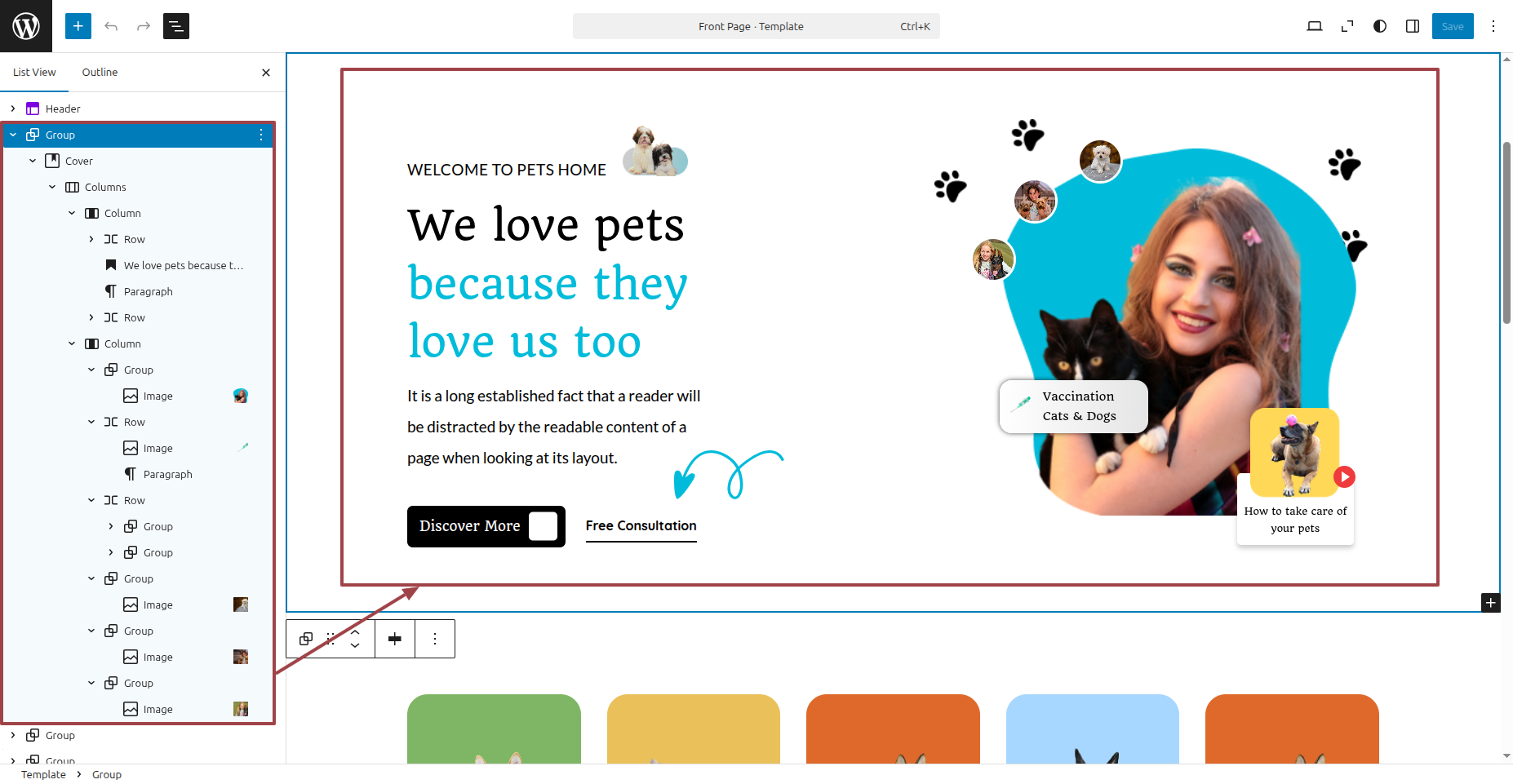
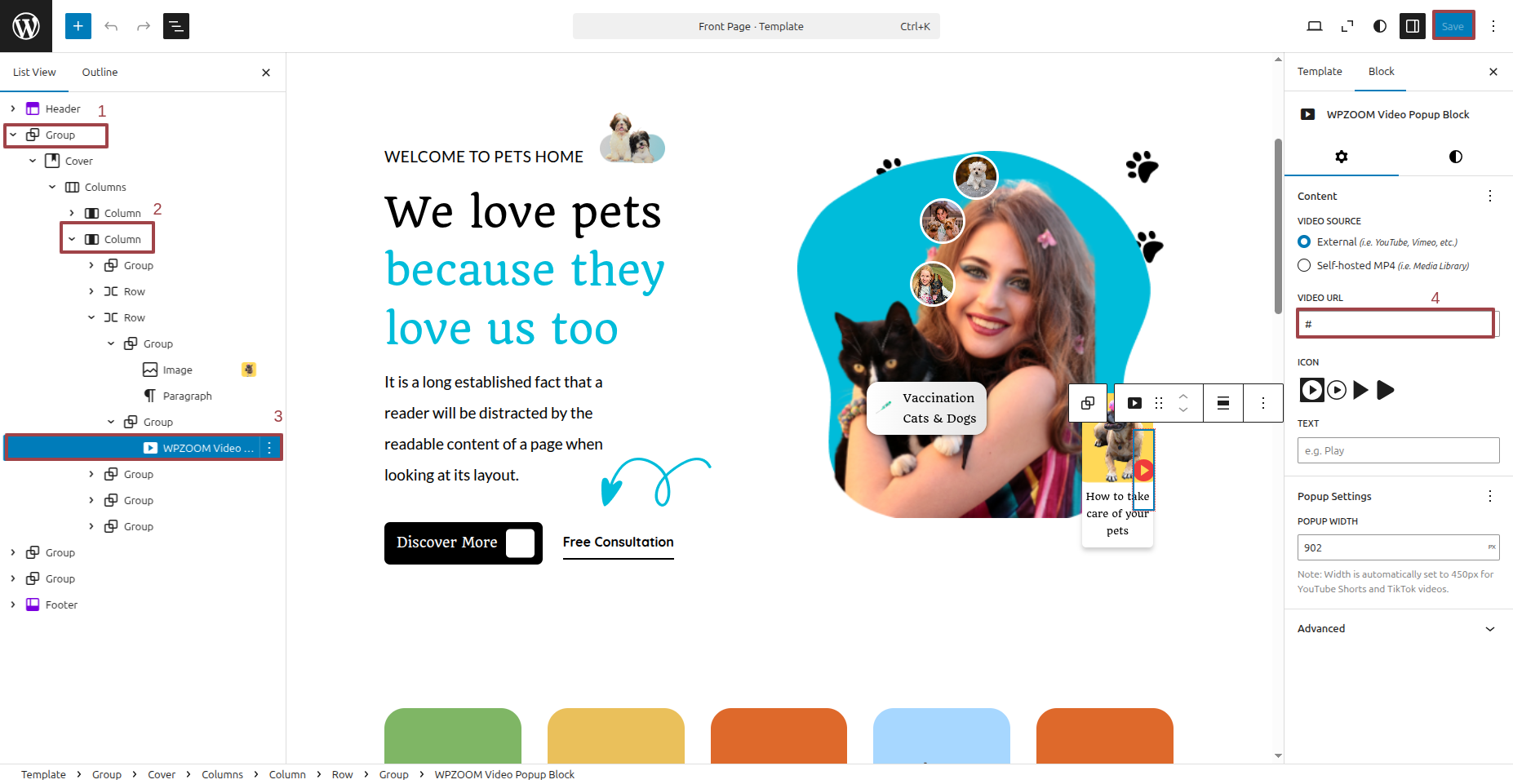
To modify your theme options open"Dashboard" By going to "Appearance" By going to "Editor" .
For a clearer understanding, view this screenshot.
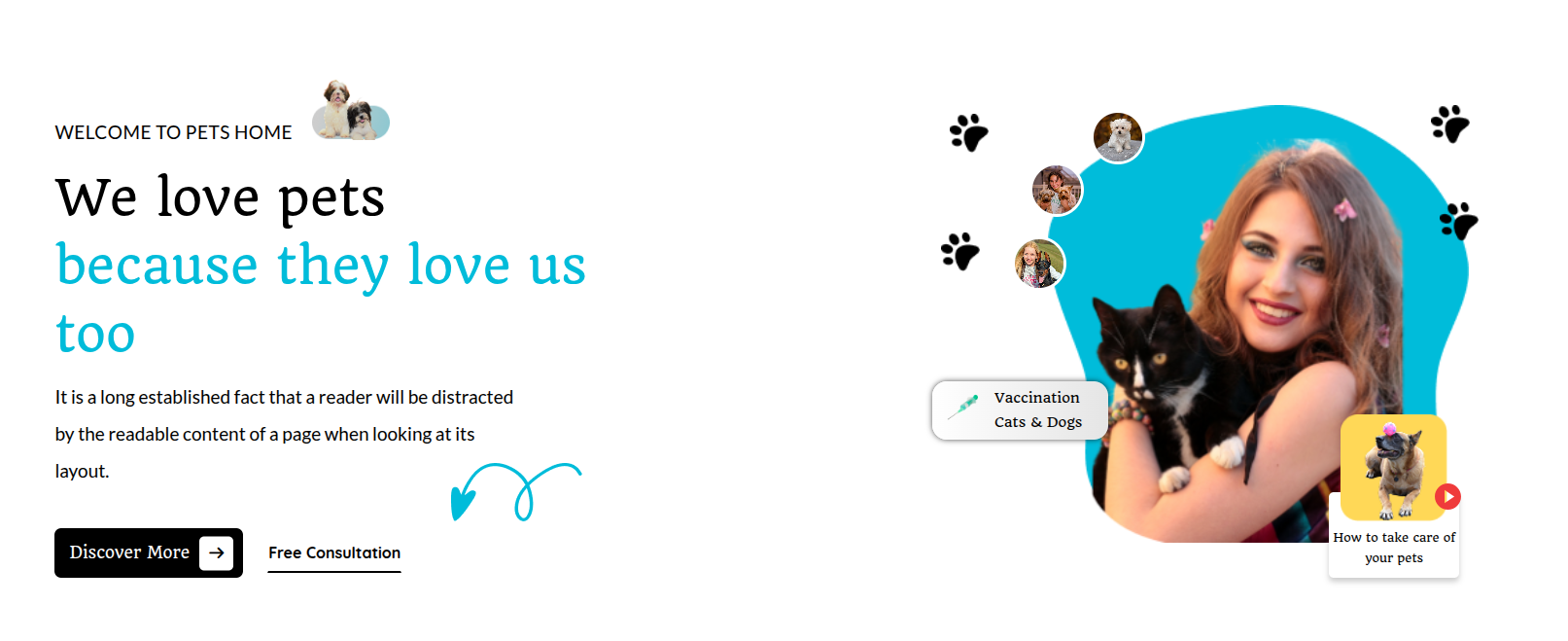
This is how the Main Slider Section will display it.
Section on Developing The Products Options
Regarding Products Options Configuration.
To modify your theme options open"Dashboard" By going to "Appearance" By going to "Editor" .
For a clearer understanding, view this screenshot.
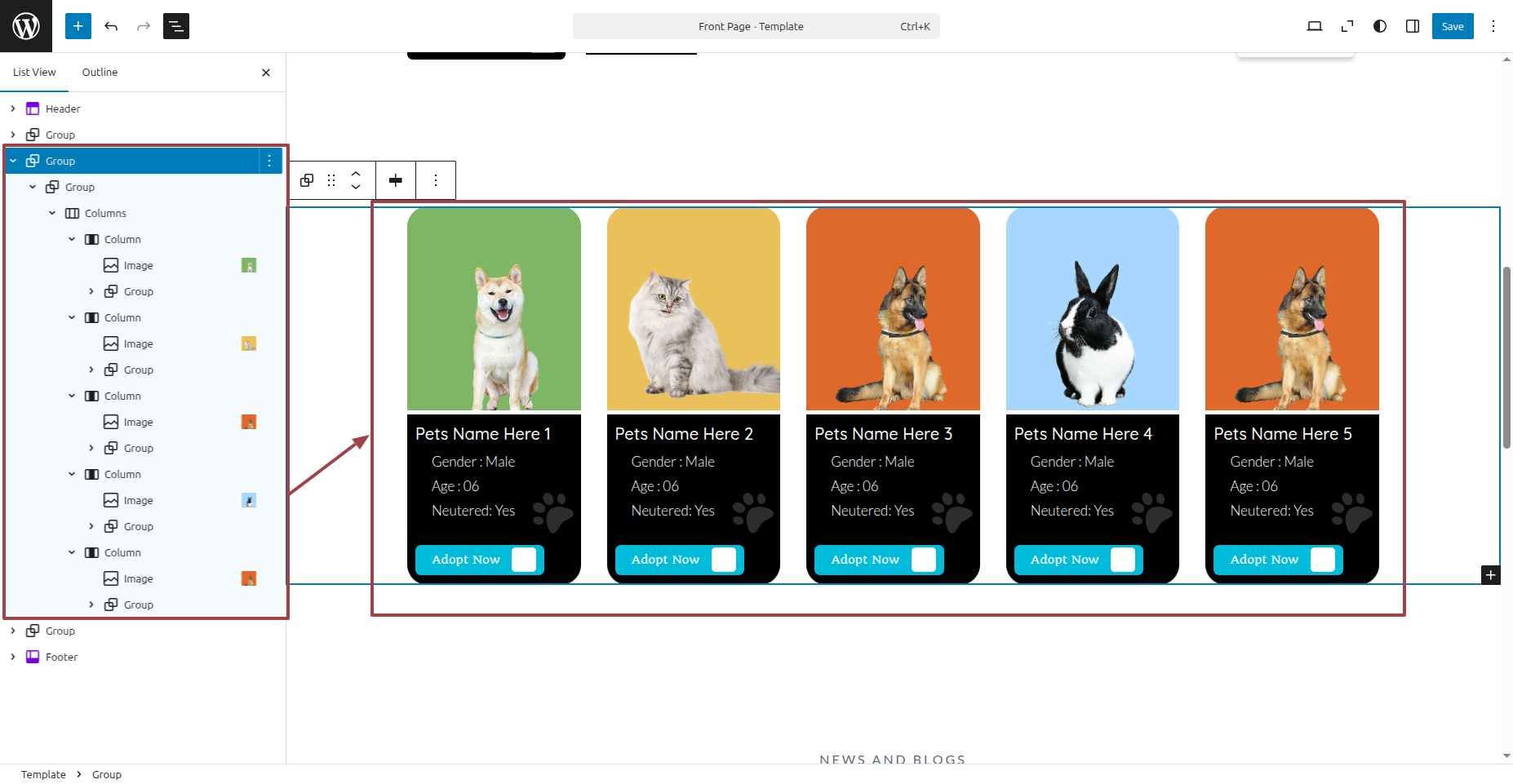
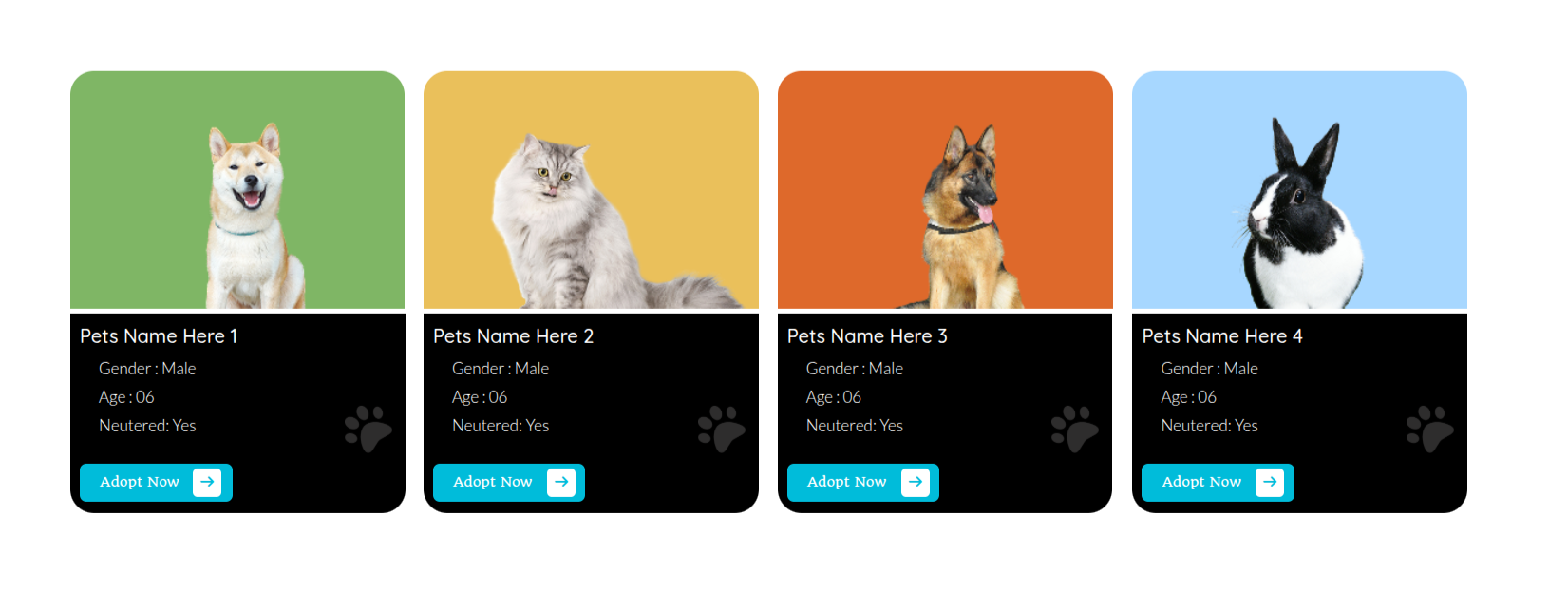
This is how the Products Section will display it.
Section on Developing The News And Blogs Option
Regarding News And Blogs Option Configuration.
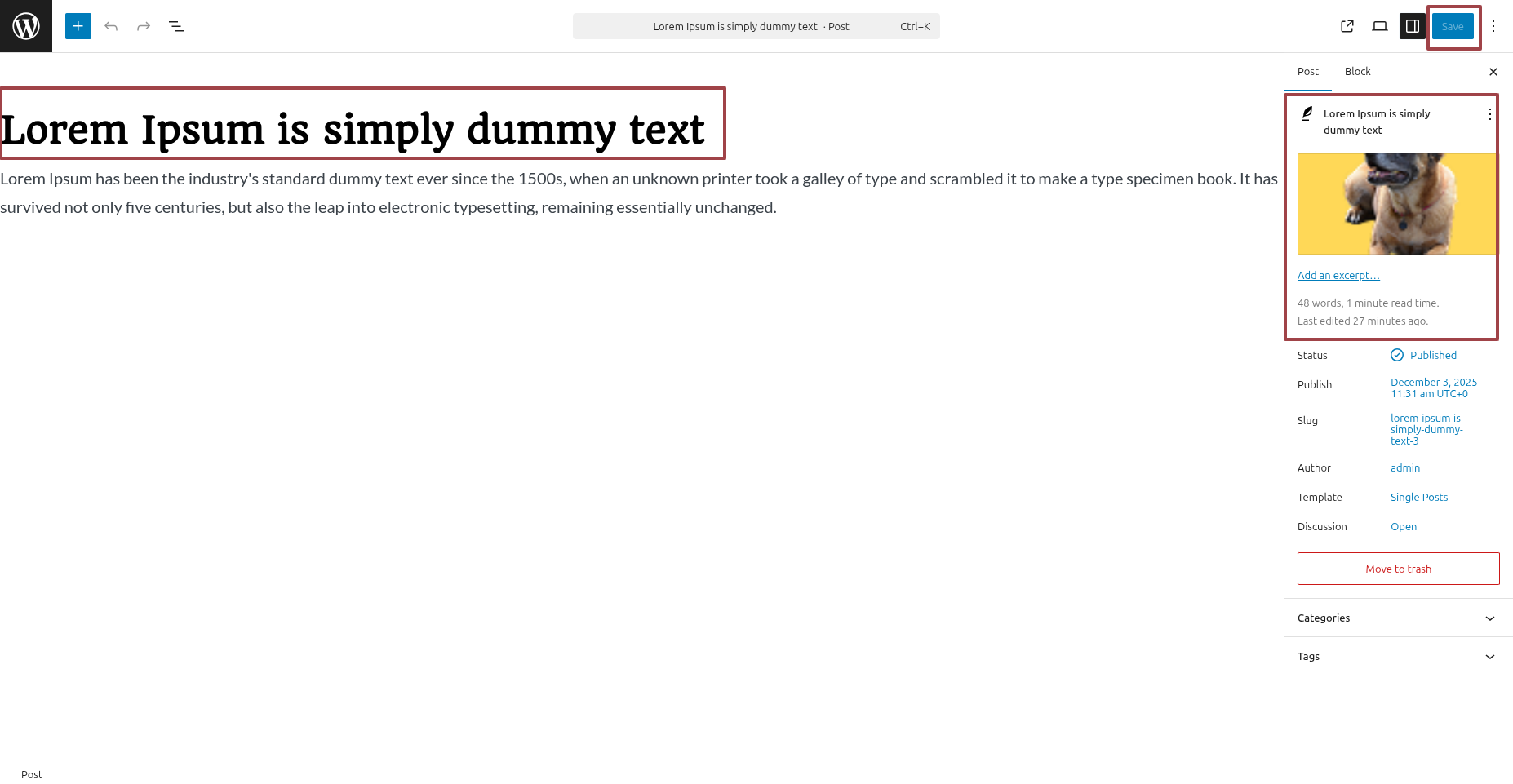
To modify your theme options open"Dashboard" By going to "Posts" By going to "Add New Posts" .
For a clearer understanding, view this screenshot.
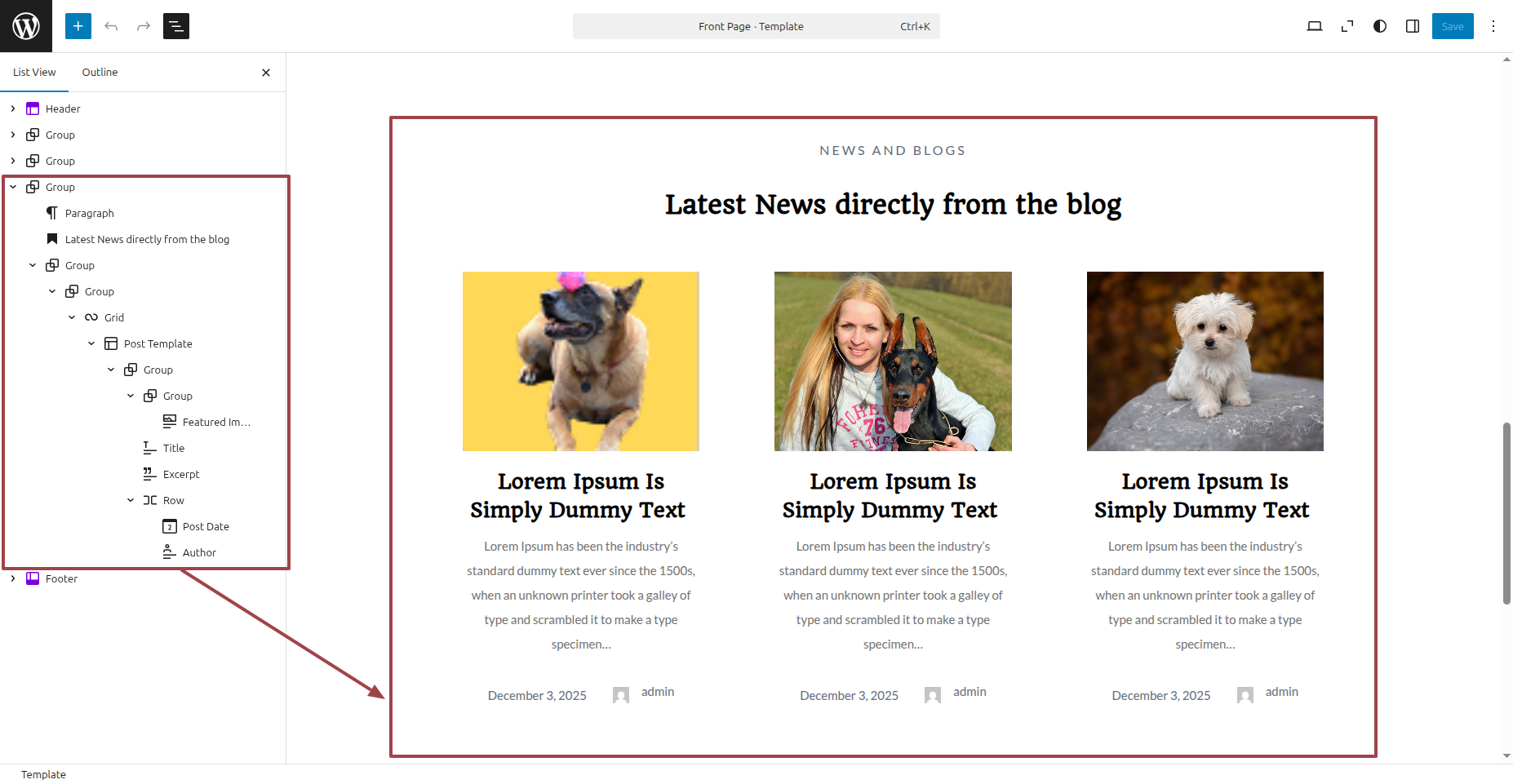
To modify your theme options open"Dashboard" By going to "Appearance" By going to "Editor" .
For a clearer understanding, view this screenshot.
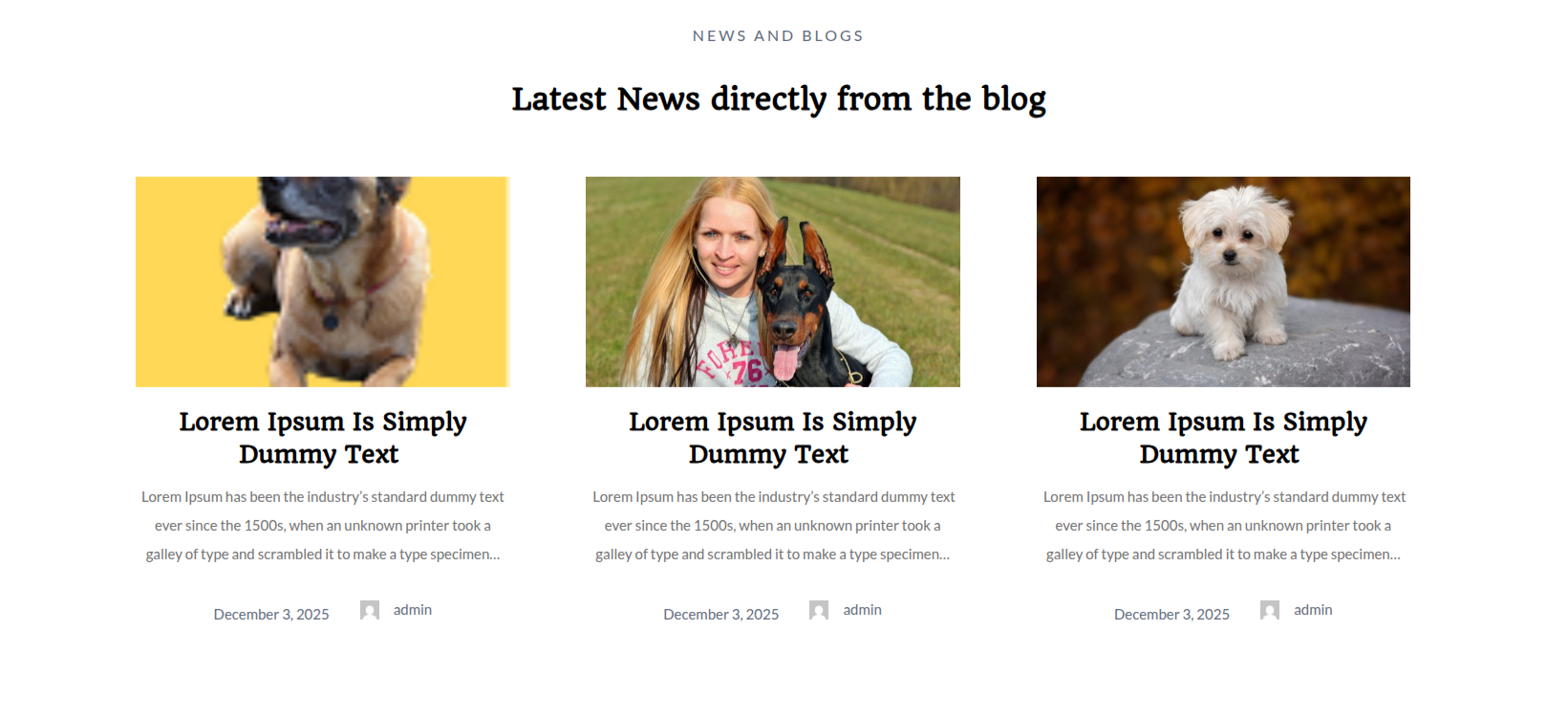
This is how the News And Blogs section will display it.
Section on Developing The Footer Options
Regarding Footer Options Configuration.
To modify your theme options open"Dashboard" By going to "Appearance" By going to "Editor" .
For a clearer understanding, view this screenshot.
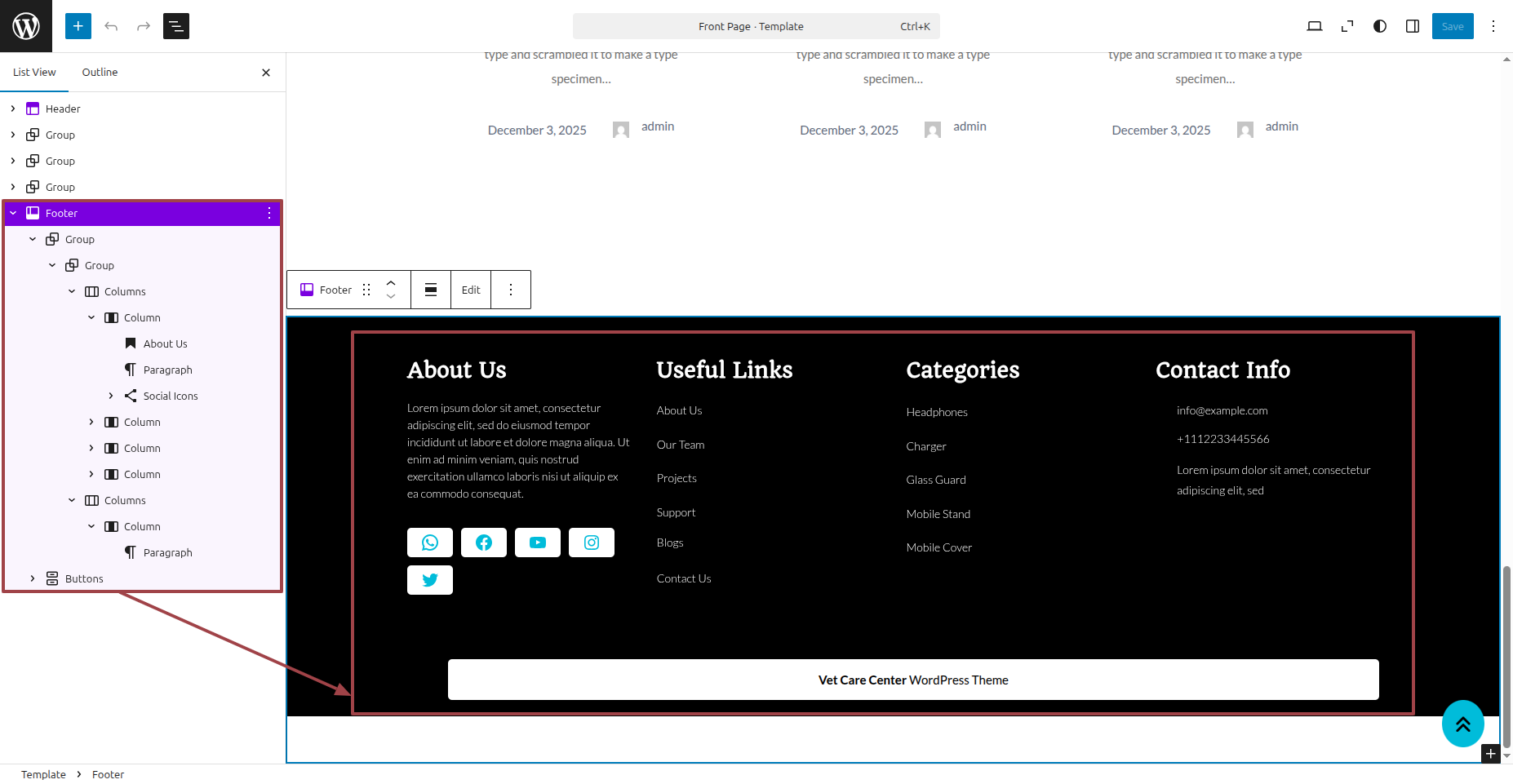
This is how the Footer Section will display it.