


How are the templates installed?
Bringing in a template configuration is a fairly simple process to follow..
Step 1: A theme can be installed using WordPress Administrator by following those move.
Mostly, access the wordPress site administrator panel.
Proceed Head over to "Appearance" the menu, subsequently opt for "Themes."
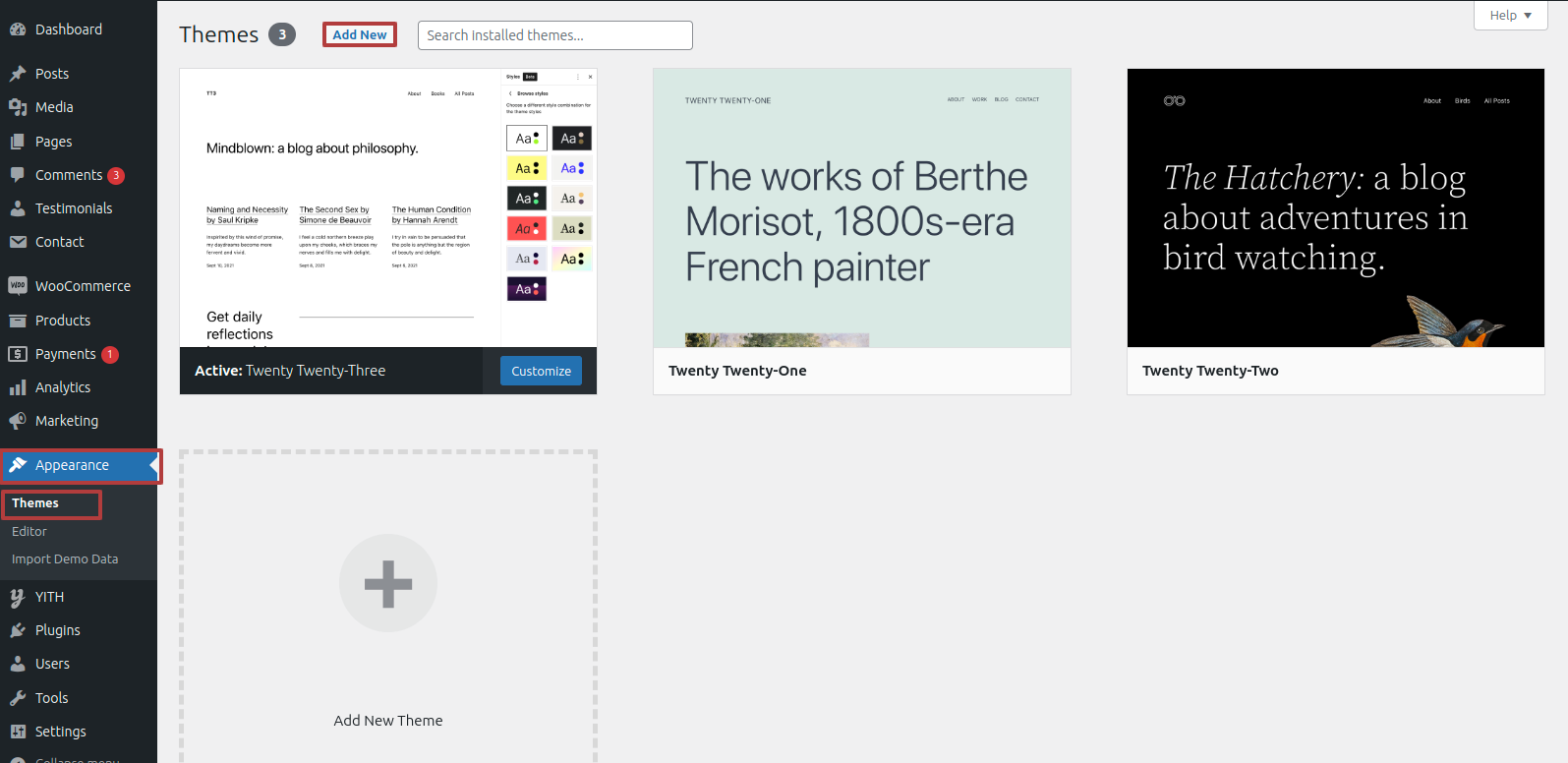
Formerly from a page allocated regarding themes, select"Add New" from the menu beyond the web page.
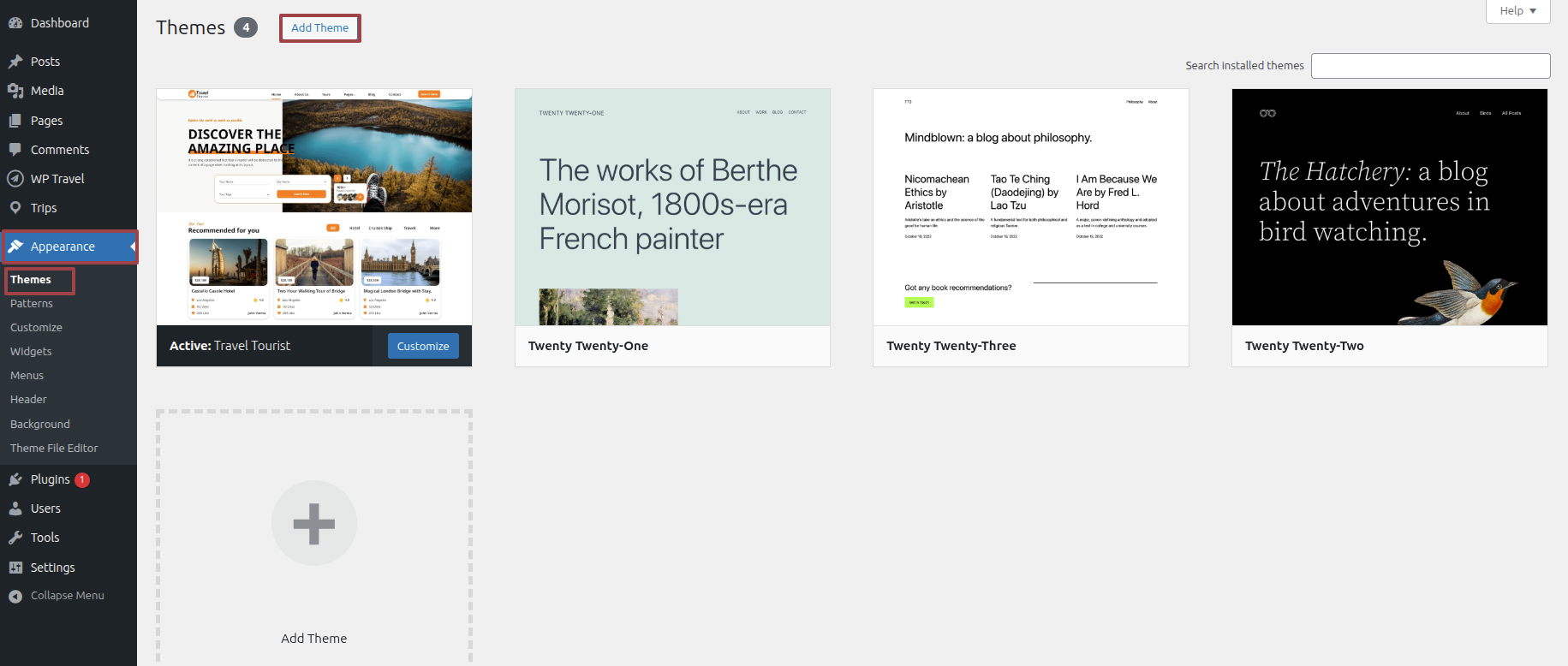
Clicking the "Upload Themes File". clasp is necessary.
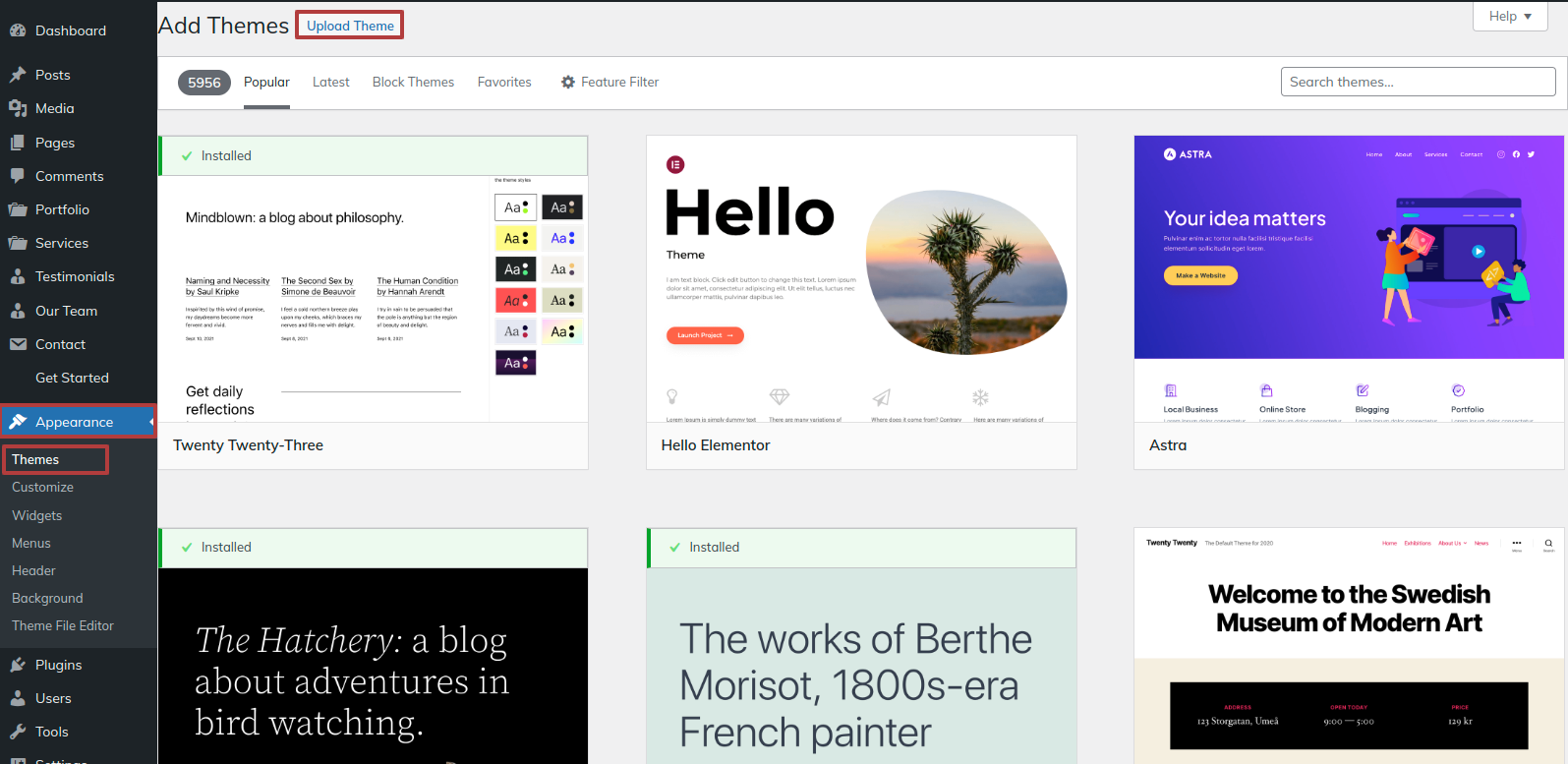
After choosing your preferred travel-tourist.zip theme, click the Browse button and click the Now Installing button.
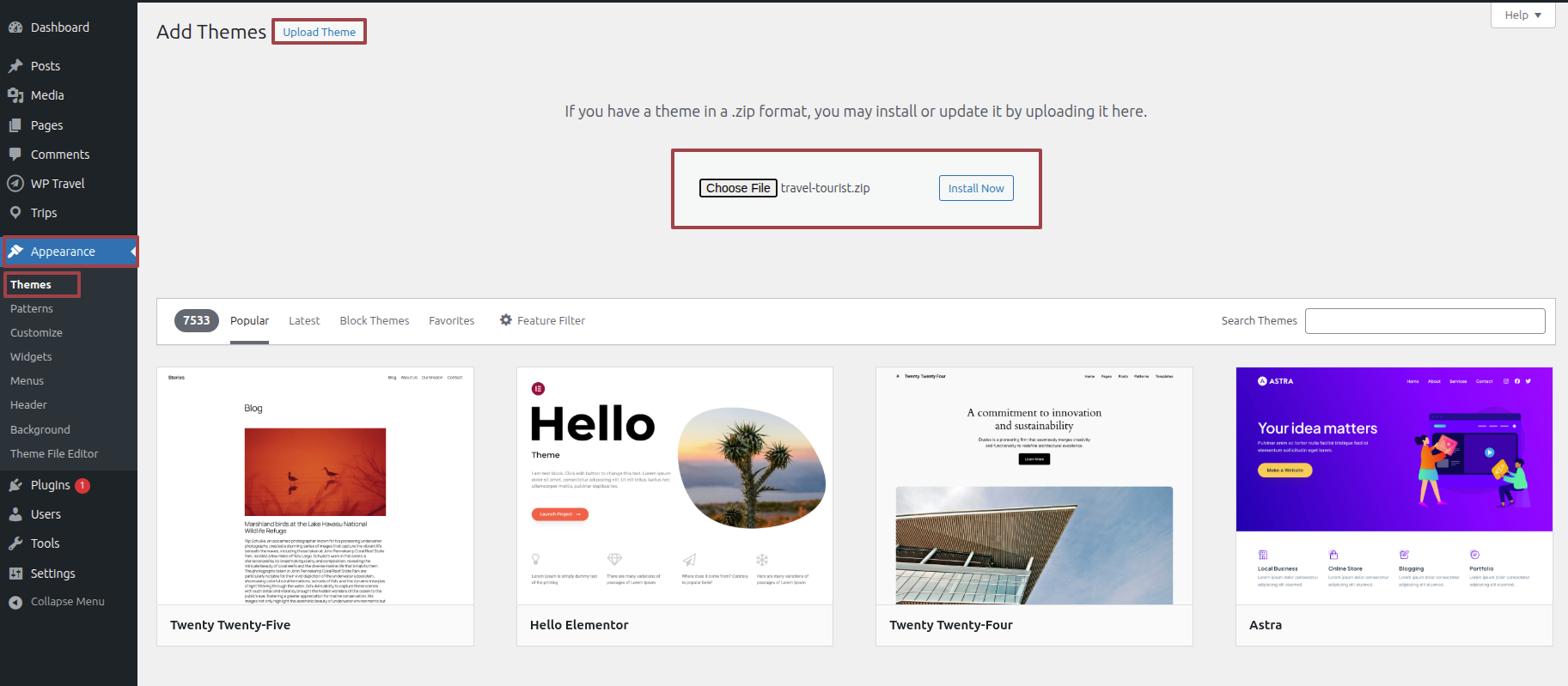
At this point, WordPress will install the theme of your choice while provide a note regarding accomplishment many variants to get activate or view a live preview of the theme.
Section on Developing The Demo Import
Regarding Demo Import Configuration.
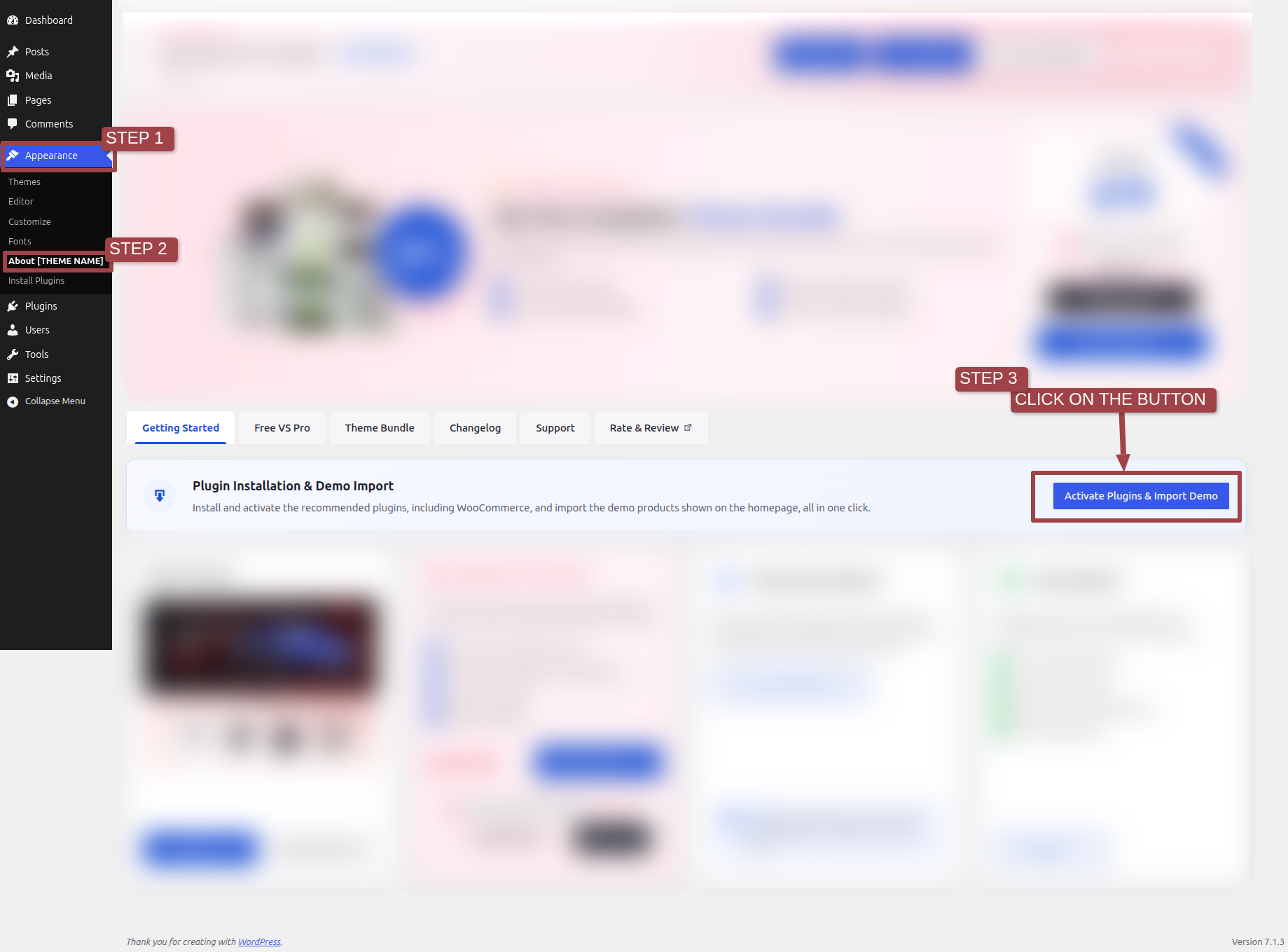
Establish your website rapidly by importing demo content with a single click. These sample pages provide a pre-designed structure and clear guidance, streamlining customization and effectively demonstrating theme capabilities for a swift and impactful website deployment.
.1) To modify your theme options open"Dashboard" By going to "Appearance" Proceed to "About Travel Tourist" .
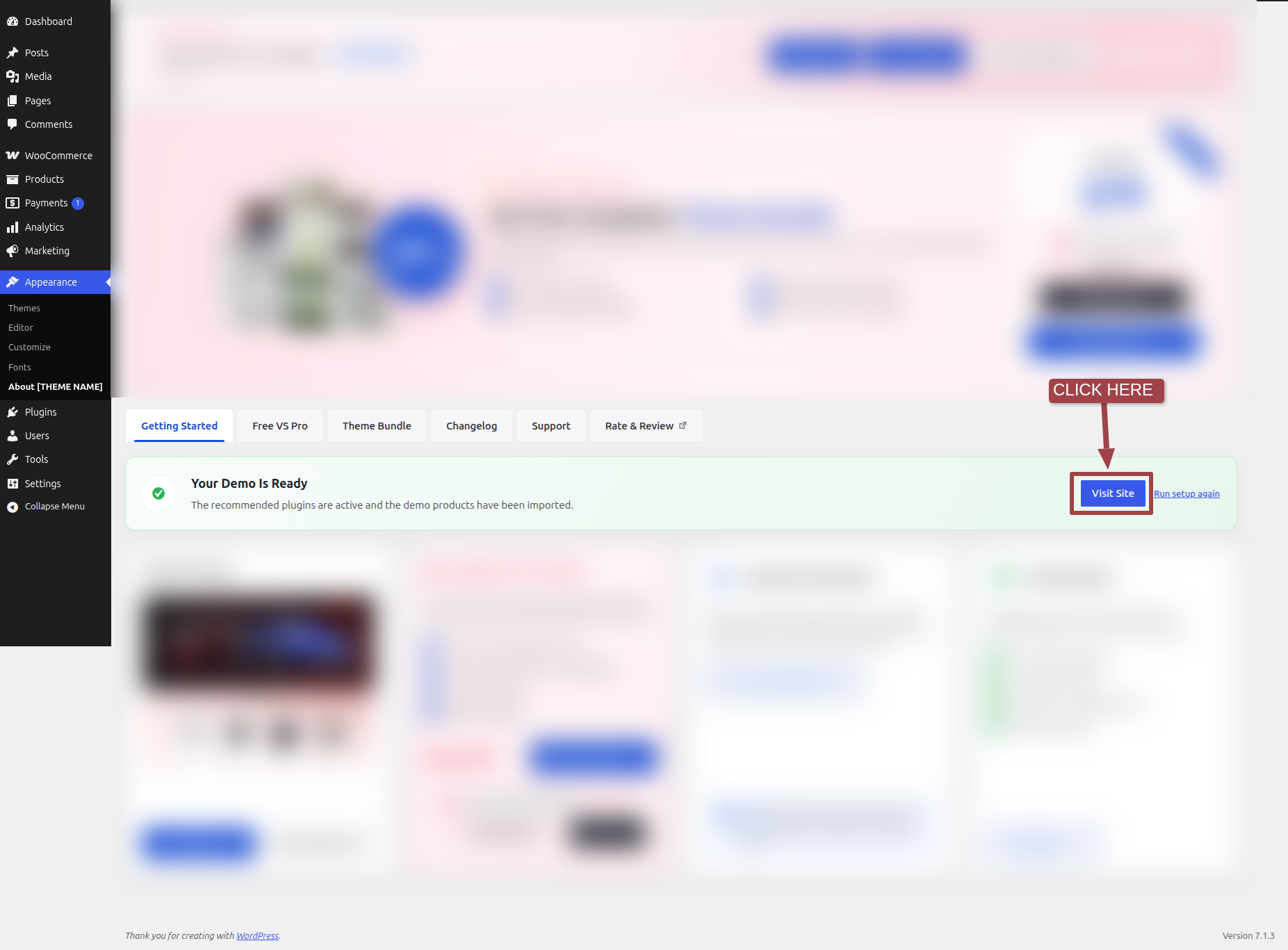
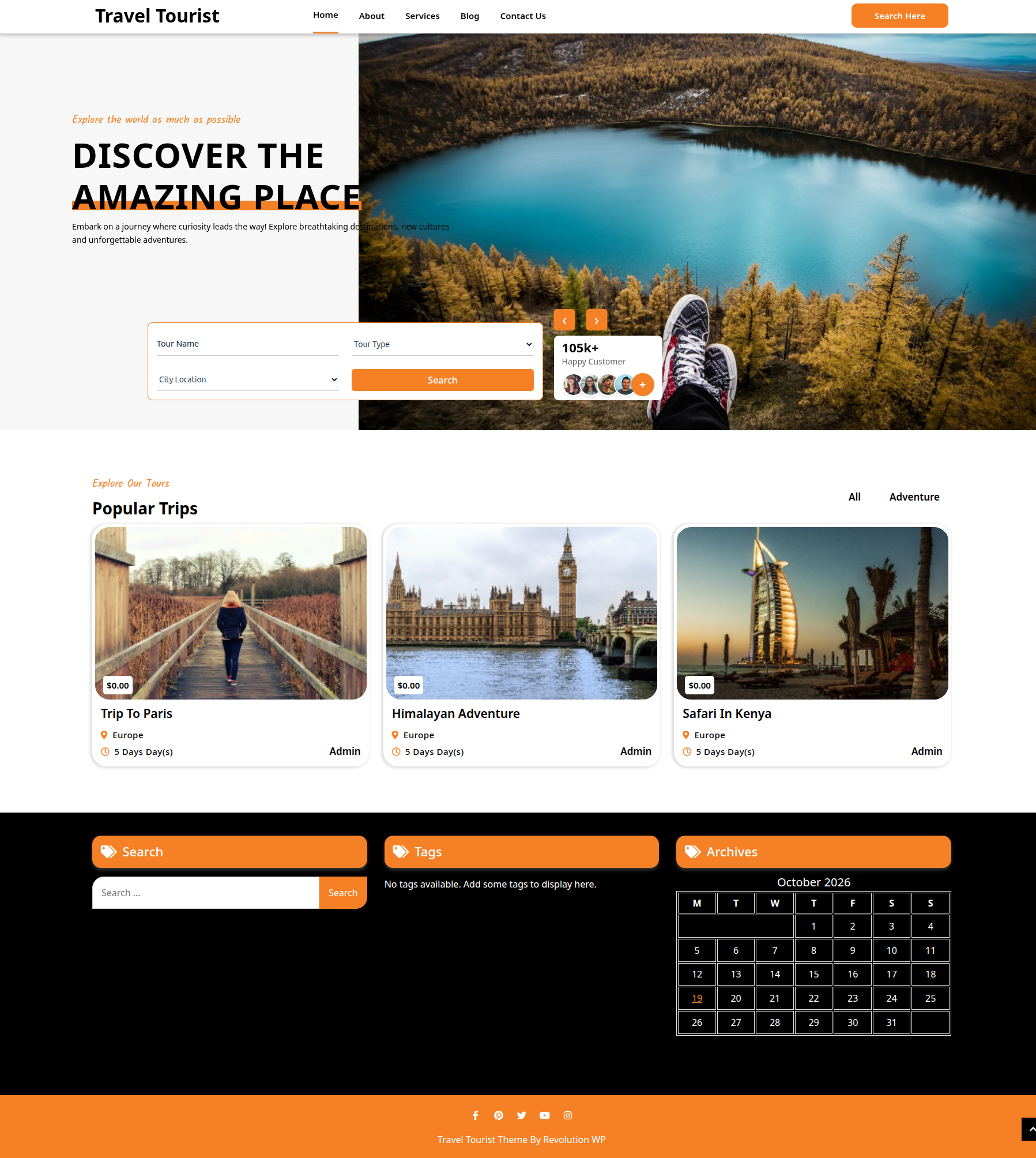
This is how the Front page will display it.
Section on Developing The Navigation
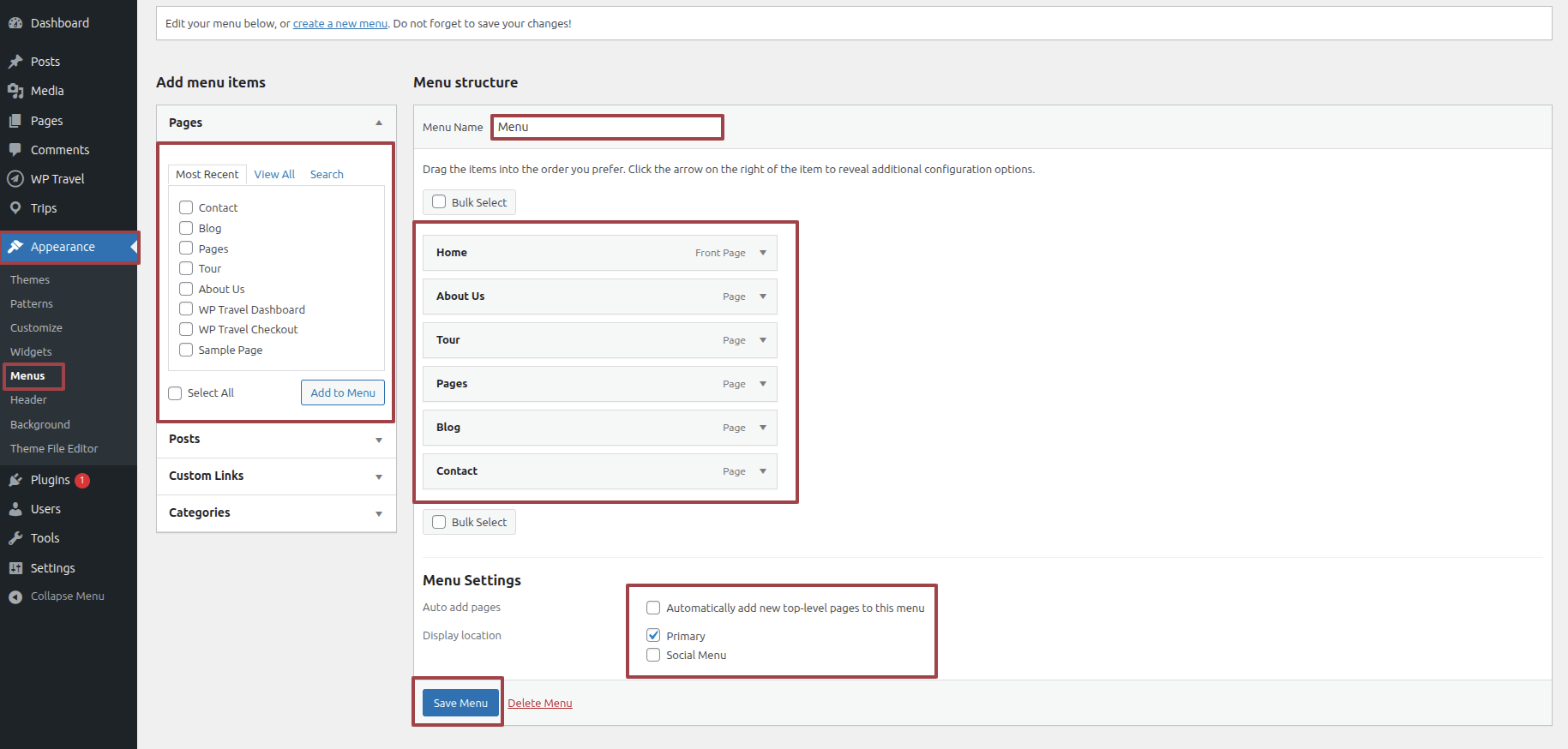
- Go to the Dashbord, choose Pages, and then click Add new page to start the process of creating a new page.
- Proceed to Appearance and select Menu
- By selecting New Menu, you can create a menu.
- Name the menu and press the Save button in the Menu Name column.
- Mostly the menu has been created, check the boxes next to the pages you wish to add. You must drag the necessary section to change the order of the sections.
- From the boxes with checks, choose the menu location on the footer.
- The Primary Menu checkbox causes Menu Stars to appear on the header if it is selected.
For a clearer understanding, view this screenshot.
Section on Developing The Site Identity
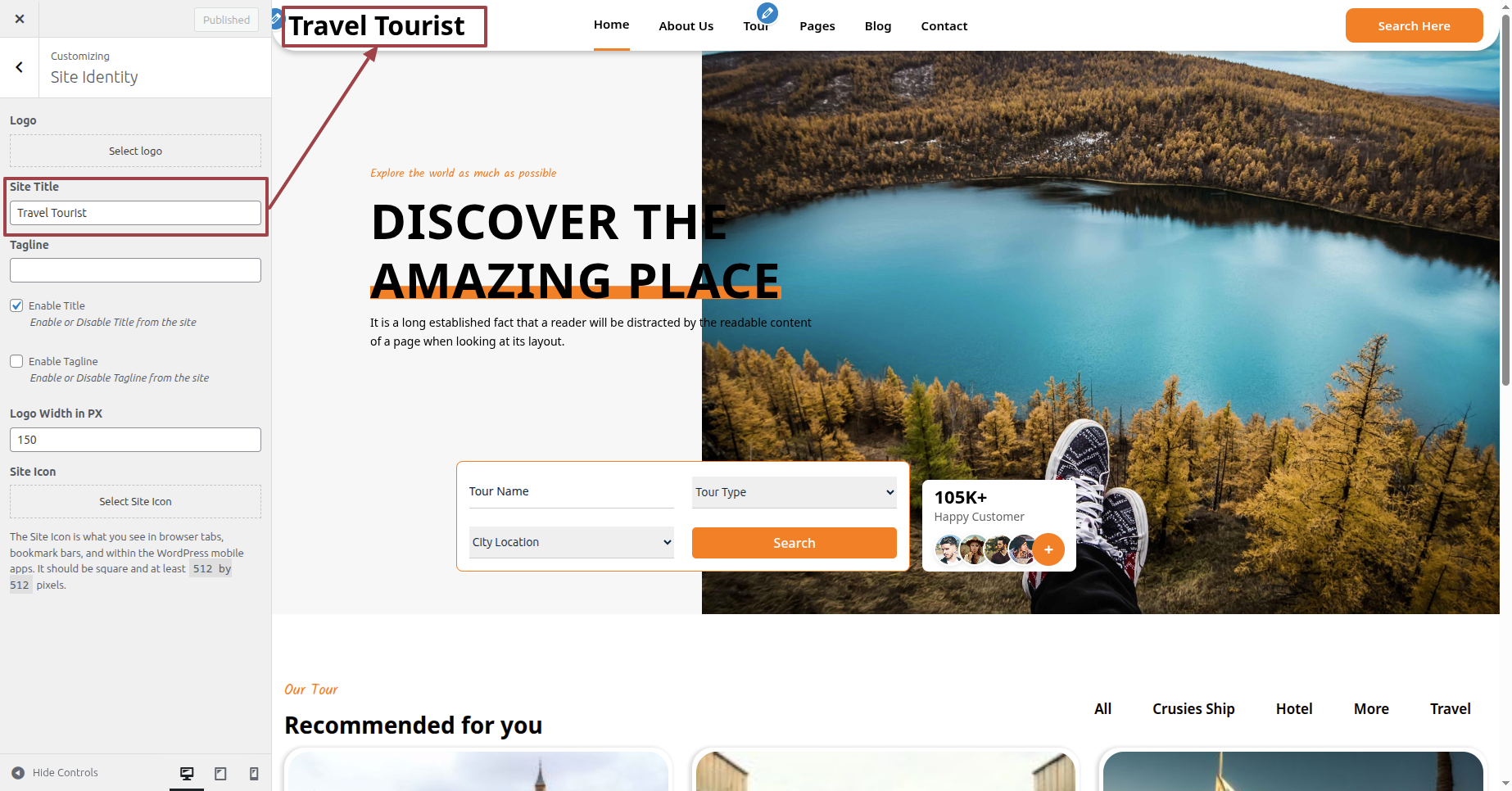
Putting the logo in the header.
To modify your theme options open"Appearance" By going to "Customize" Proceed to"Site Identity".
Section on Developing The Main Header Options
Regarding Main Header Options Configuration.
To modify your theme options open"Appearance" By going to "Customize" Head over to "Travel Tourist Theme options" Proceed to "Main Header Options" .
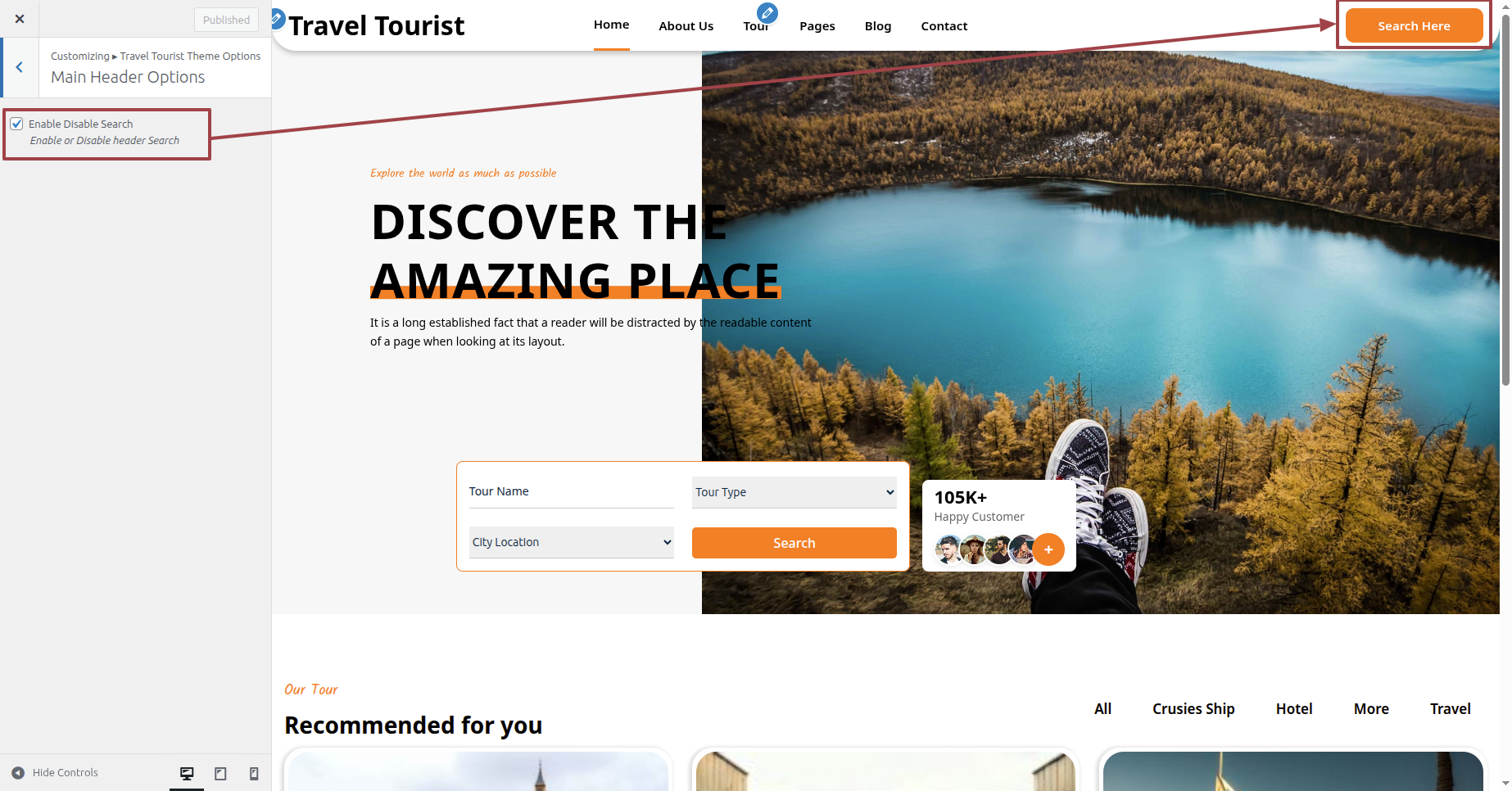
This is how the Main Header Section will display it.

Section on Developing The Main Slider Options
Regarding Main Slider Options Configuration.
Installation Instructions for Required Plugins
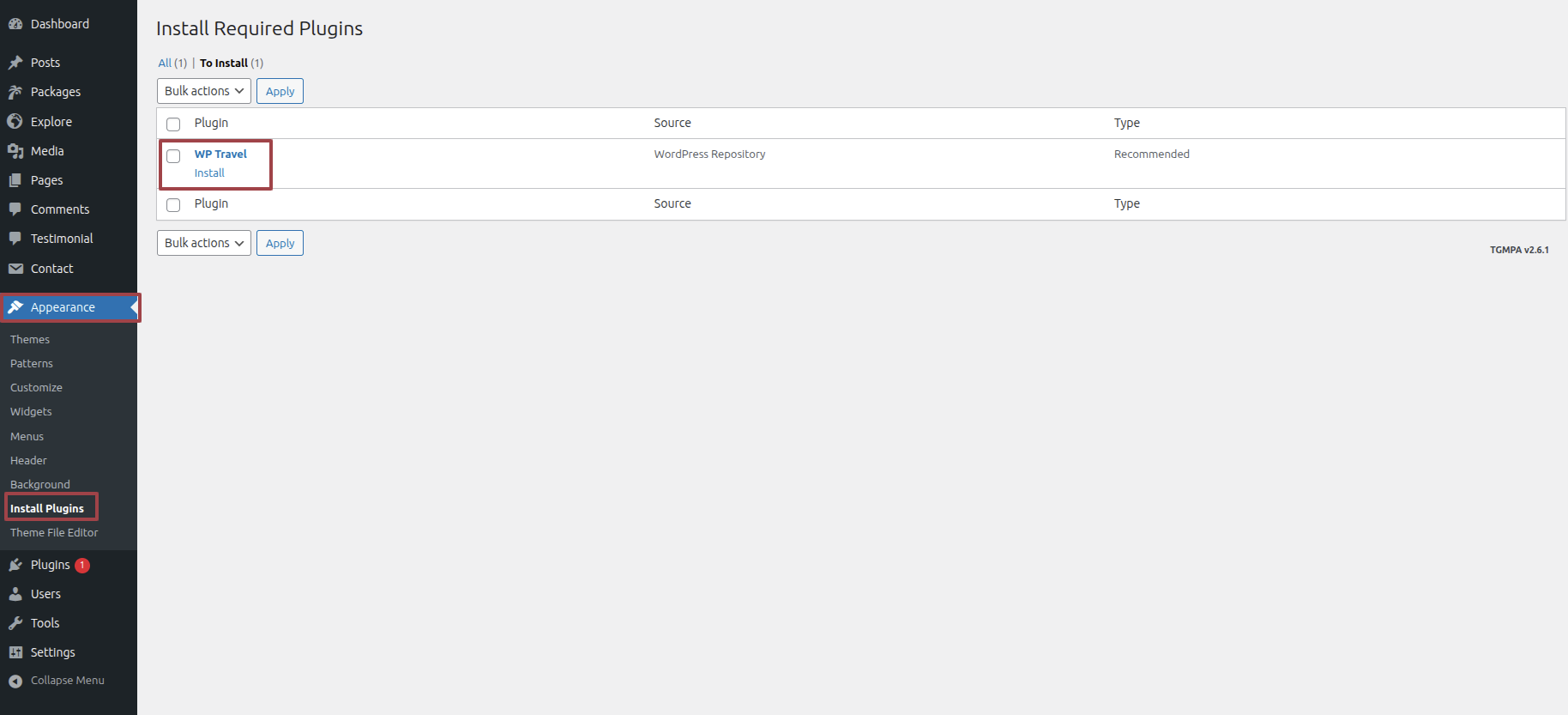
To enable the search Form, please follow the steps below:.
To modify your theme options open"Dashboard" By going to "Appearance" Proceed to "Install Plugins" .
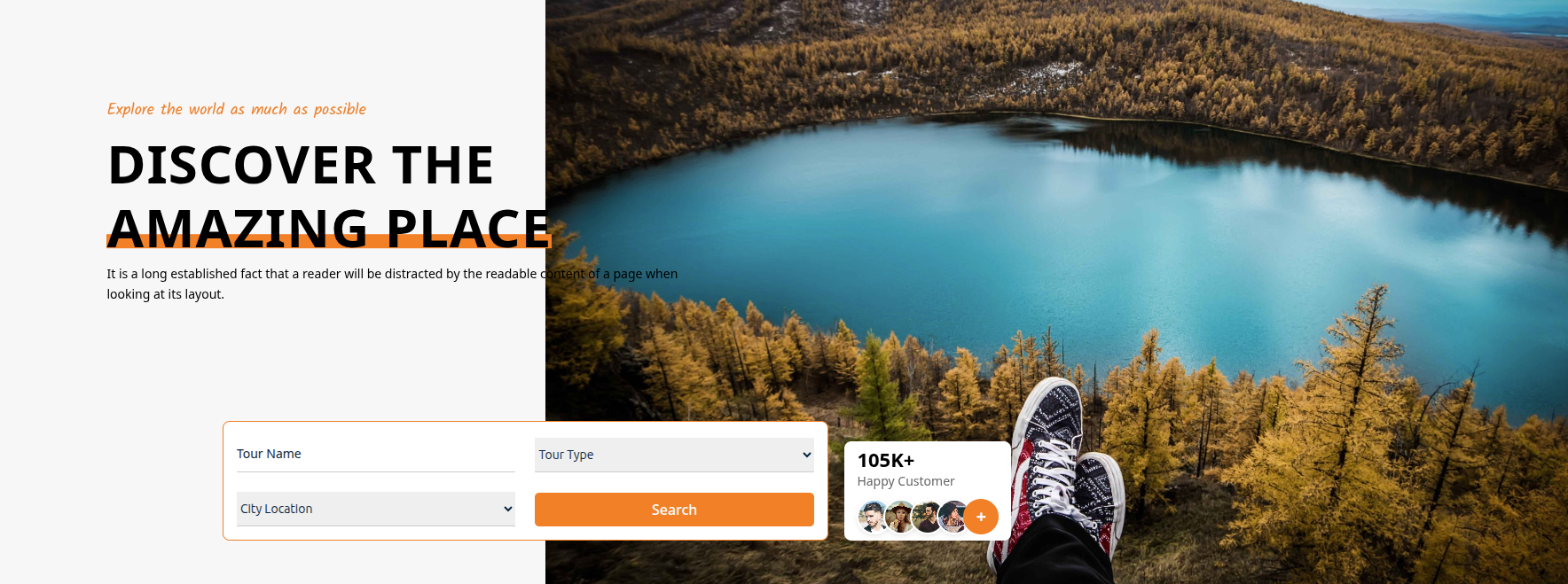
To modify your theme options open"Appearance" By going to "Customize" Head over to "Travel Tourist Theme options" Proceed to " Main Slider Options" .
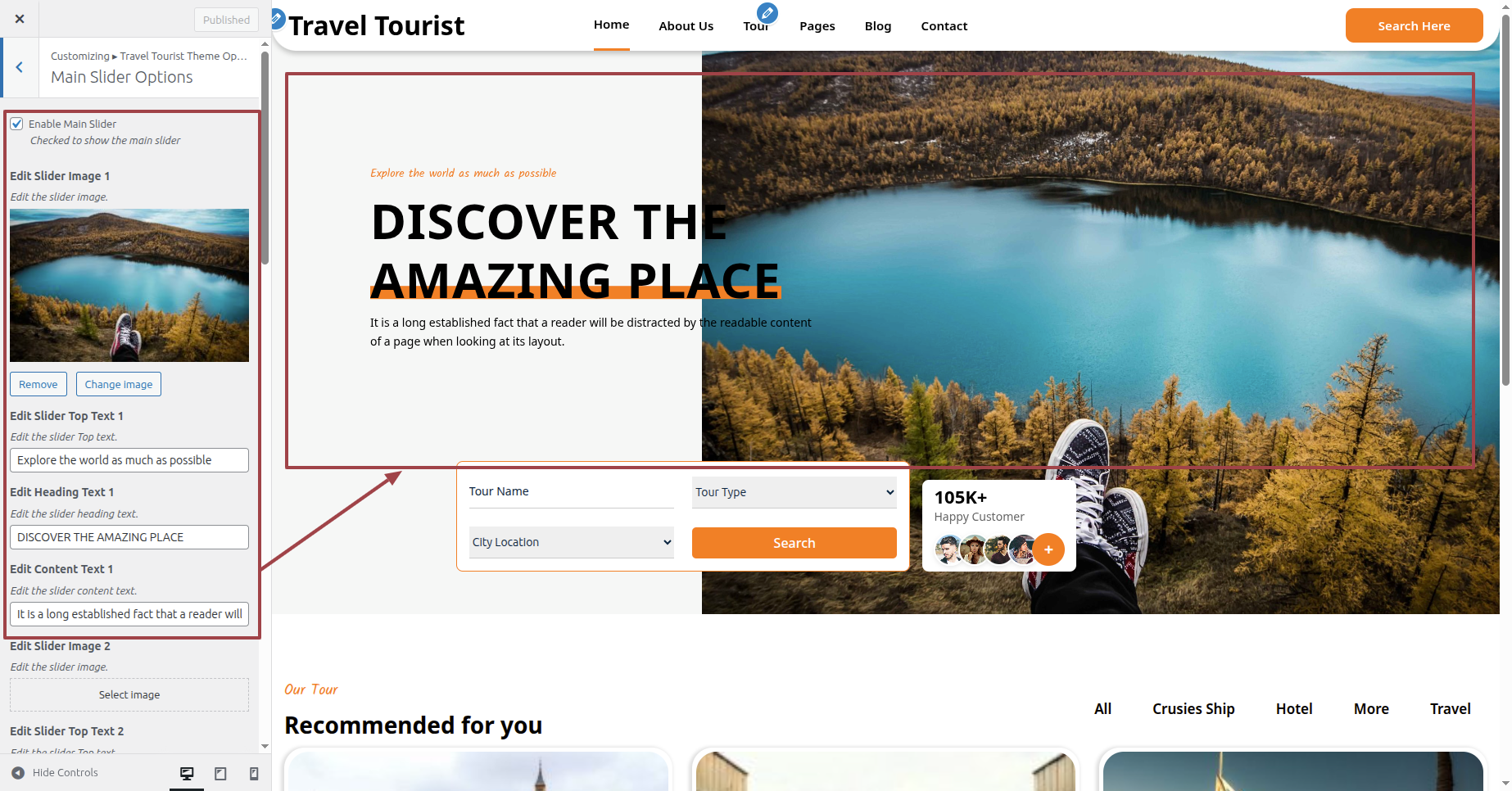
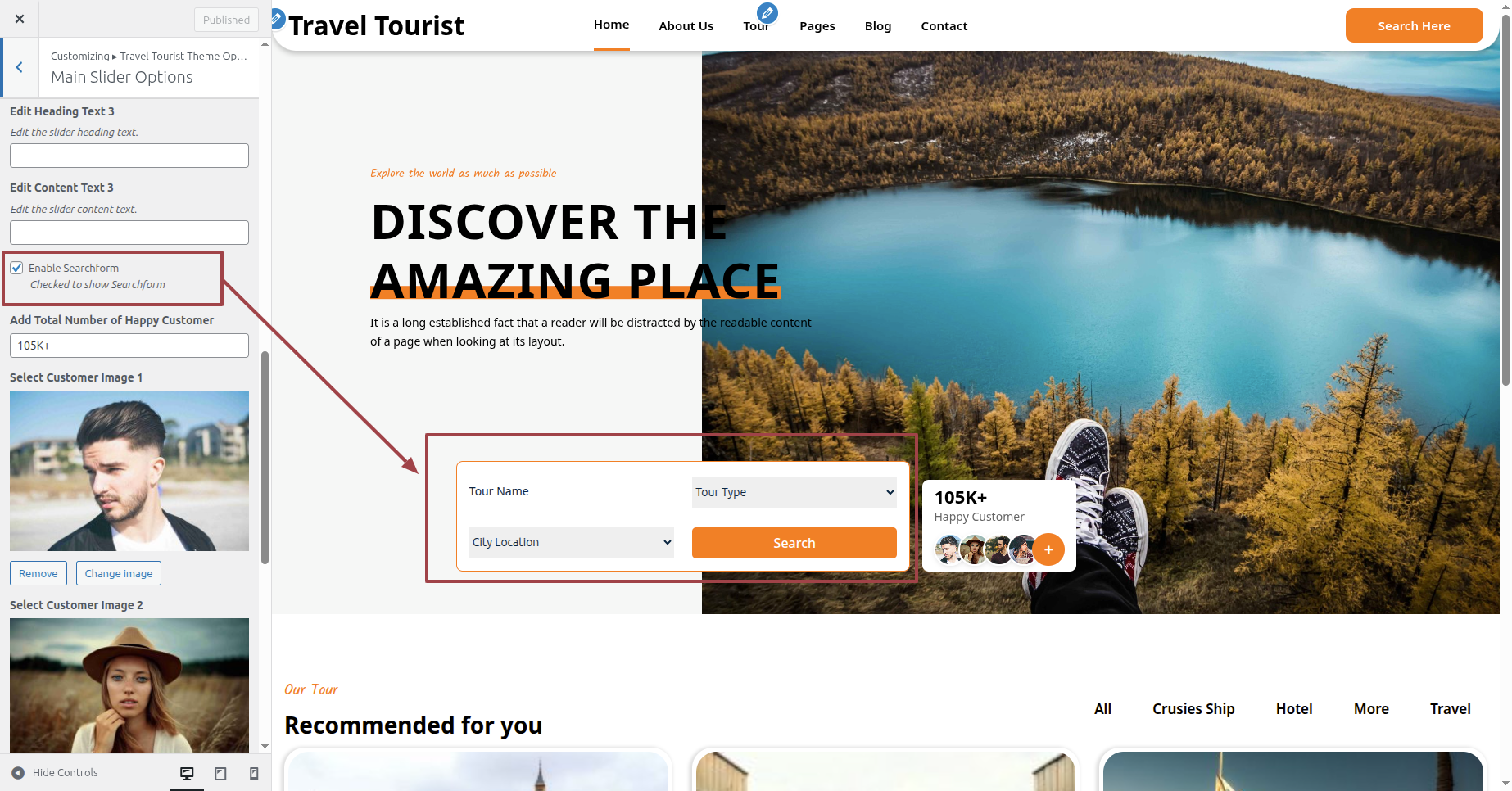
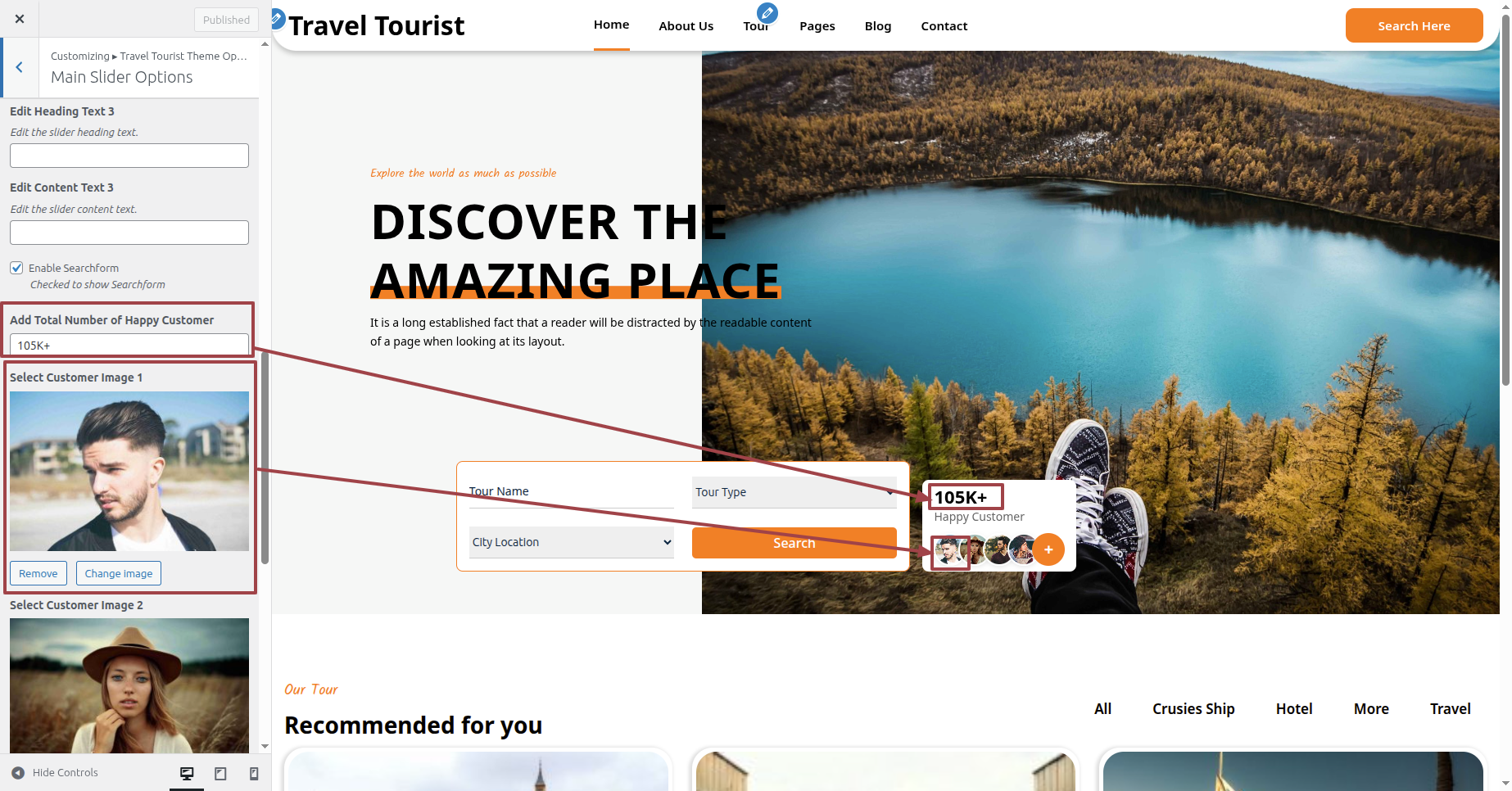
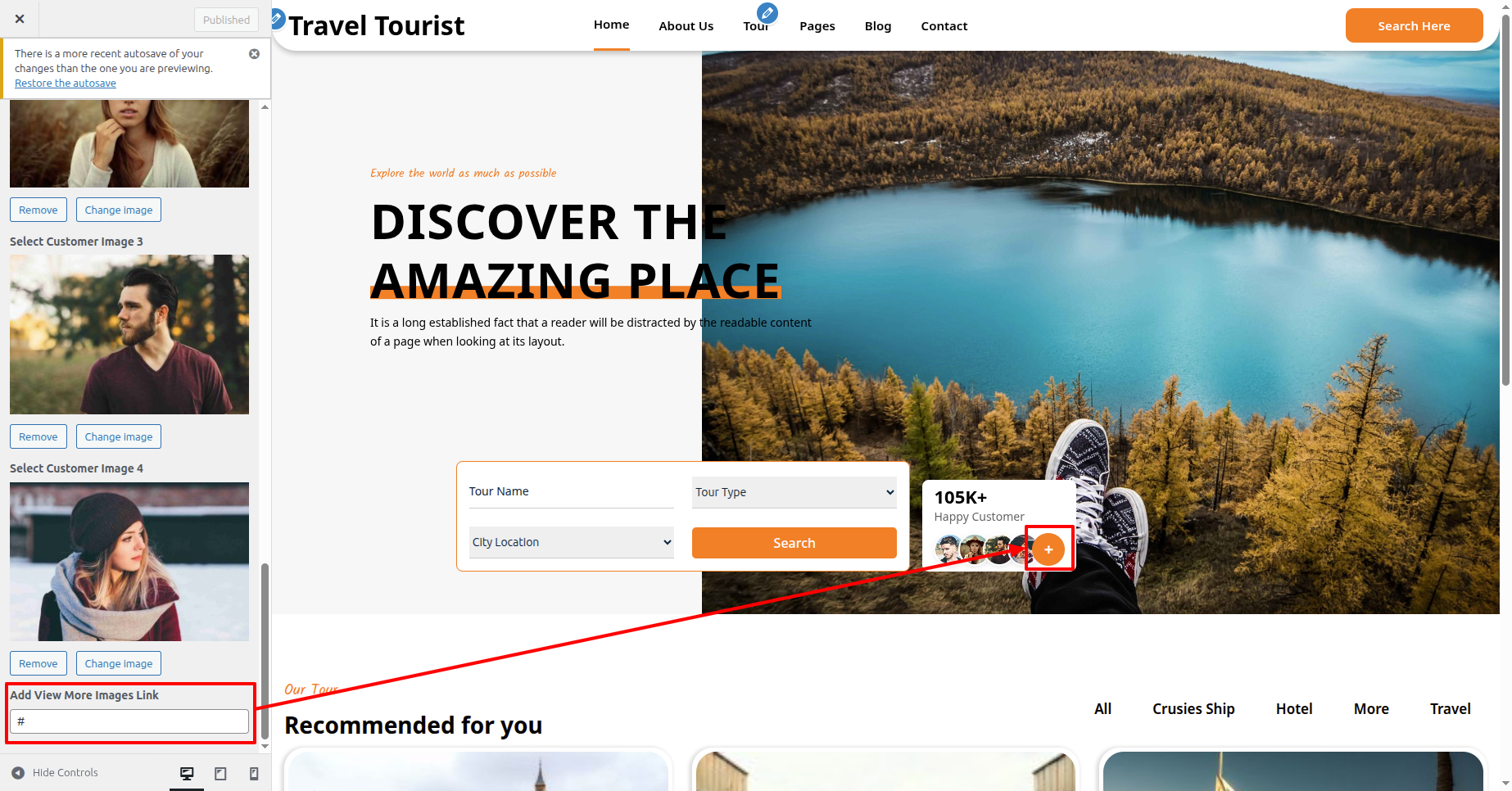
This is how the Main Slider Section will display it.
Section on Developing The Our Tour Options
Regarding Our Tour Options Configuration.
Installation Instructions for Required Plugins
To enable the Our Tour Section, please follow the steps below:.
To modify your theme options open"Dashboard" By going to "Appearance" Proceed to "Install Plugins" .
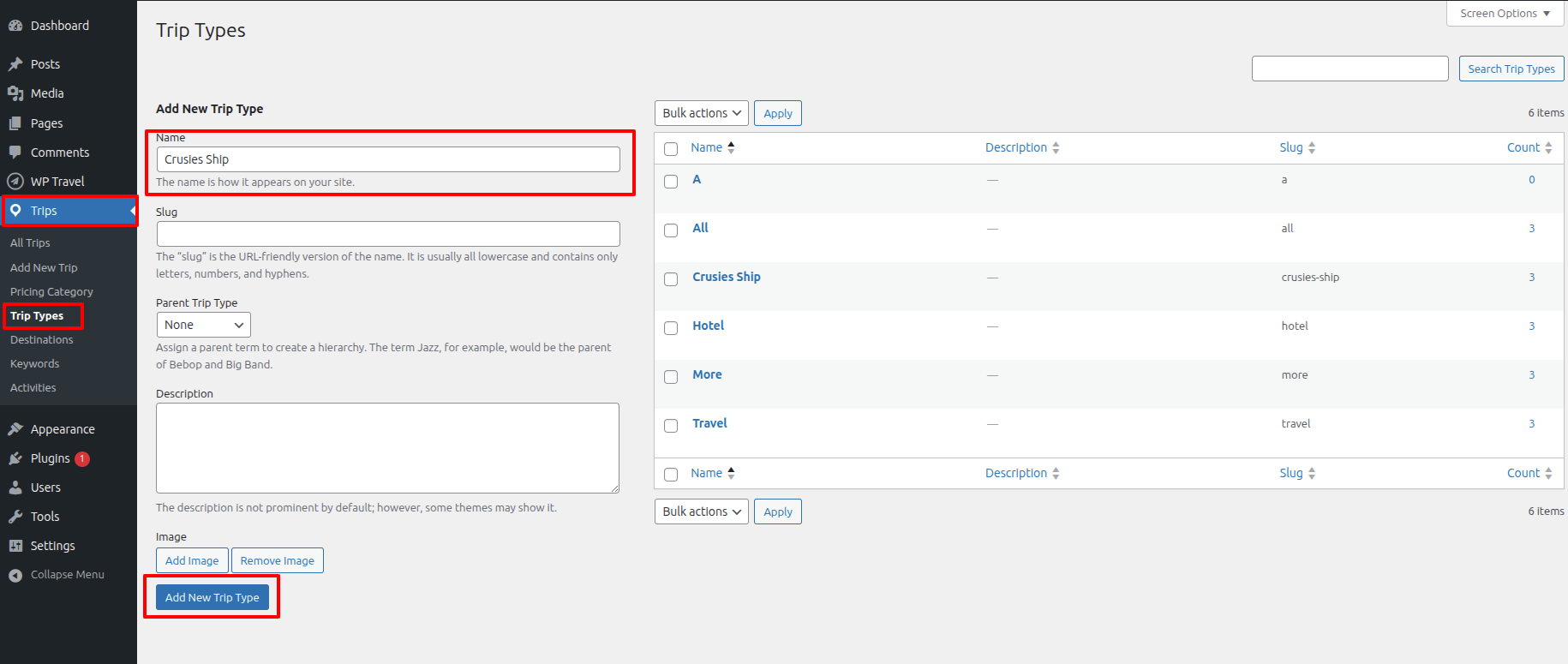
After installing the plugins, go to Trips, then under Trip Type create Trip Type, then it will be displayed on your front end.
To modify your theme options open"Dashboard" By going to "Trips" Proceed to "Trip Type" .
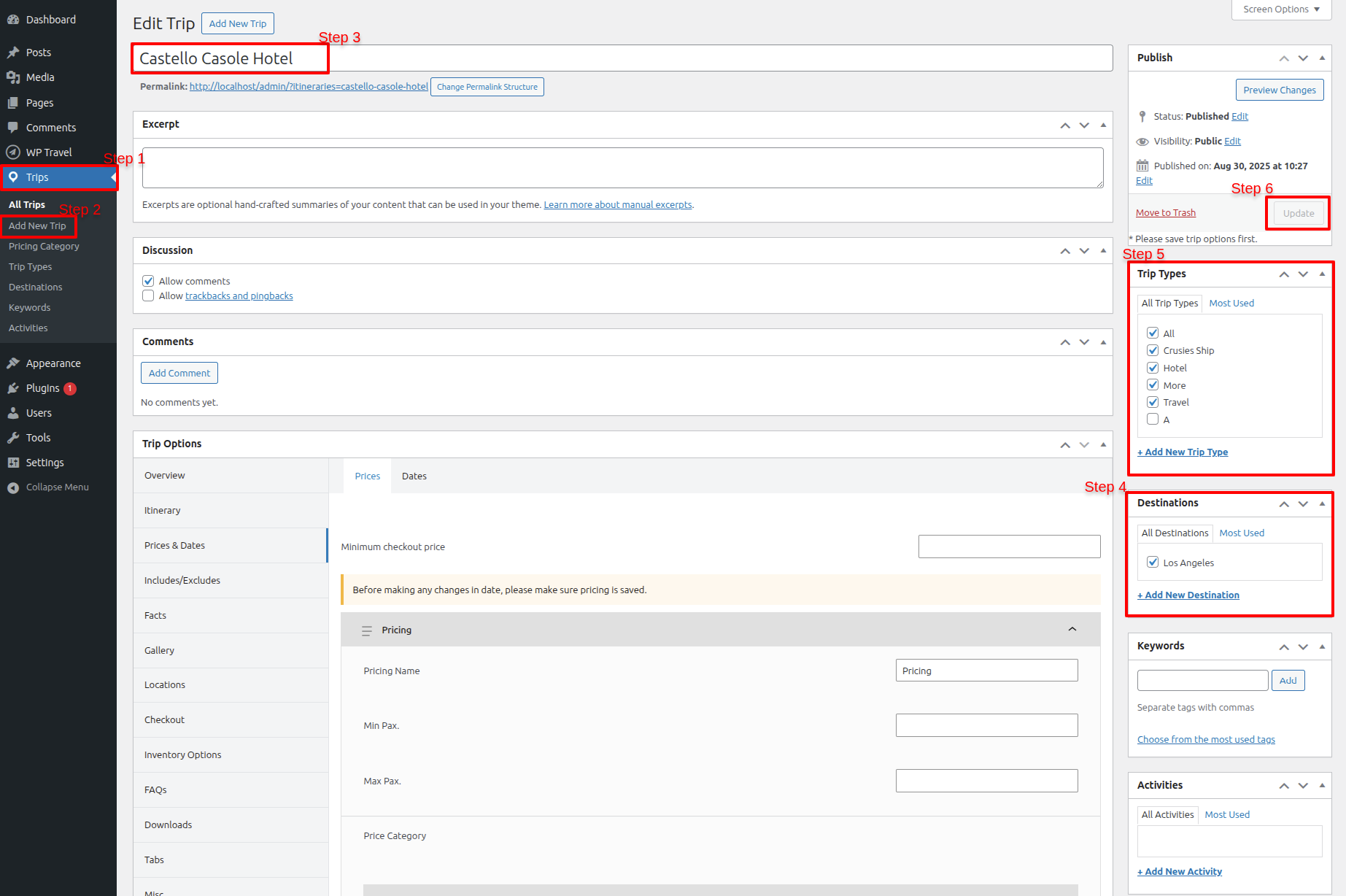
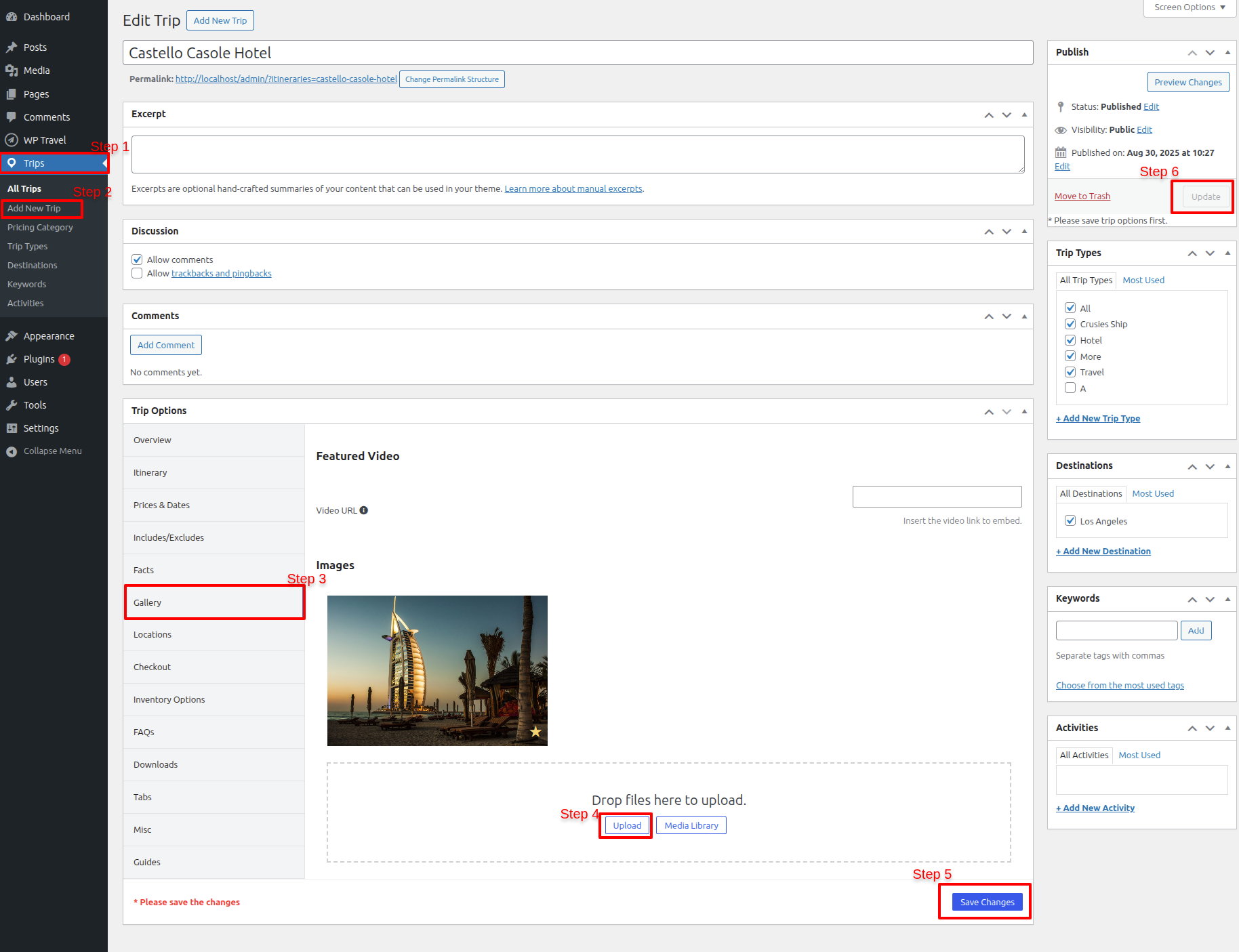
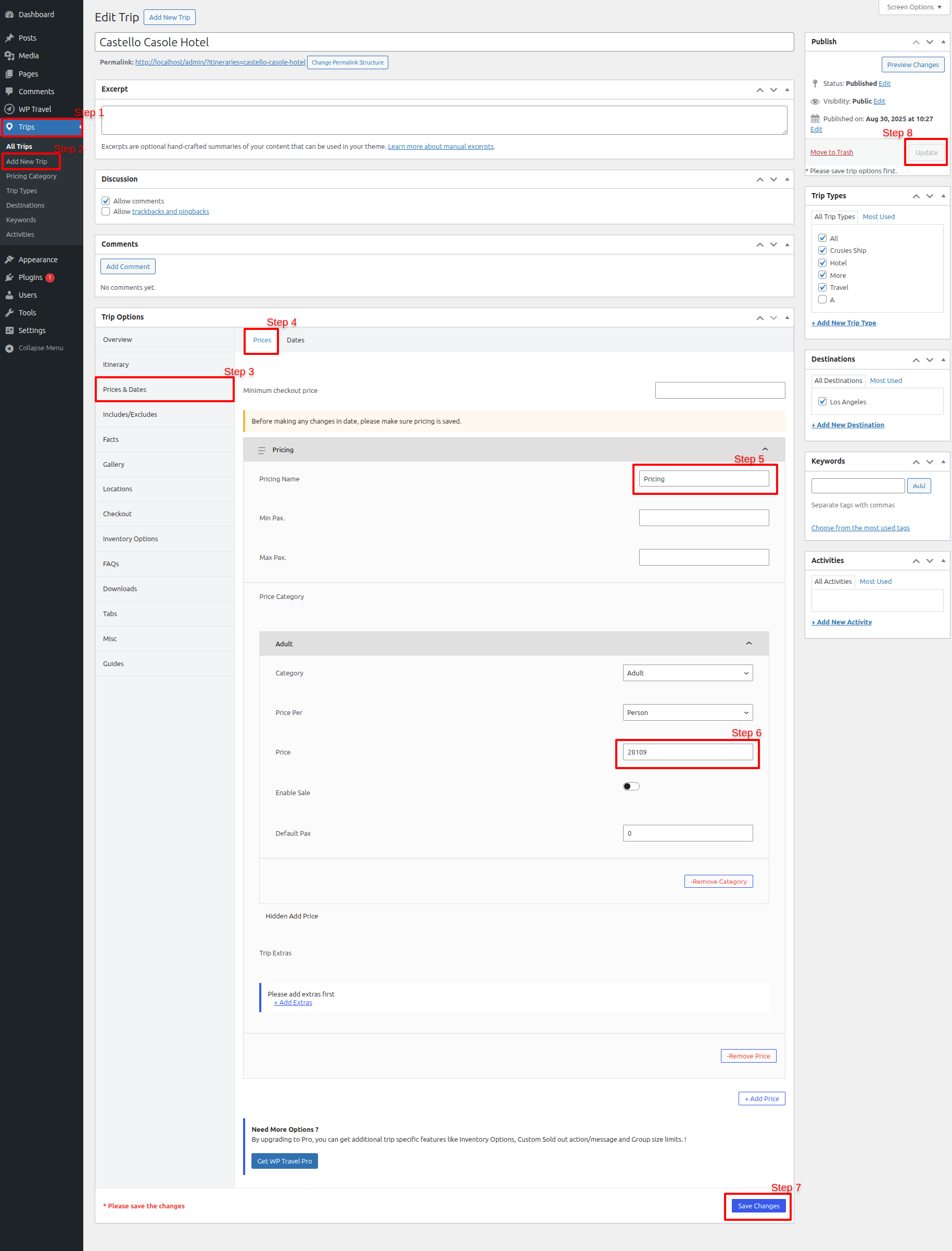
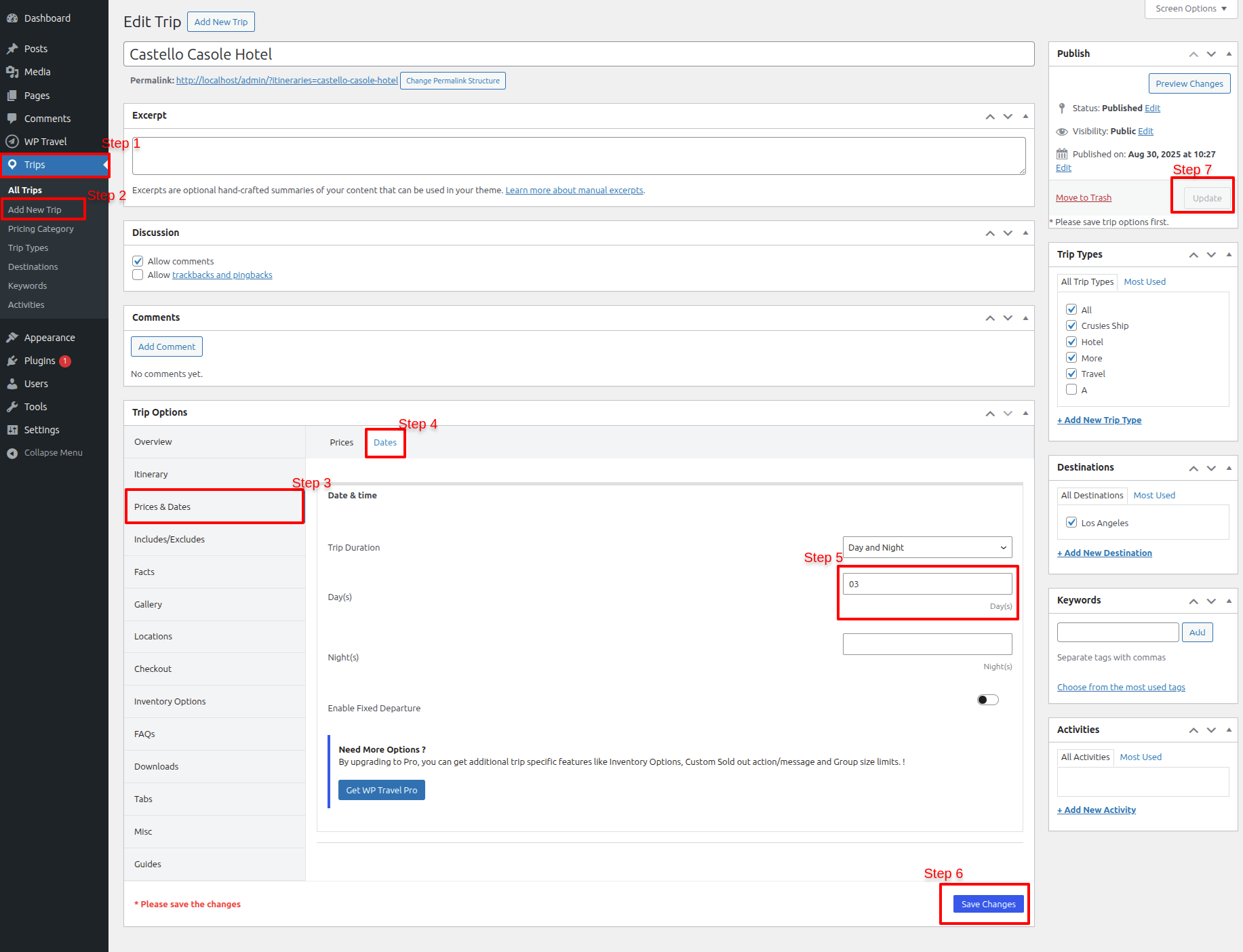
To create posts, go to Trip, then select Add New Trip and make your posts there; once created, they will be displayed on your front end.
In the images, you will see step 1 and step 2; if you follow these, your posts will be created.
To modify your theme options open"Dashboard" By going to "Trip" Proceed to " Add New Trip" .
To modify your theme options open"Appearance" By going to "Customize" Head over to "Travel Tourist Theme options" Proceed to "Our Tour Options" .
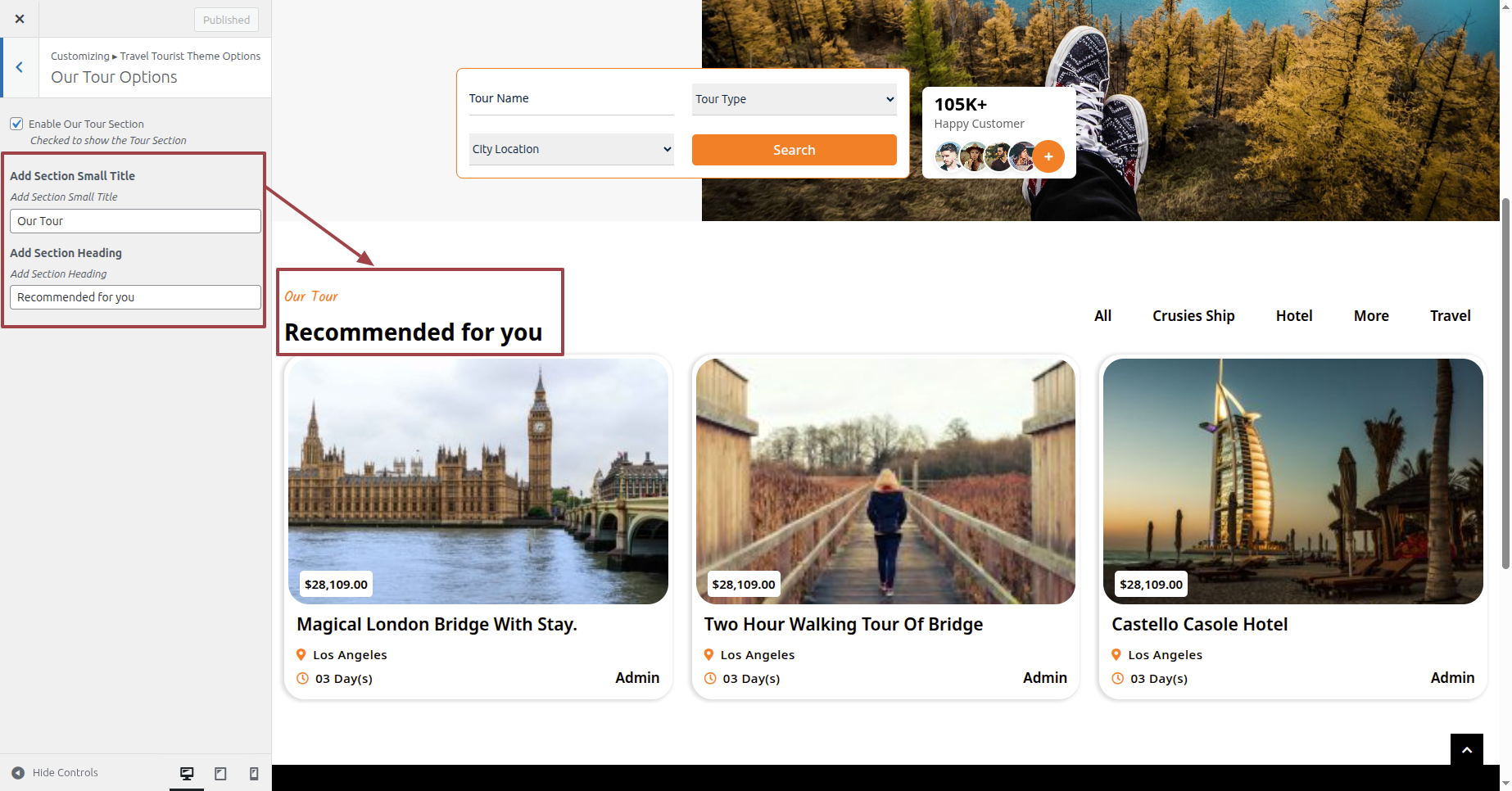
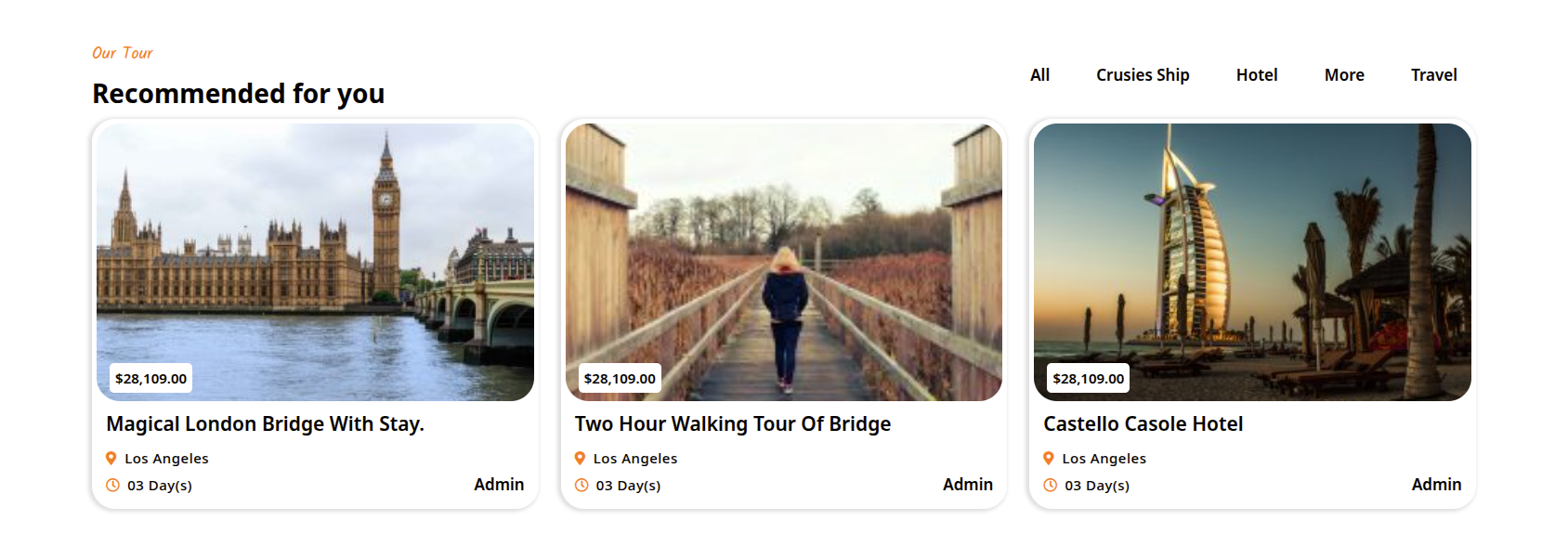
This is how the Our Tour section will display it.
Section on Developing The Footer Options
Regarding Footer Options Configuration.
To modify your theme options open"Appearance" By going to "Customize" Head over to "Travel Tourist Theme options" Proceed to "Footer Options" .
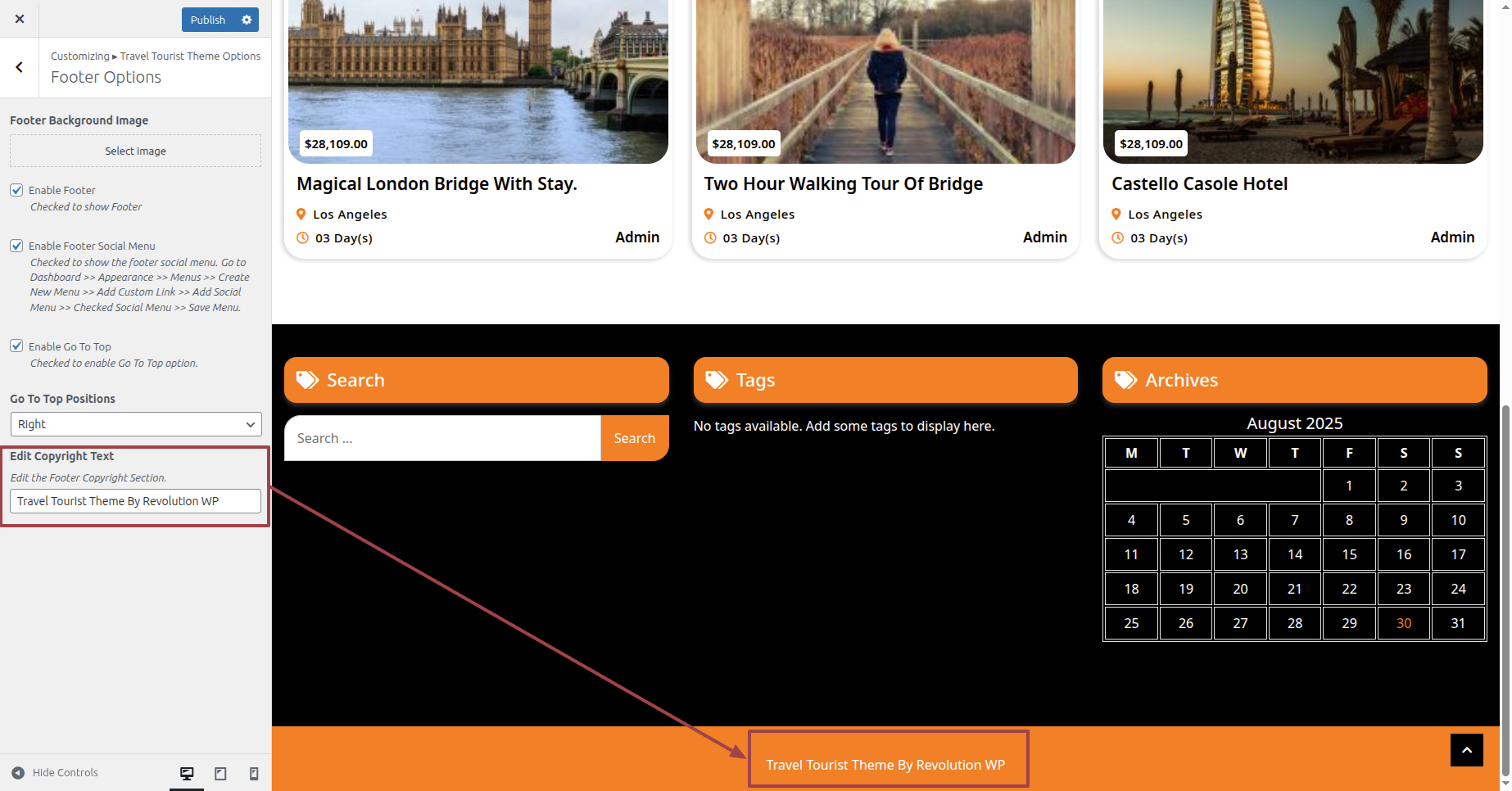
This is how the Footer Section will display it.