



How are the templates installed?
Installing a template is a fairly simple process to follow..
Step 1: A theme can be installed using WordPress Administrator by following these steps.
First, access your WordPress admin panel..
Proceed to the "Appearance" menu and select "Themes."
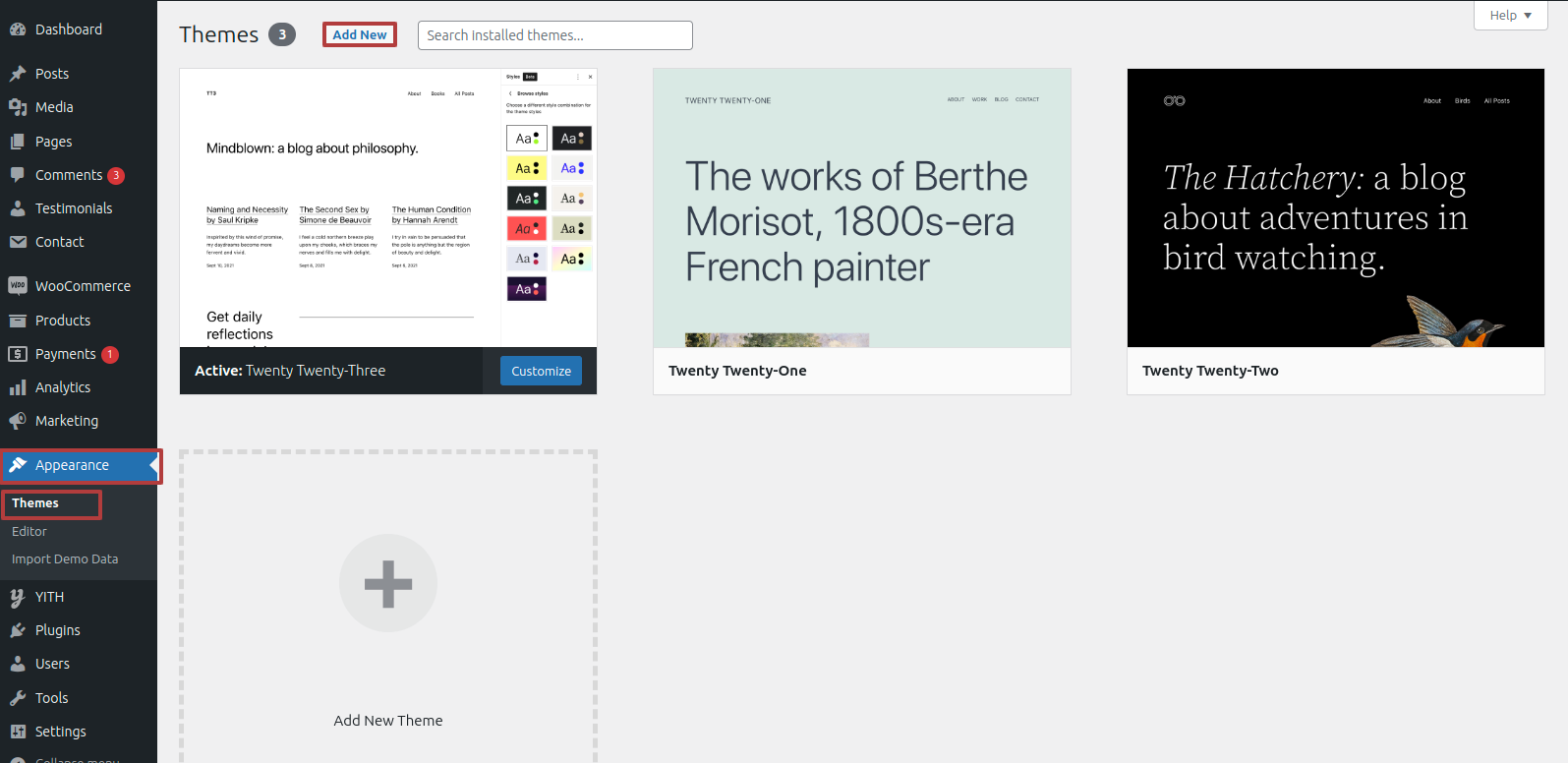
Once on the themes page, select"Add New" from the menu at the top of the page.
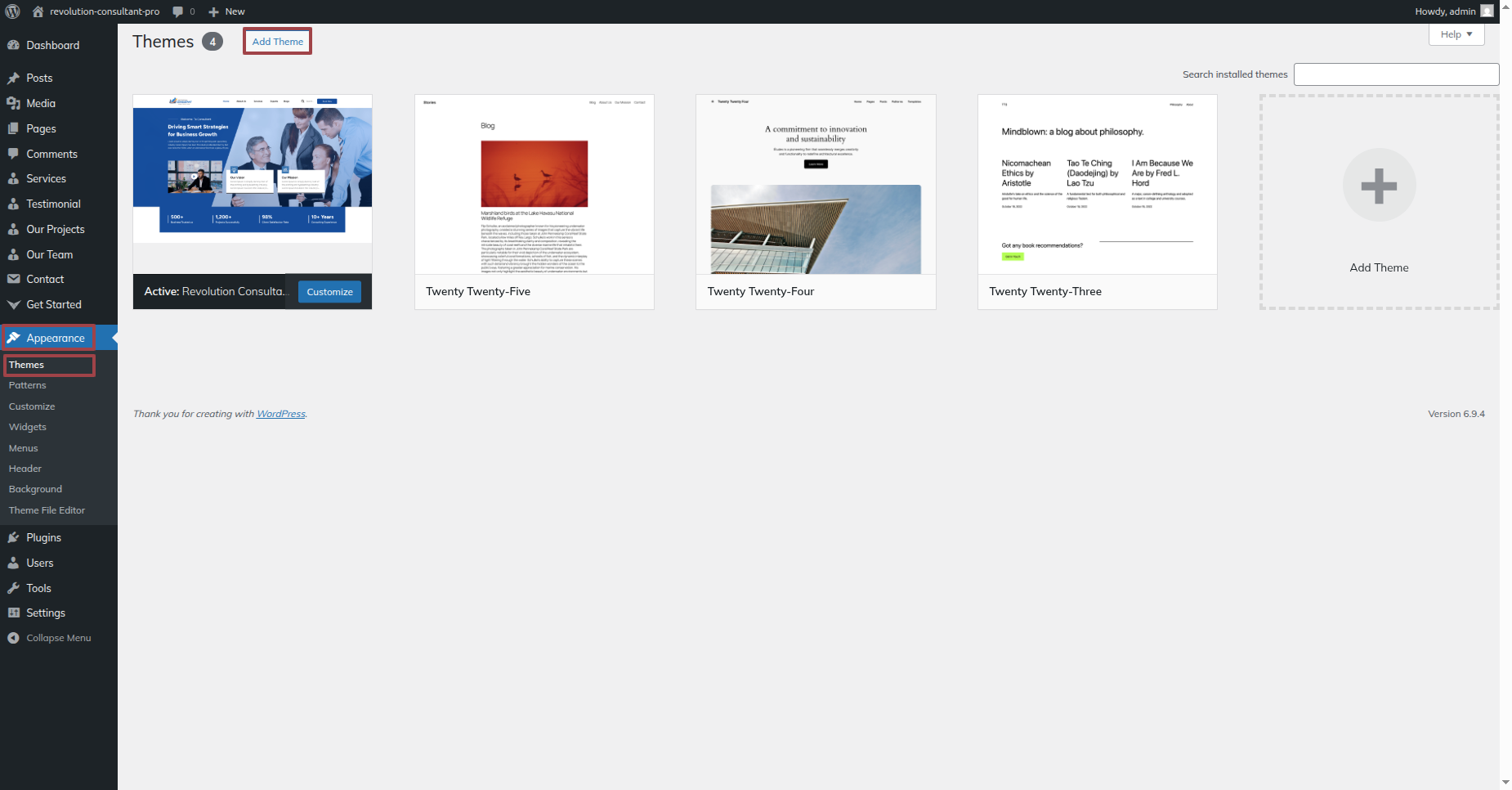
Clicking the "Upload Theme". button is necessary.
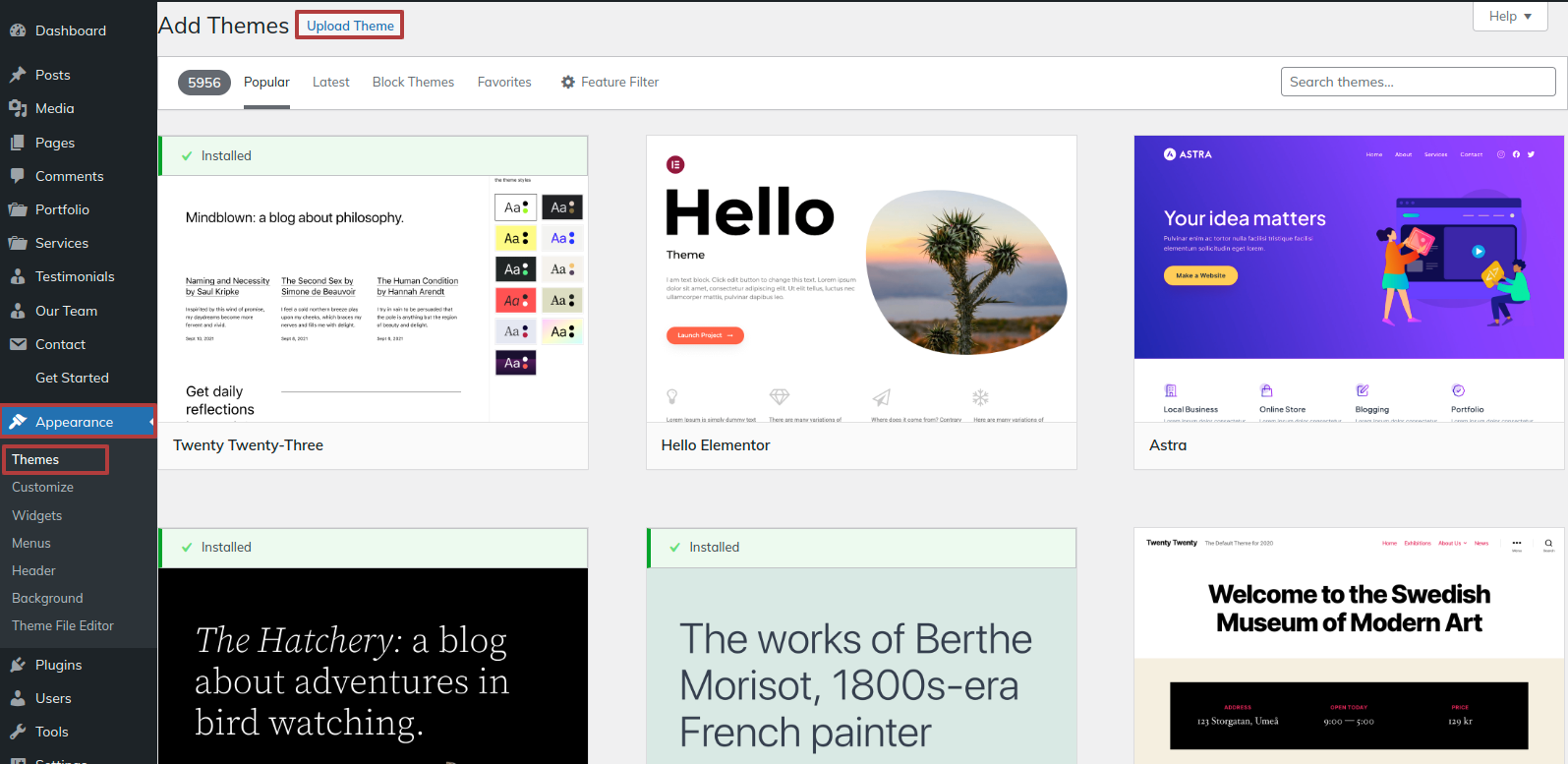
After choosing your preferred corporate-consultancy-pro.zip theme, click the Browse button and click the Now Installing button.
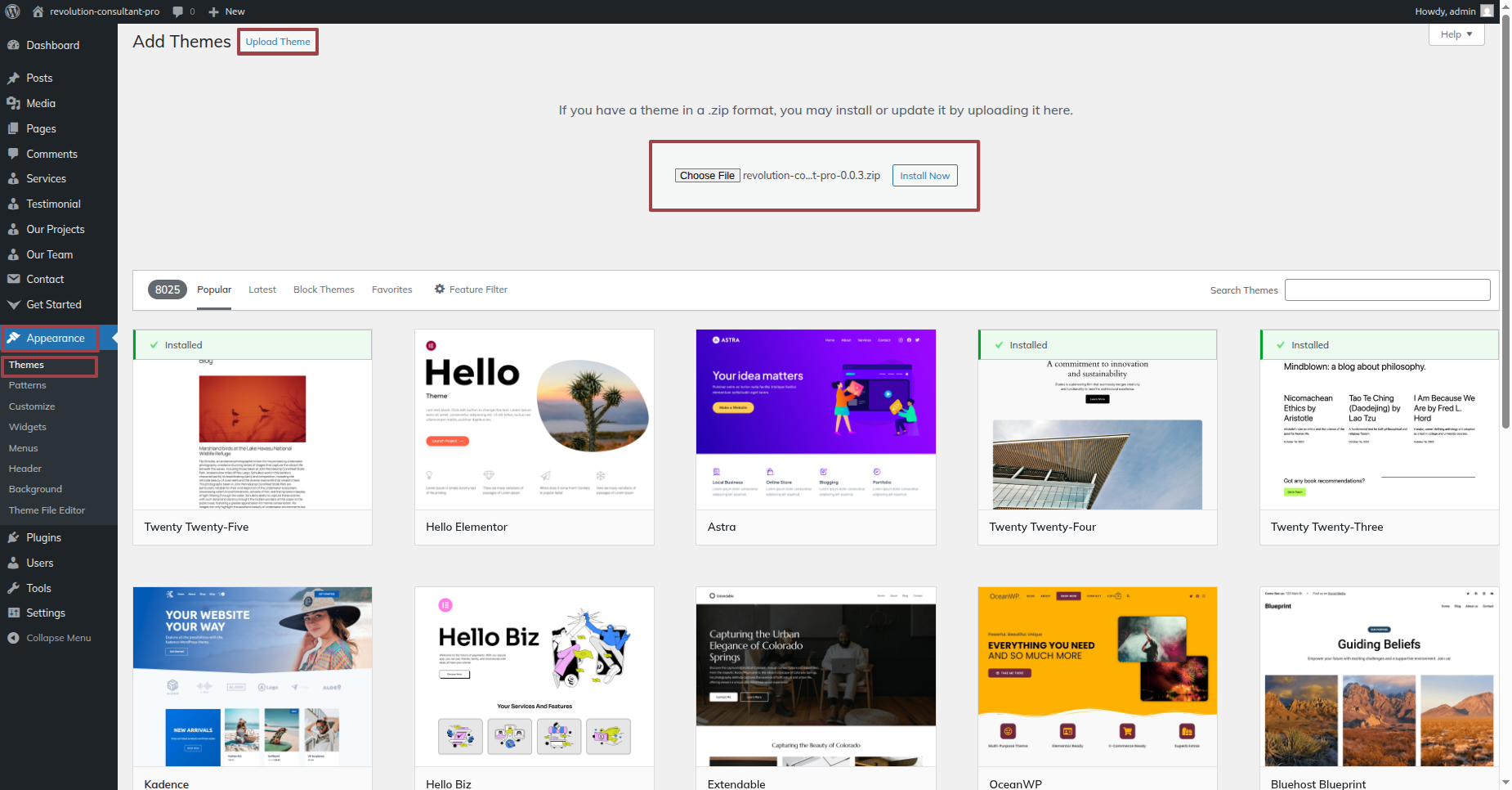
At this point, WordPress will install the theme of your choice and display a success message with options to activate or view a live preview of the theme.
STEP 2. INSTALL A THEME THROUGH FTP
The theme can also be uploaded via FTP as an additional installation method. Using this method requires that you first use FTP to access your website and navigate to the wp-content/themes folder. To get started, just download the theme file to your server, then extract the Total folder.
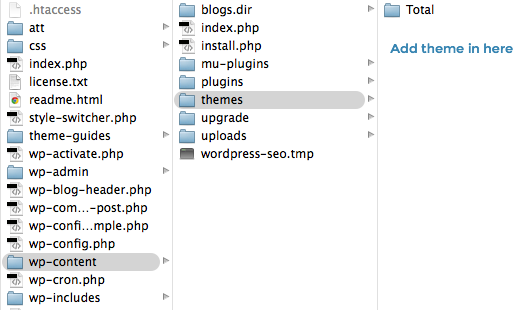
Next, sign into WordPress and go to the "Appearance" page. By selecting "Themes" under Appearance, you can activate the entire folder
INSTAL ALL NEEDED PLUGIN
Using plugins, you can increase WordPress's functionality.
The Way Plugins Are Enabled Activating the plugin is required if you want these features in your theme. Use the procedures listed below to activate the plugin in your theme.
The methods described below can be used to manually install a WordPress plugin from a.zip file.
1. Add Plugin : Visit the Dashboard By going to Plugin Head over to Add New Proceed to Upload plugin .
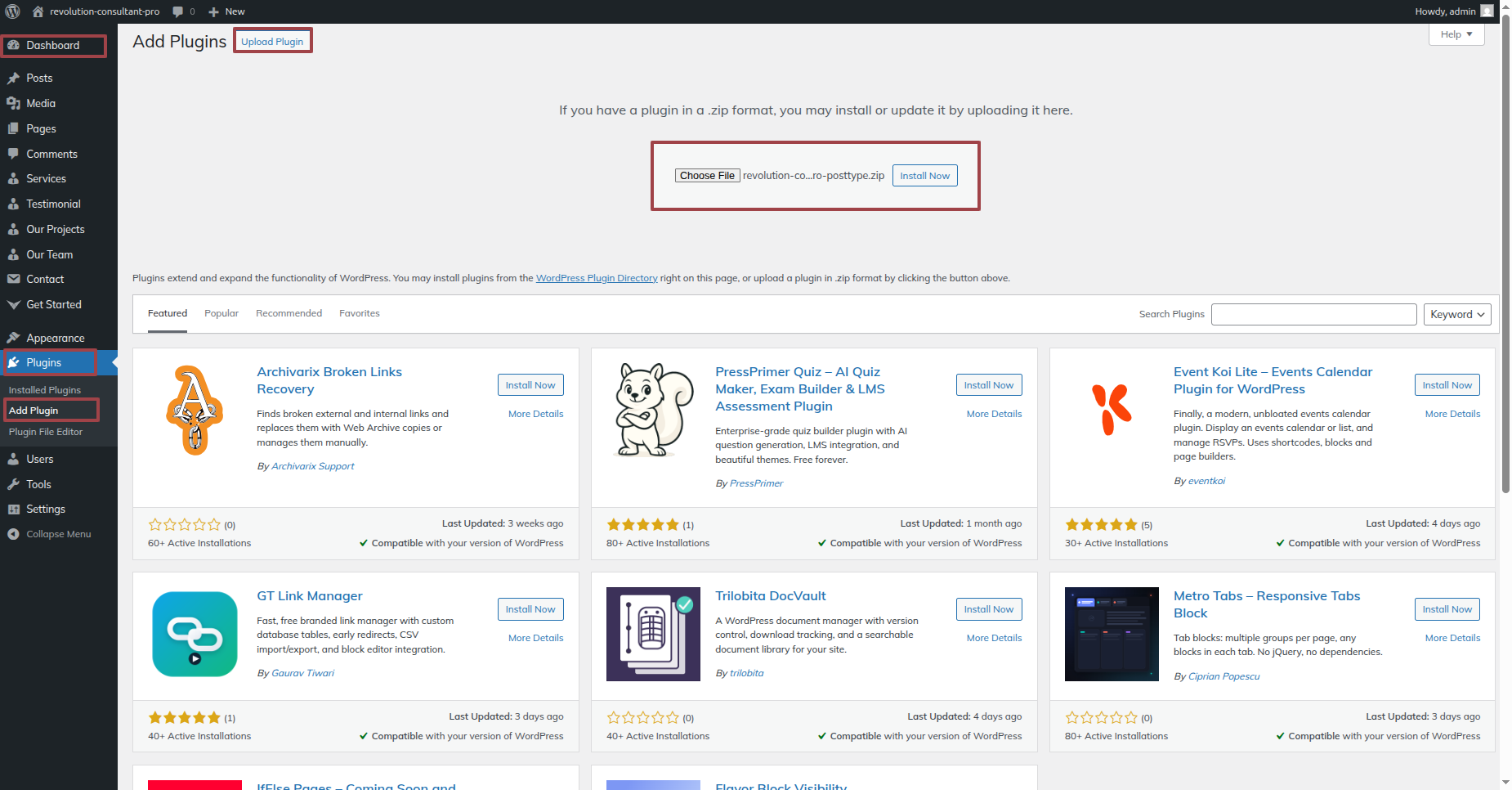
Upon selecting"install now," proceed to activate.
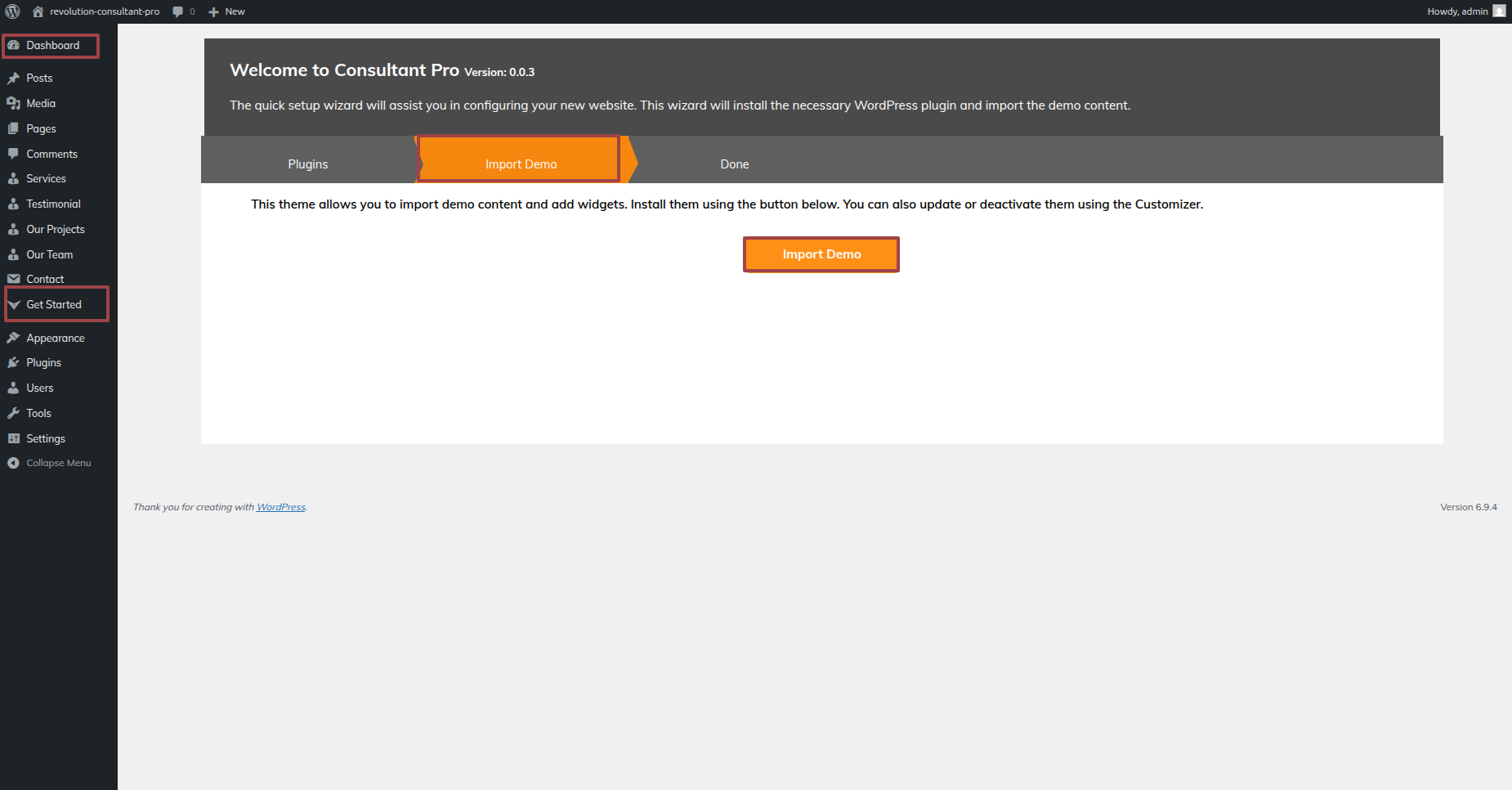
Demo Importer Plugin installation is required..
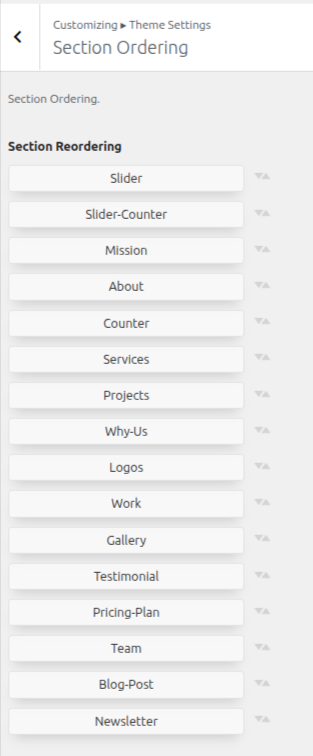
Establishing Section Ordering
The term "section reordering" refers to moving the sections around to better suit our needs. When moving a piece to the top or bottom, make sure to select it first. Whatever piece you drape will change your front view based on your selection.
Section Ordering can be found under"Appearance" By going to "customizing" Head over to " Theme Settings" Proceed to "Section Ordering" .
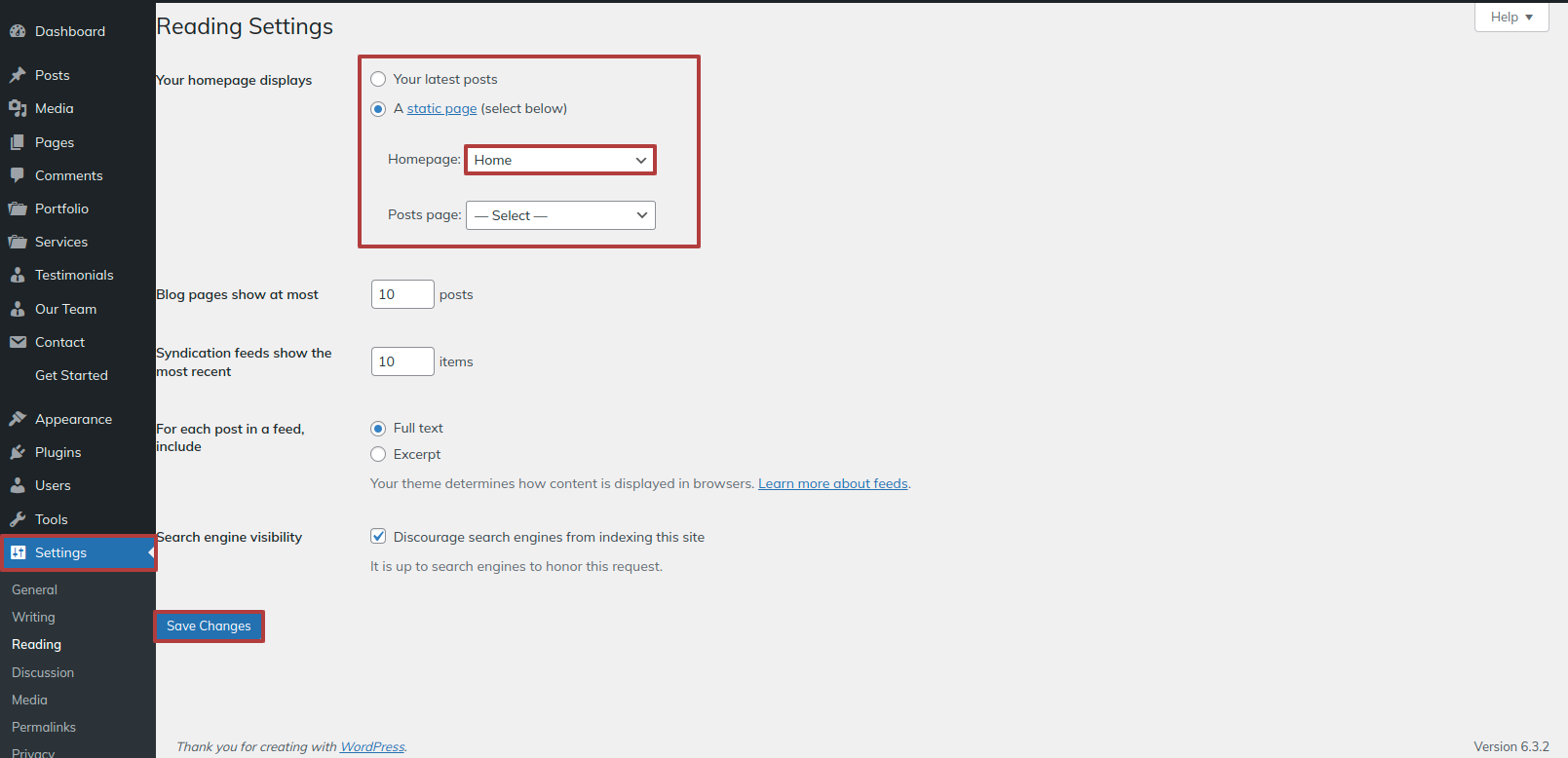
How To Set Static Page
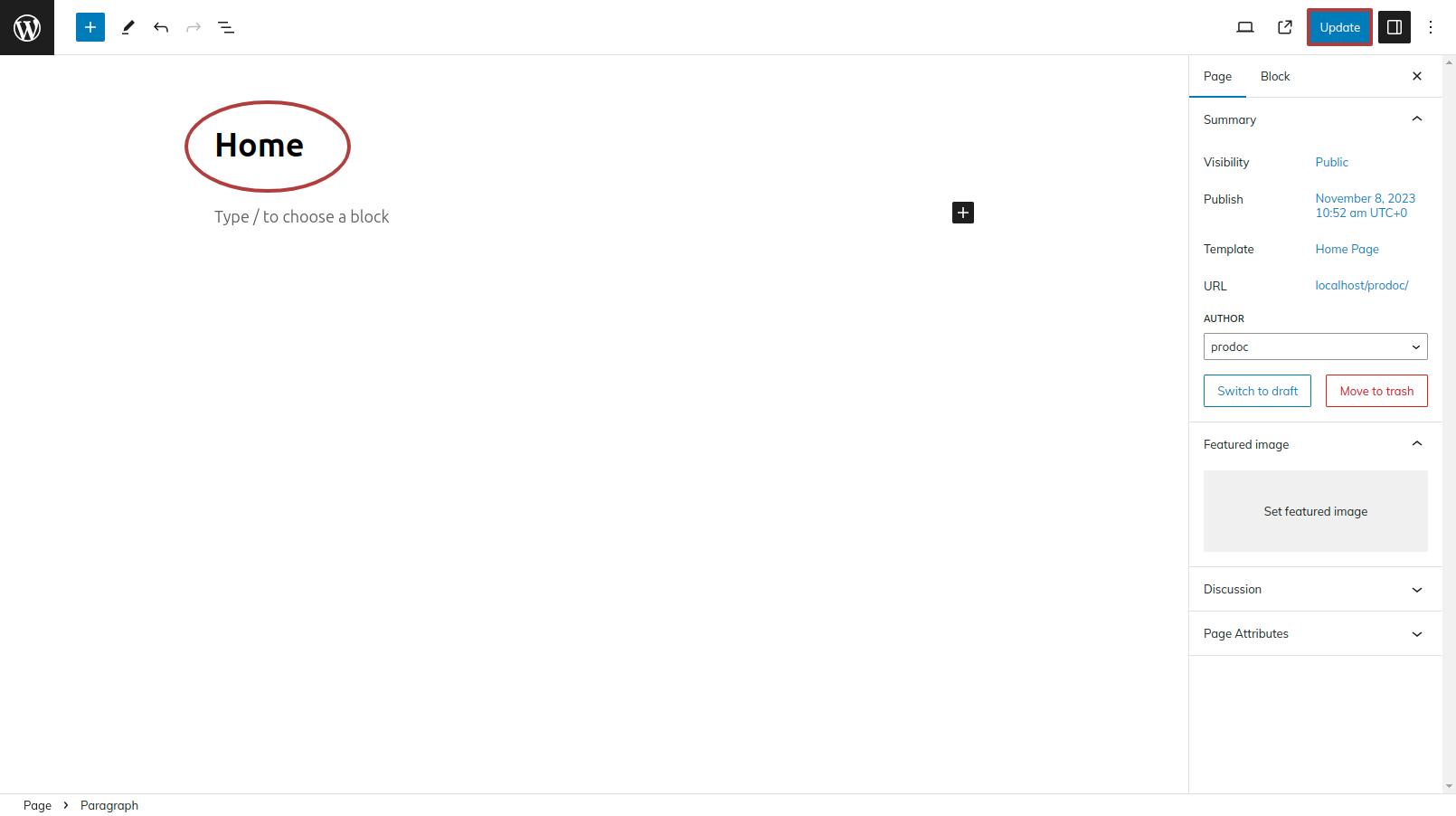
Either identify your home page as such or provide the name of your parent website. Next, modify the static template to the home page by selecting Reading from the settings menu.
To establish a template, make a page.Navigate to the "Dashboard"'s Pages. I'd like a Home Page..
Choose the page you recently created to function as your homepage right now by selecting the Static Page option under Your Homepage Display setting.
Section on Developing The Navigation
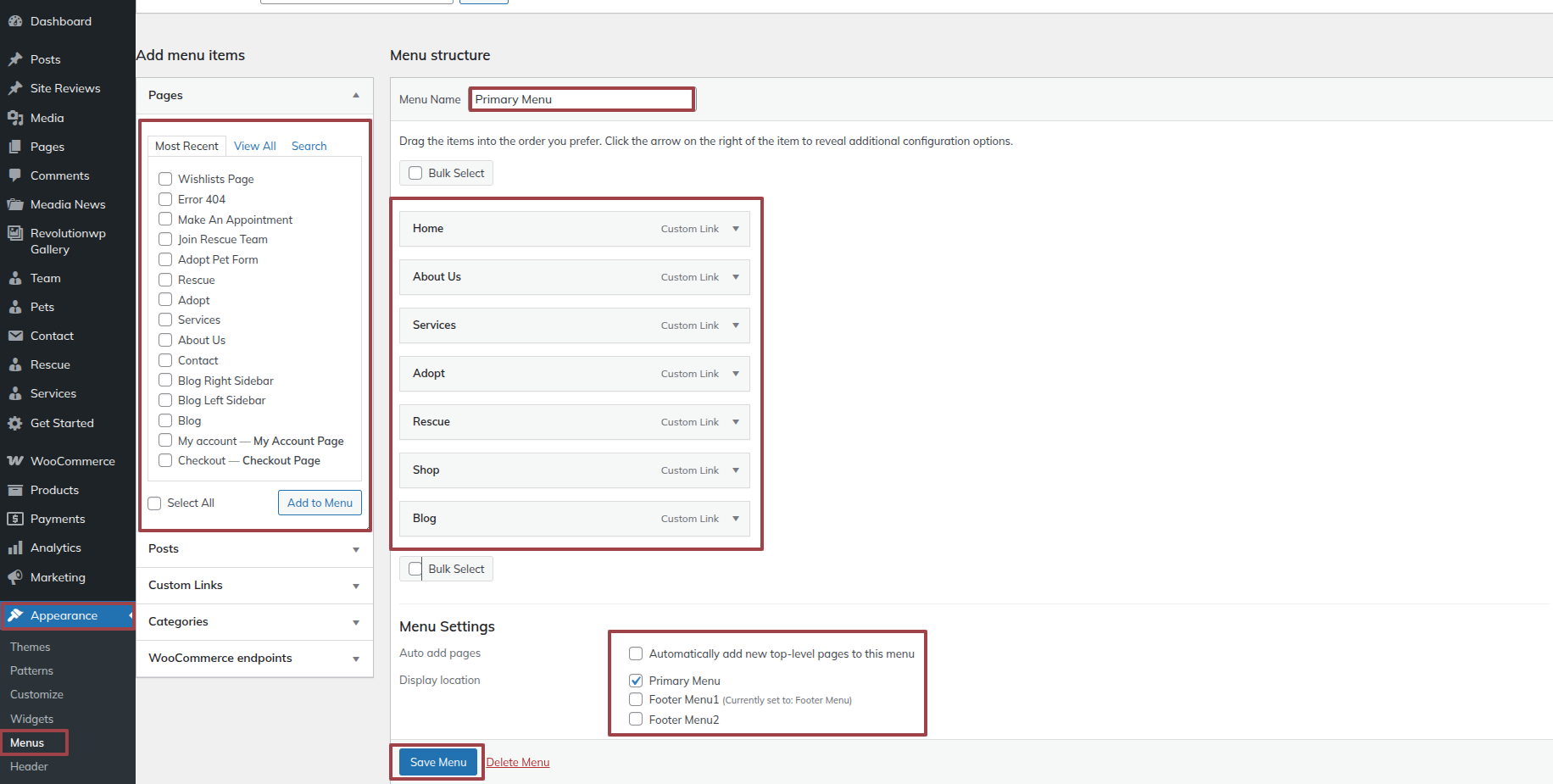
- Go to the Dashbord, choose Pages, and then click Add new page to start the process of creating a new page.
- Proceed to Appearance and select Menu
- By selecting New Menu, you can create a menu.
- Name the menu and press the Save button in the Menu Name column.
- Once the menu has been created, check the boxes next to the pages you wish to add. You must drag the necessary section to change the order of the sections.
- From the boxes with checks, choose the menu location on the footer.
- The Primary Menu checkbox causes Menu Stars to appear on the header if it is selected.
For a clearer understanding, view this screenshot.
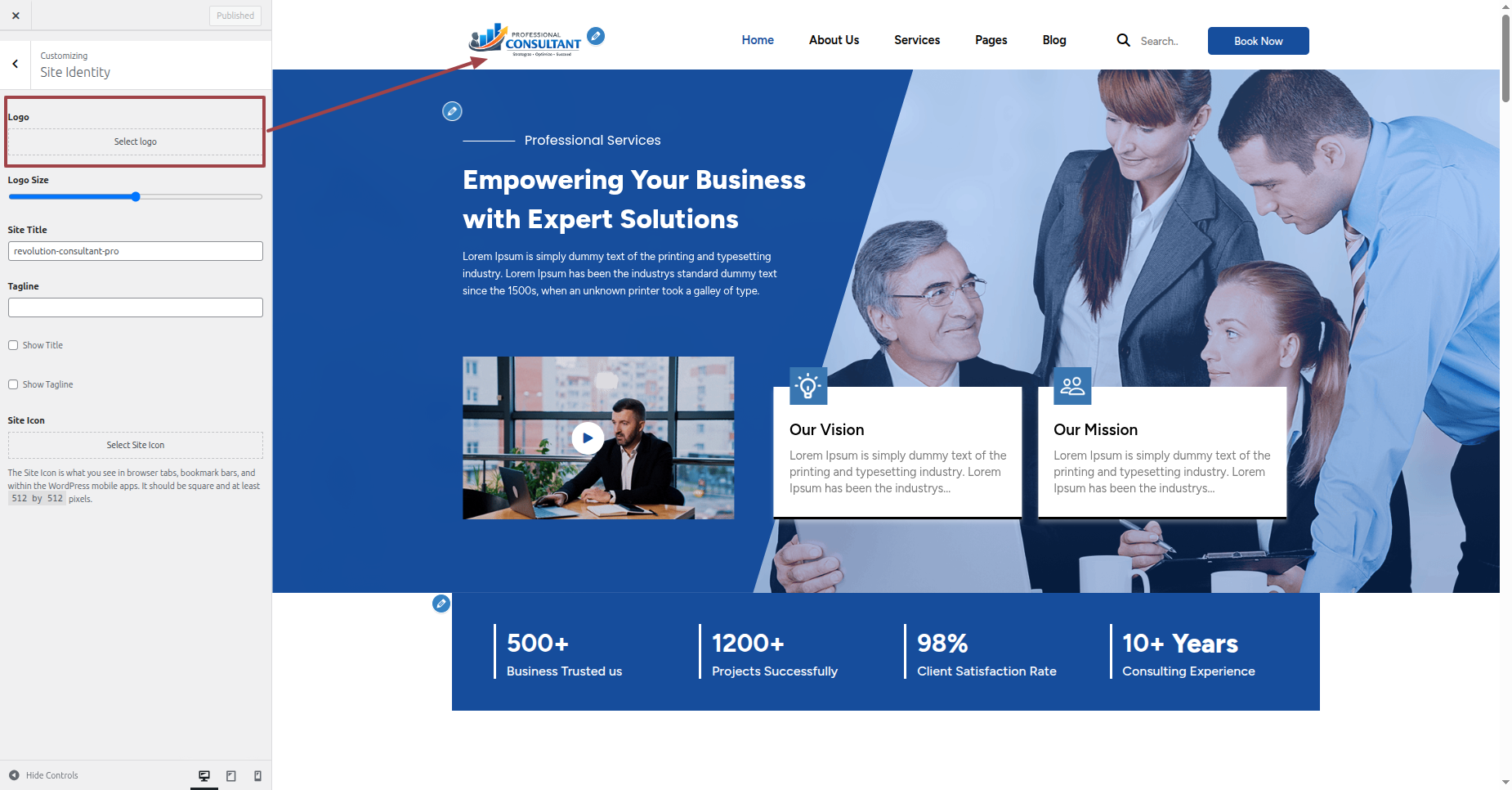
Section on Developing The Site Identity
Putting the logo in the header.
To modify your theme options open"Appearance" By going to "Customizing" Proceed to"Site Identity".
Section on Developing The Header Section
Regarding Header Section Configuration.
To modify your theme options open"Appearance" By going to "Customizing" Head over to " Theme Settings" Proceed to "Header" .
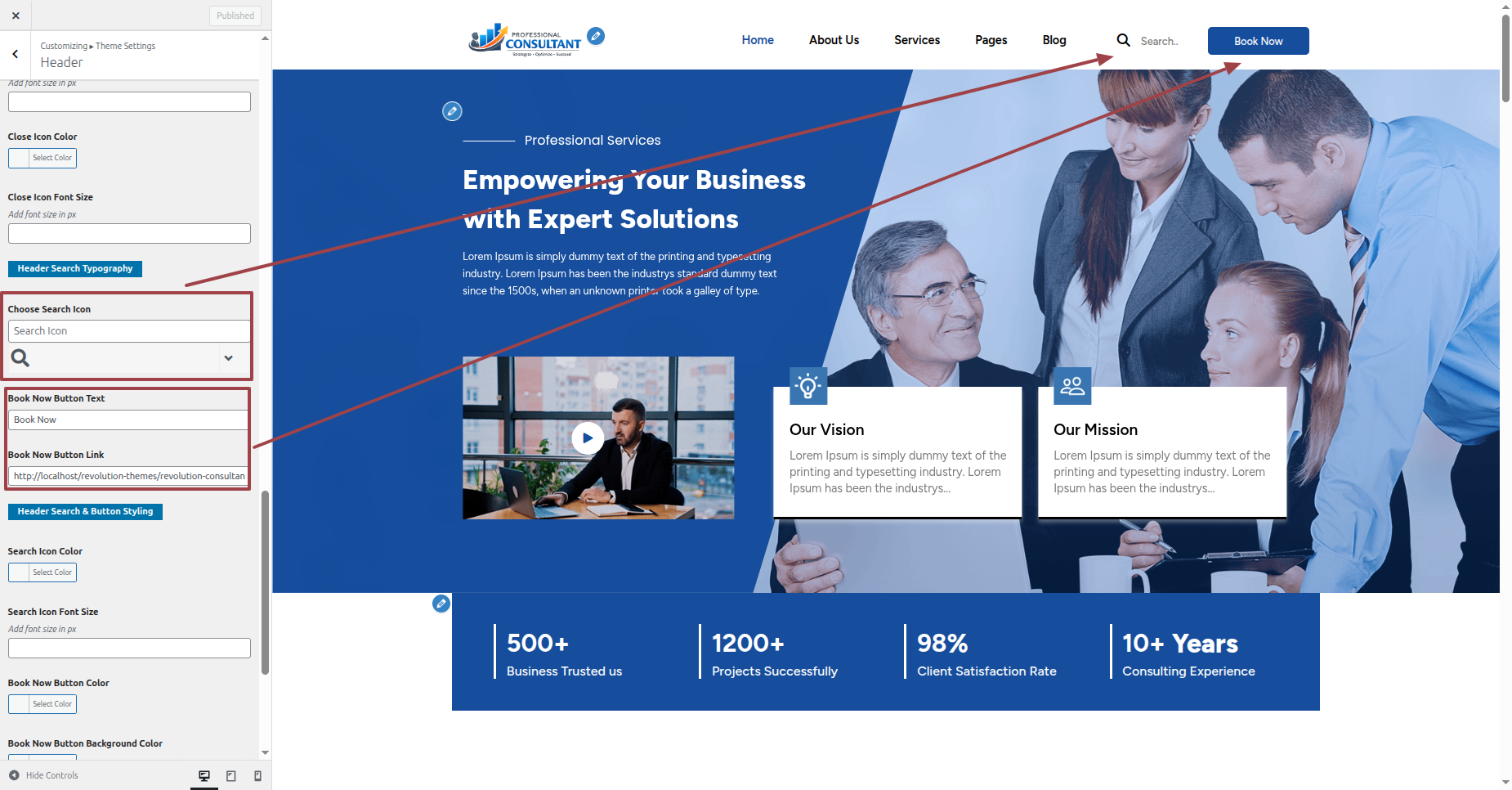
This is how the Header Section will display it.

Section on Developing The Slider
Regarding Slider Configuration.
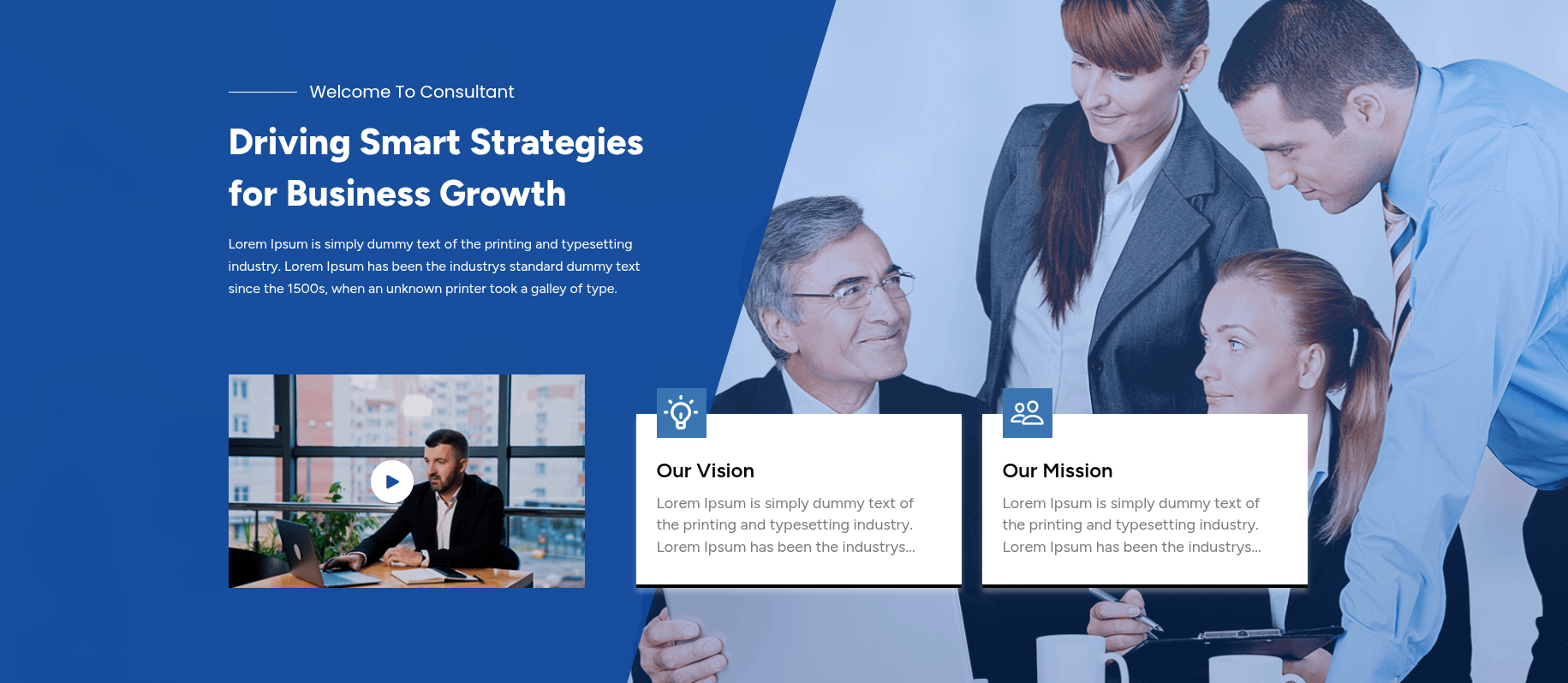
To modify your theme options open"Appearance" By going to "Customizing" Head over to " Theme Settings" Proceed to "Slider Section " .
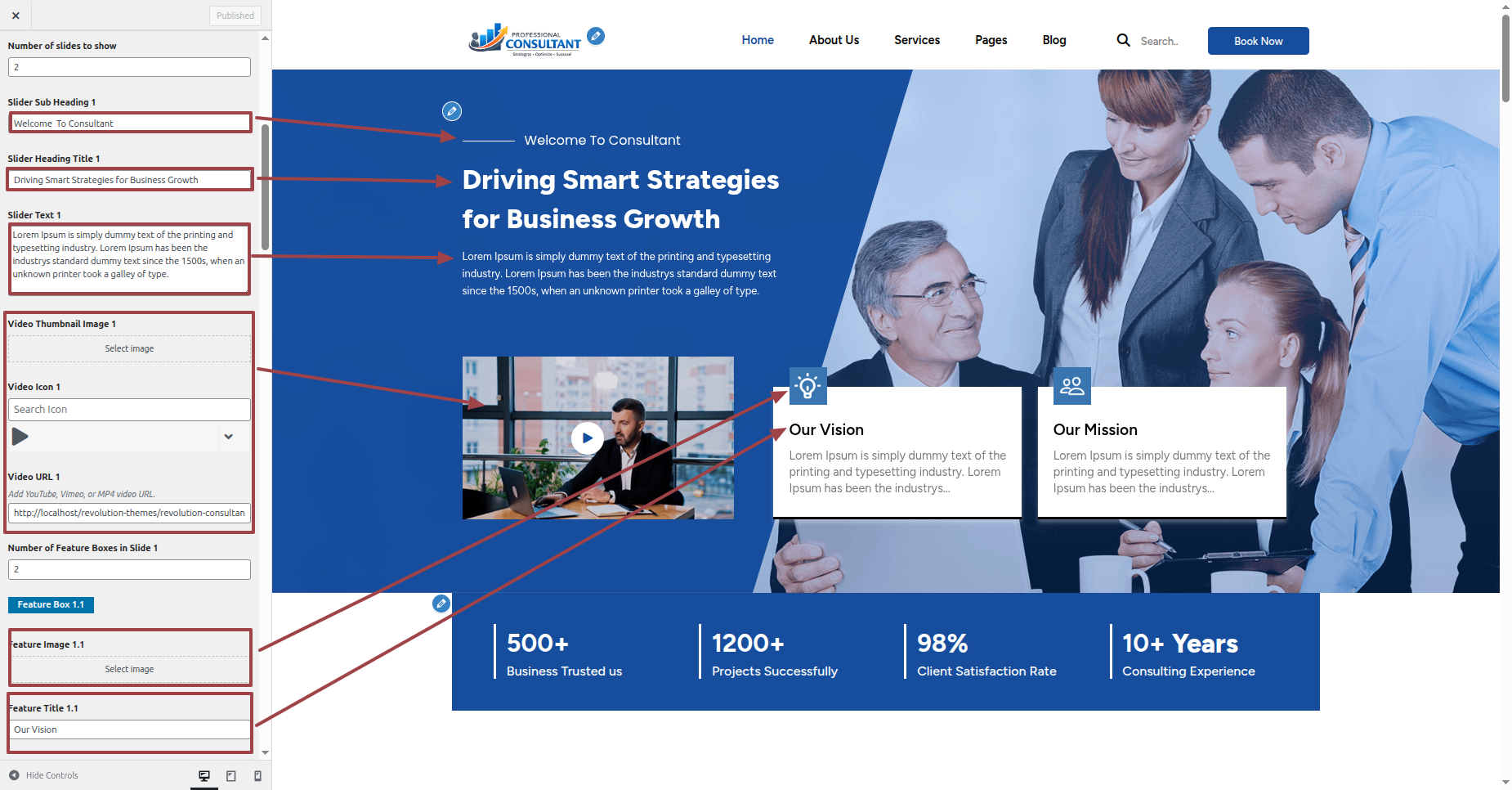
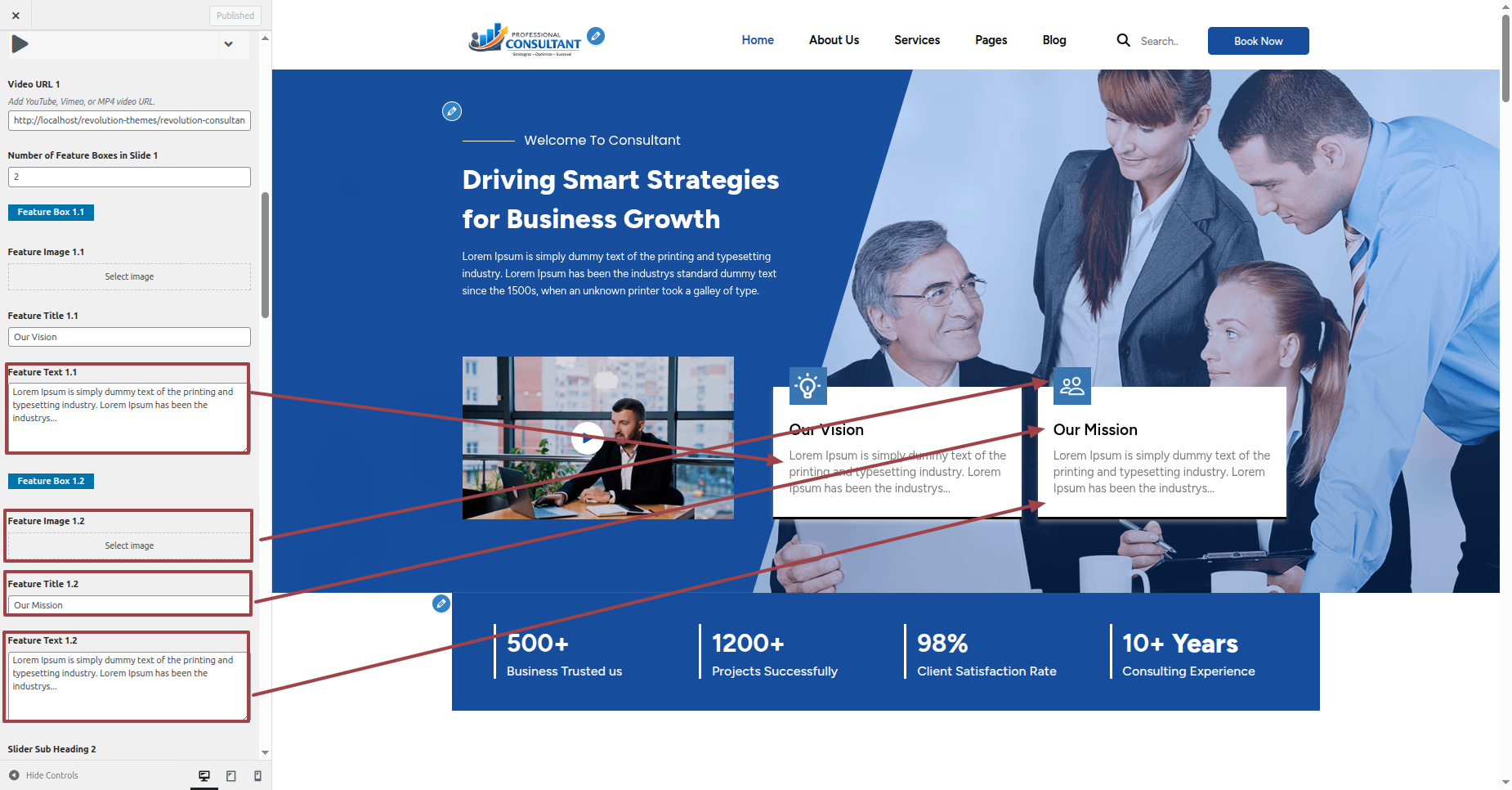
This is how the Slider section will display it.
Section on Developing Slider Counter Section
Regarding Slider Counter Section Configuration.
To modify your theme options open"Appearance" By going to "customizing" Head over to " Theme Settings" Proceed to " Slider Counter" .
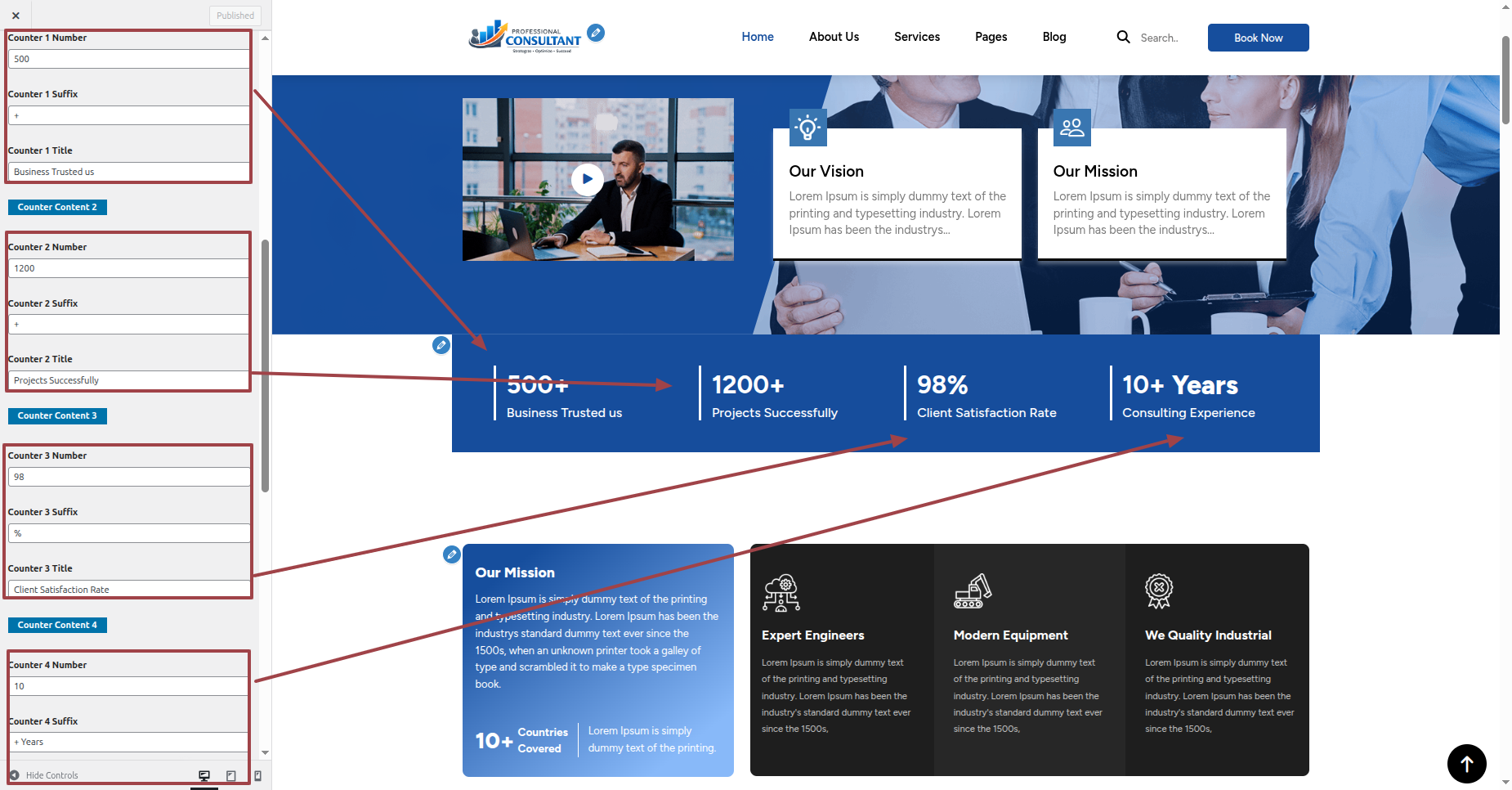
This is how the Slider Counter section will display it.

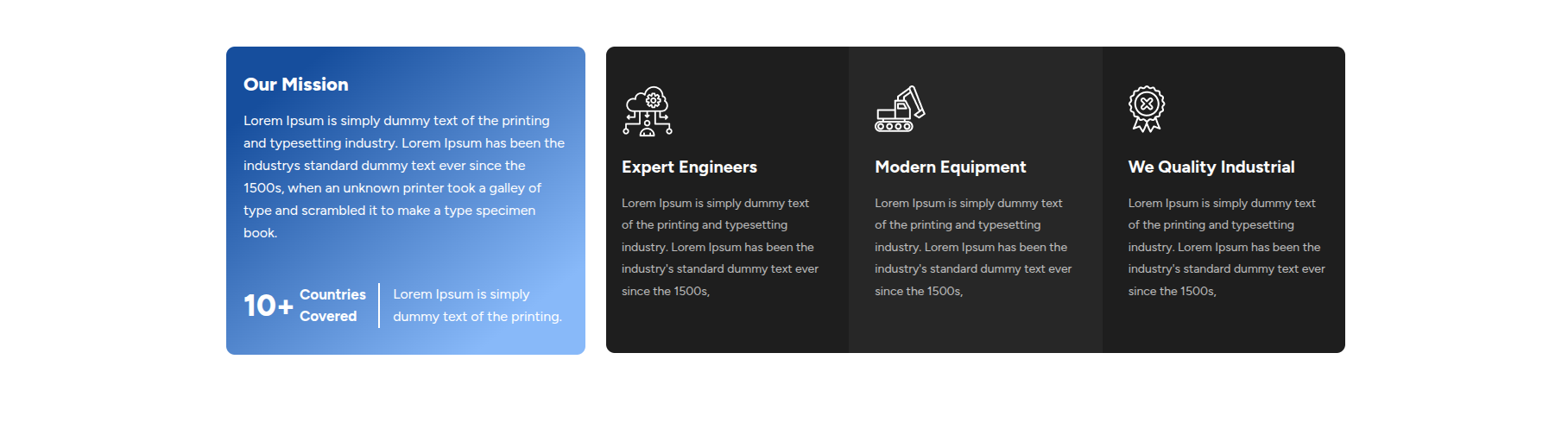
Section on Developing Our Mission Section
Regarding Our Mission Section Configuration.
To modify your theme options open"Appearance" By going to "customizing" Head over to " Theme Settings" Proceed to " Mission Section" .
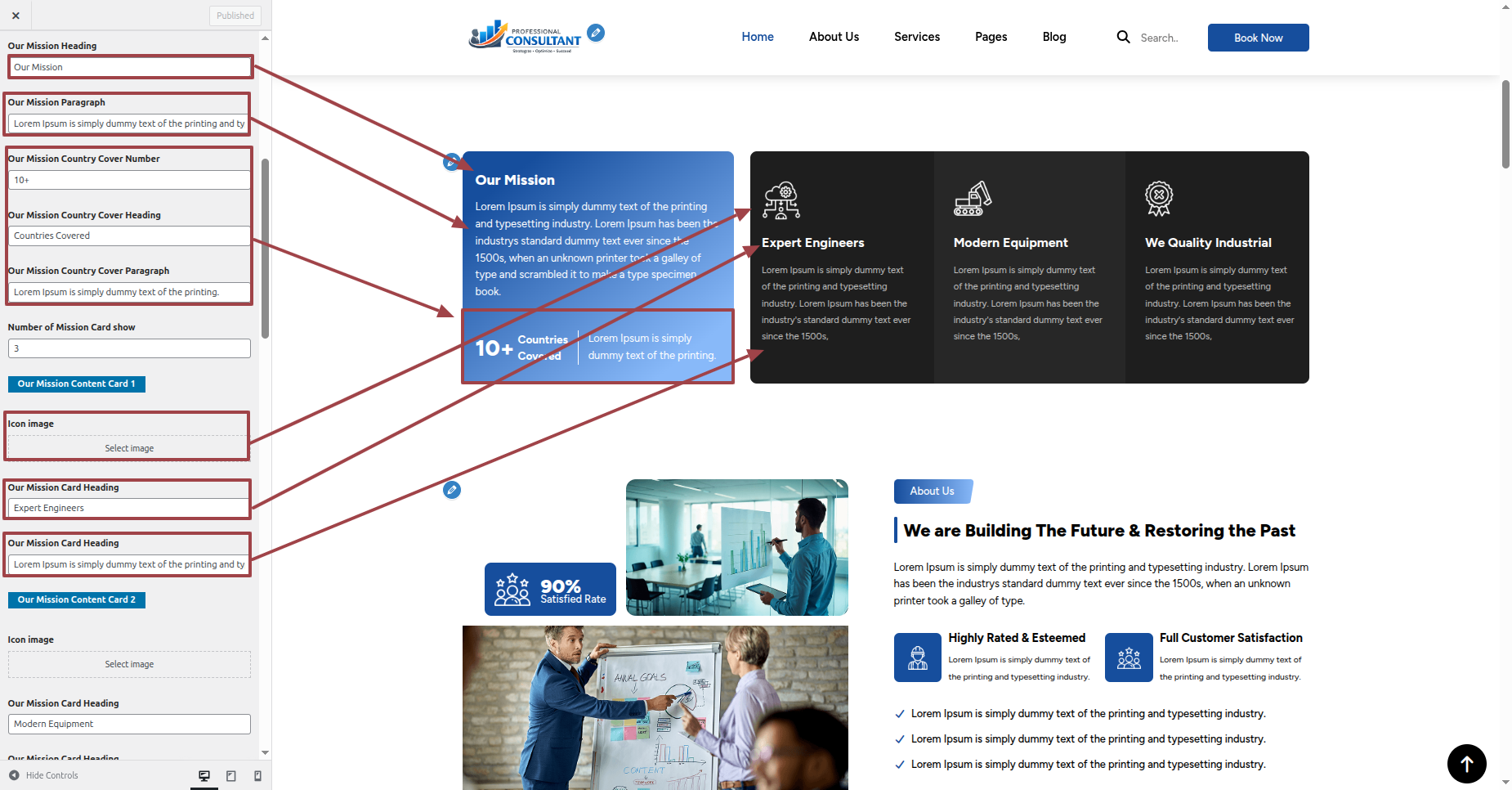
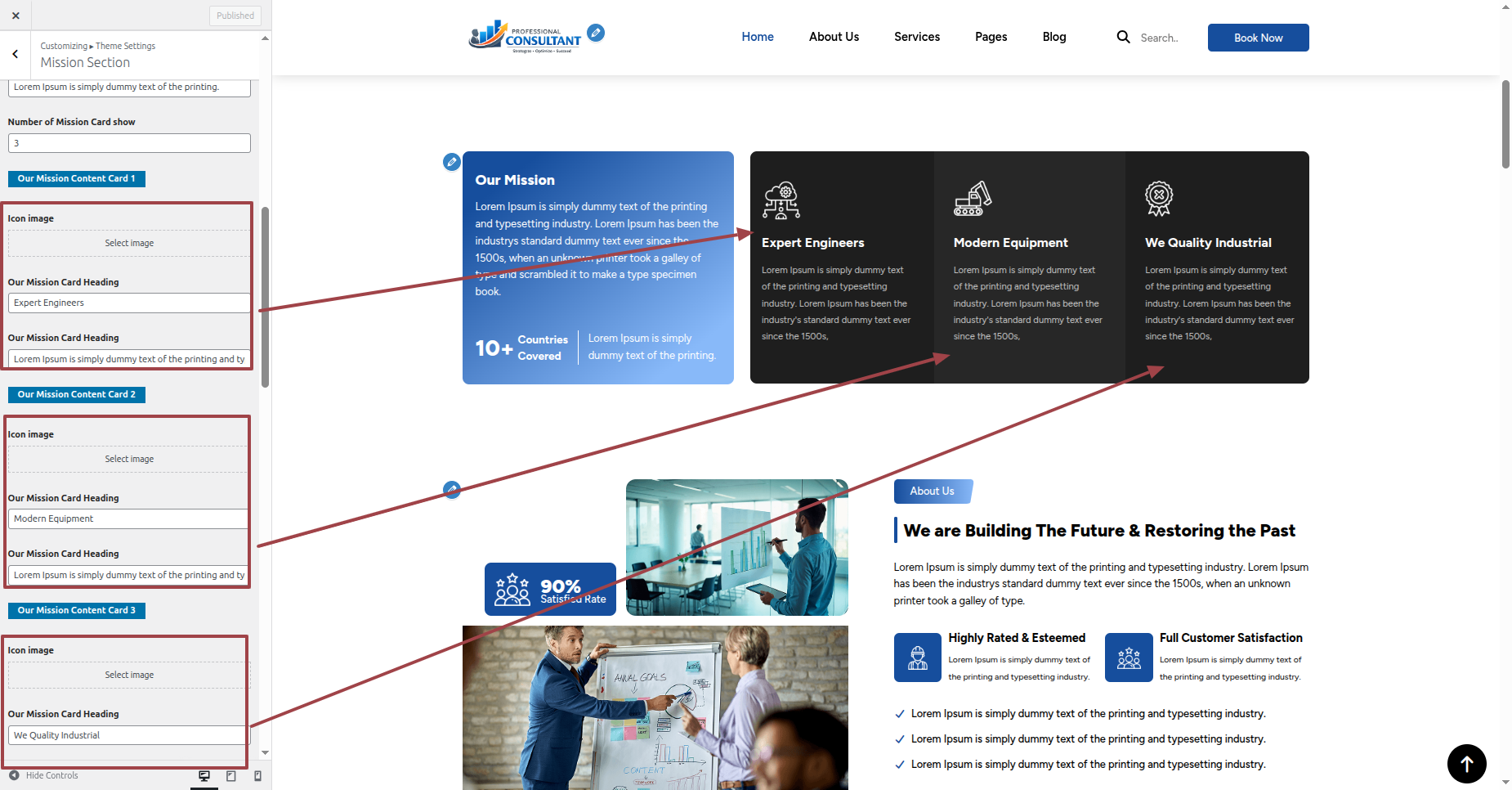
This is how the Our Mission section will display it.
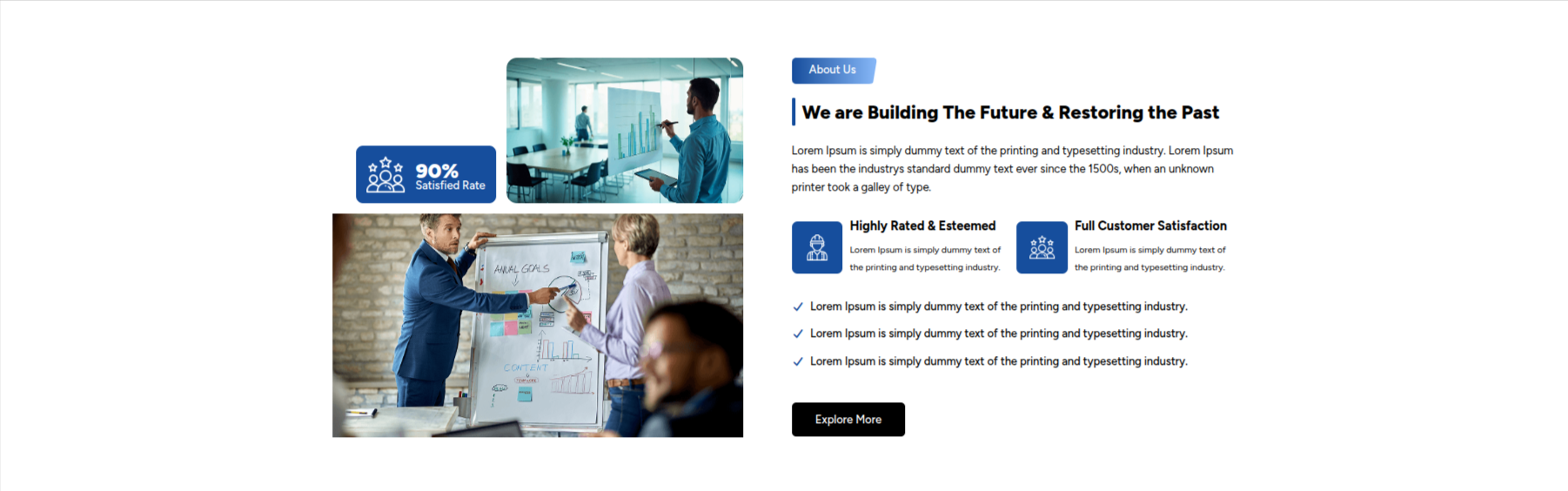
Section on Developing About Us
Regarding About Us Configuration.
To modify your theme options open"Appearance" By going to "customizing" Head over to " Theme Settings" Proceed to "About Us" .
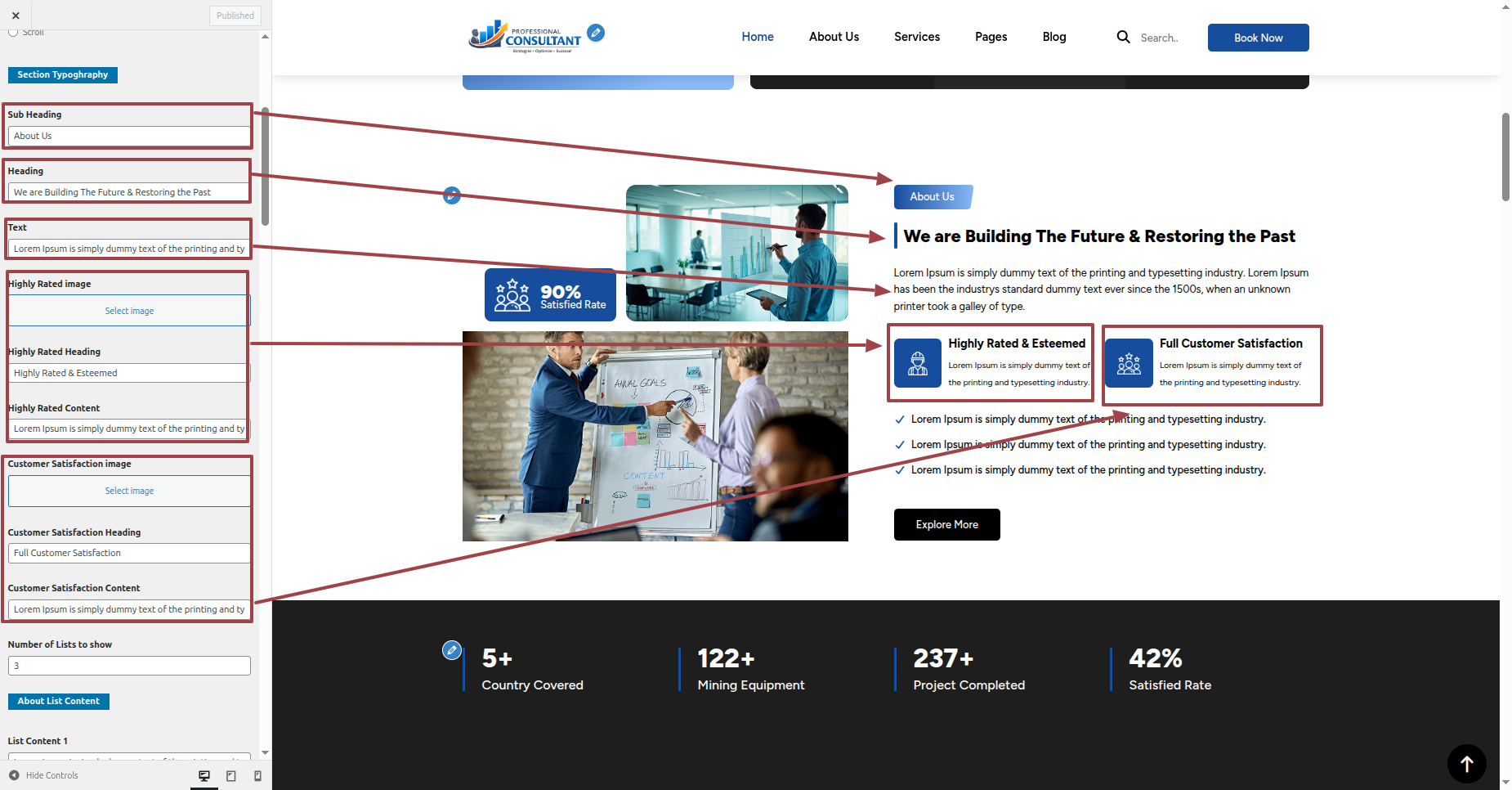
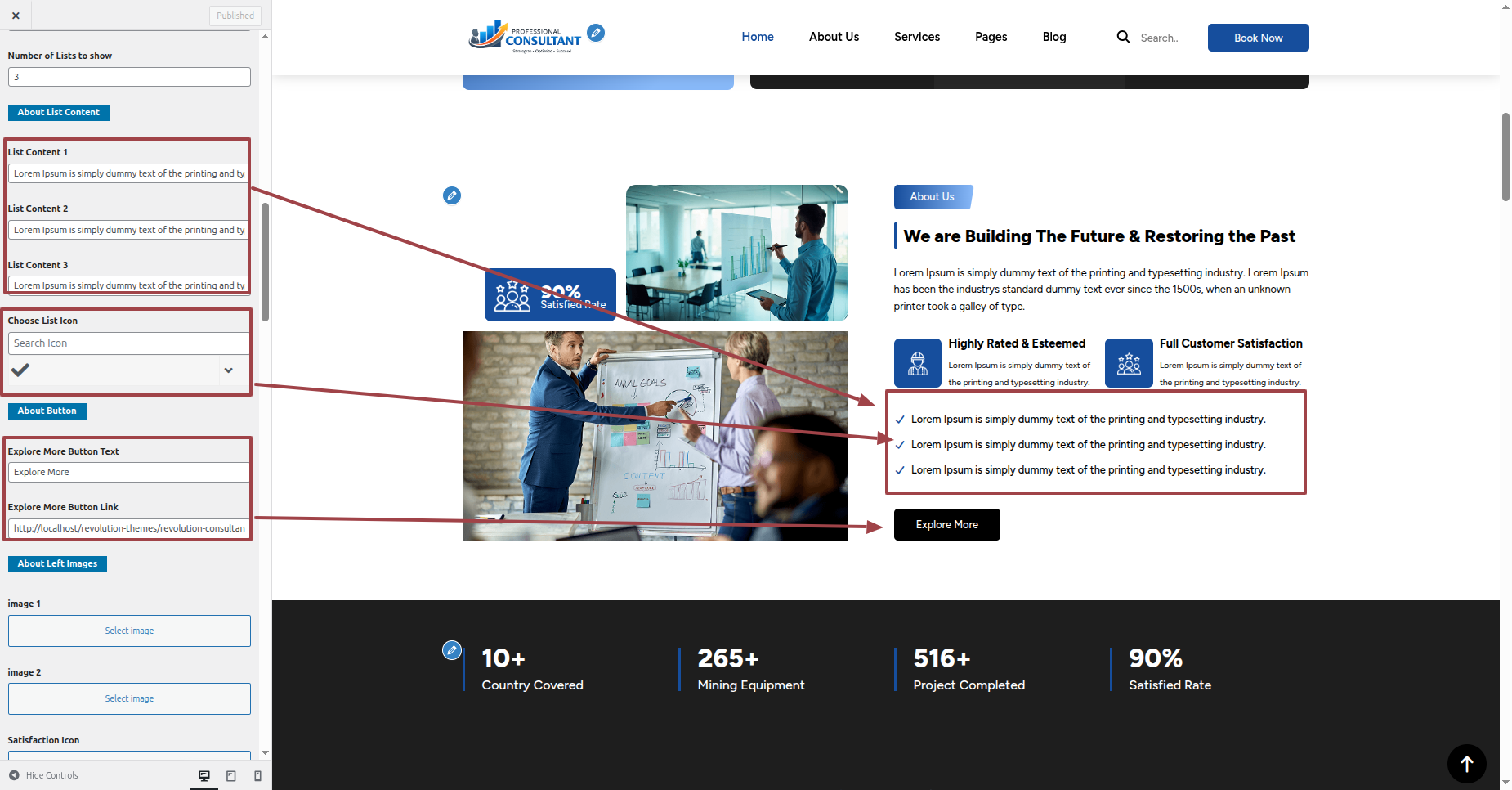
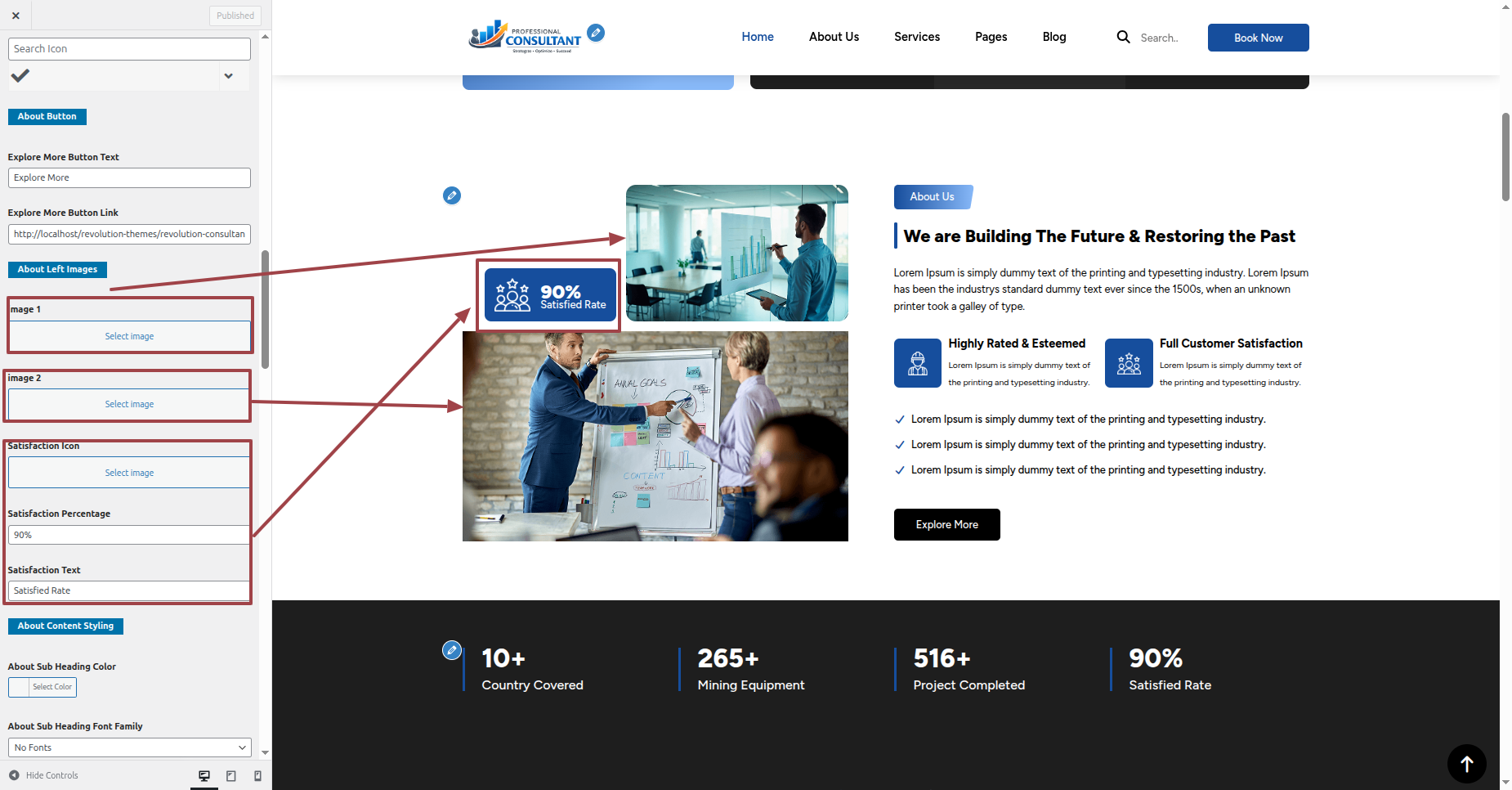
This is how the About Us section will display it.
Section on Developing Counter Section
Regarding Counter Section Configuration.
To modify your theme options open"Appearance" By going to "customizing" Head over to " Theme Settings" Proceed to " Counter" .
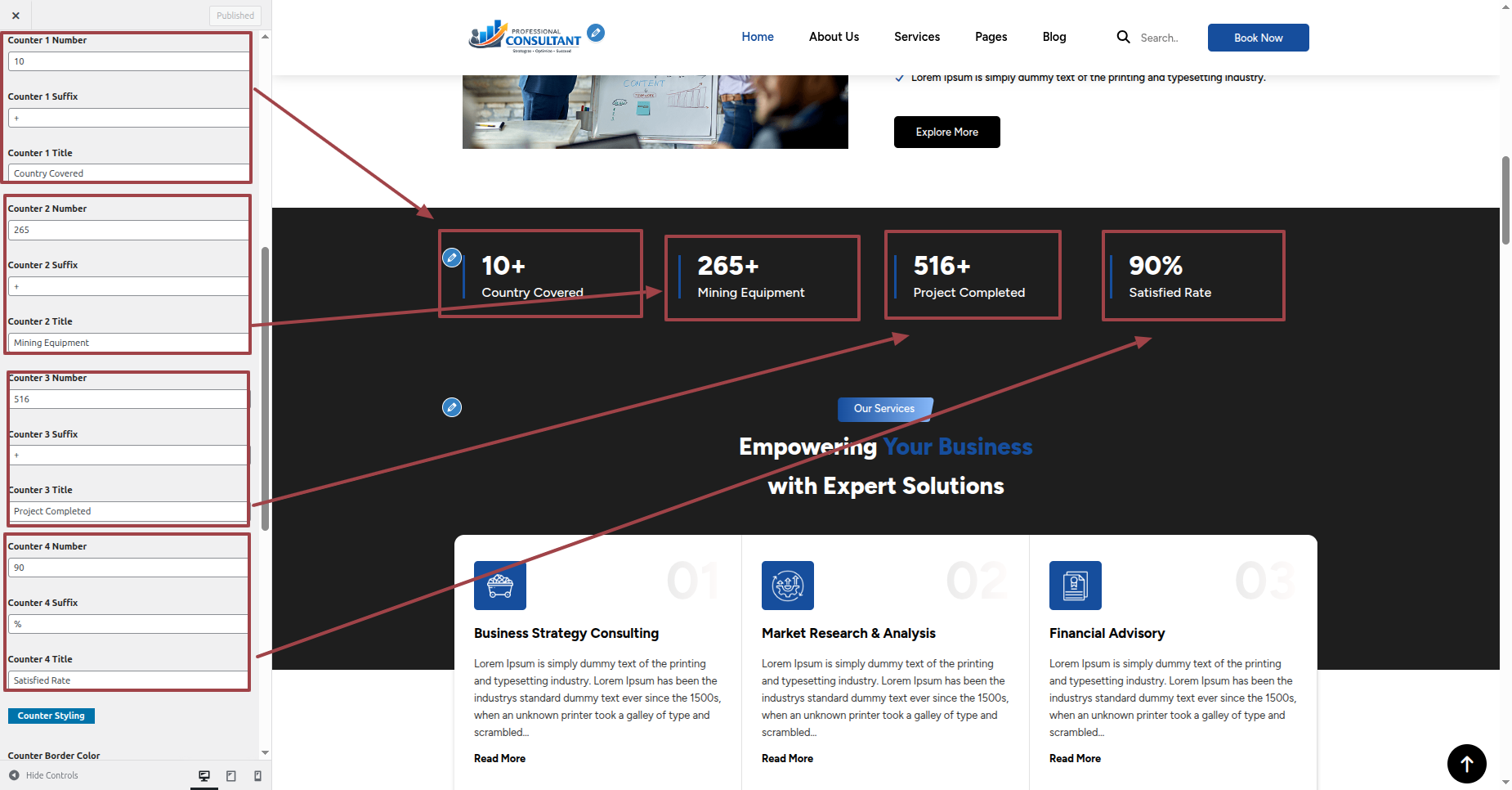
This is how the Counter section will display it.

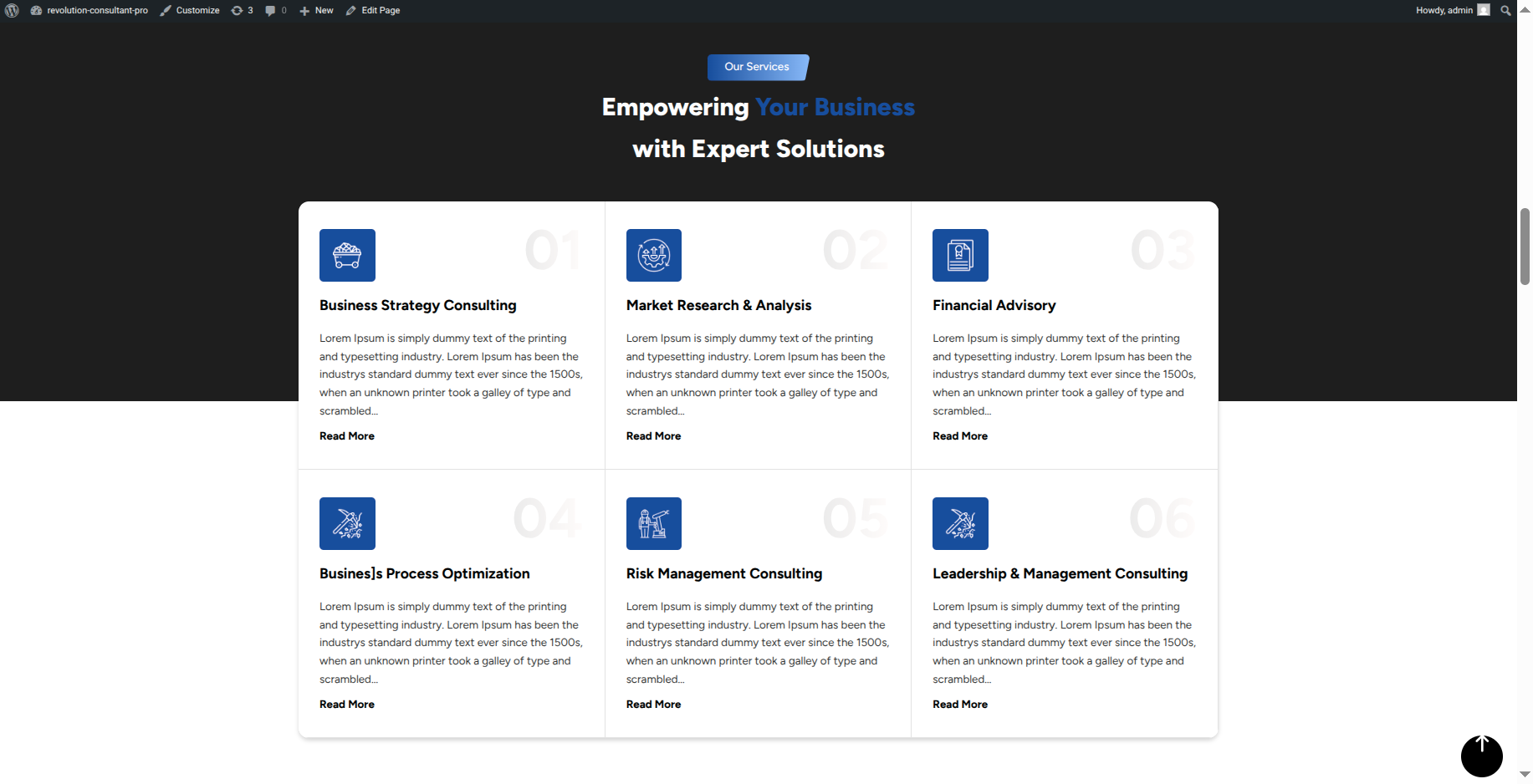
Section on Developing Our Services
Regarding Our Services Configuration.
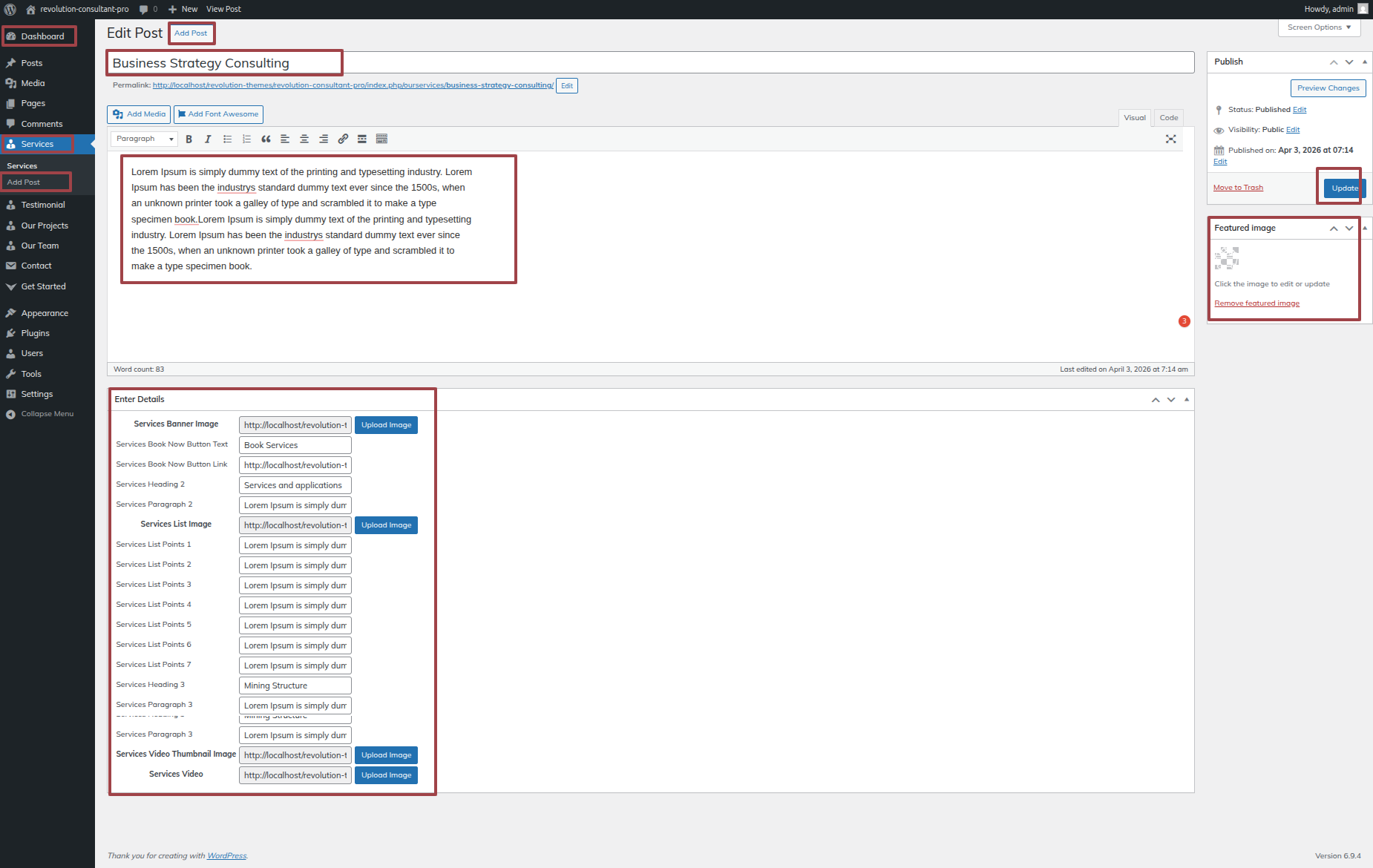
Corporate Consultancy Pro Posttype Plugin installation and activation are prerequisites, Your dashboard will have a Services once the plugin has been enabled.
To modify your theme options open"Dashboard" By going to "Services " Proceed to "Add New Posts" .
To modify your theme options open"Appearance" By going to "customizing" Head over to " Theme Settings" Proceed to "Our Services Section" .
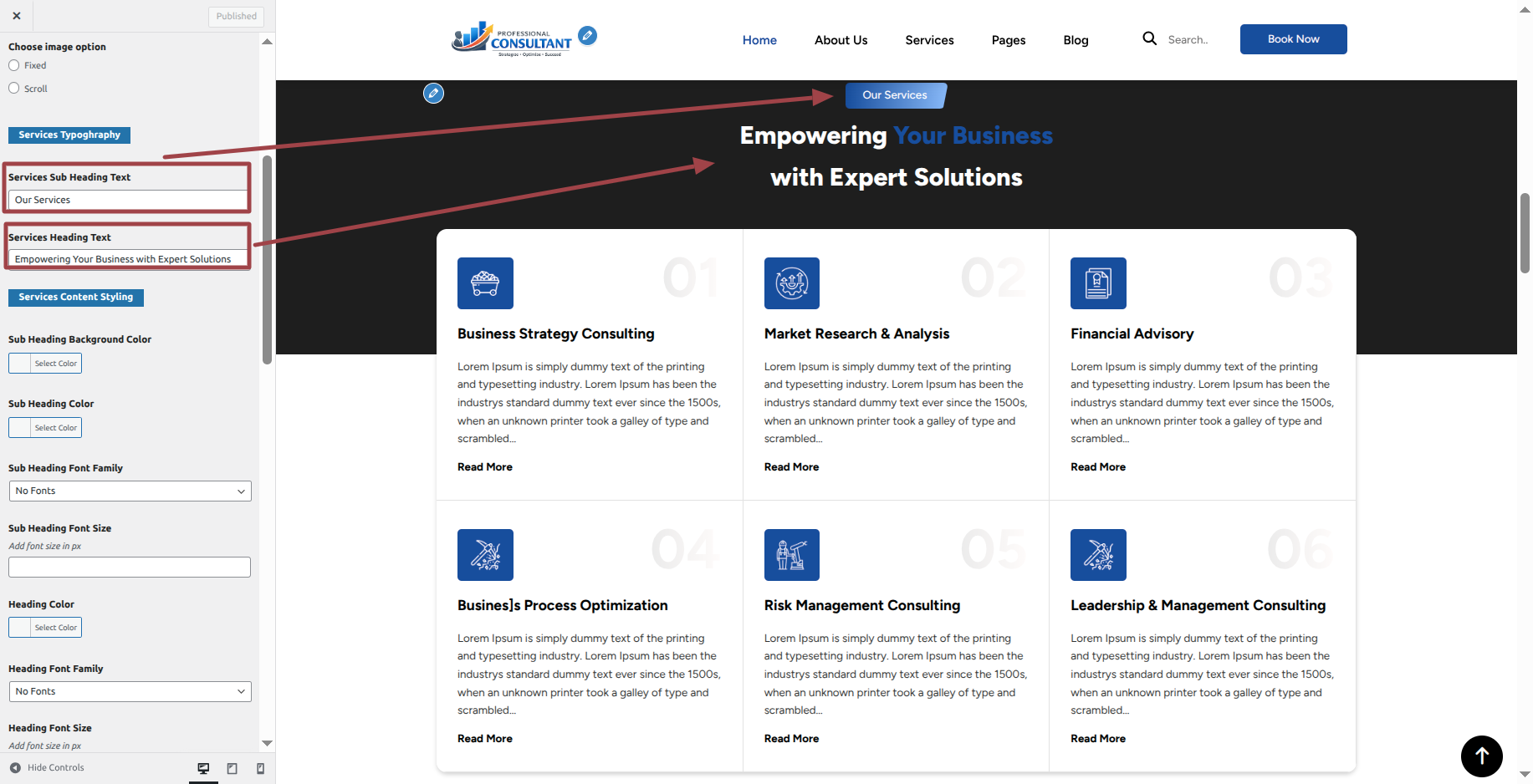
This is how the Our Services section will display it.
Section on Developing Our Project Section
Regarding Our Project Section Configuration.
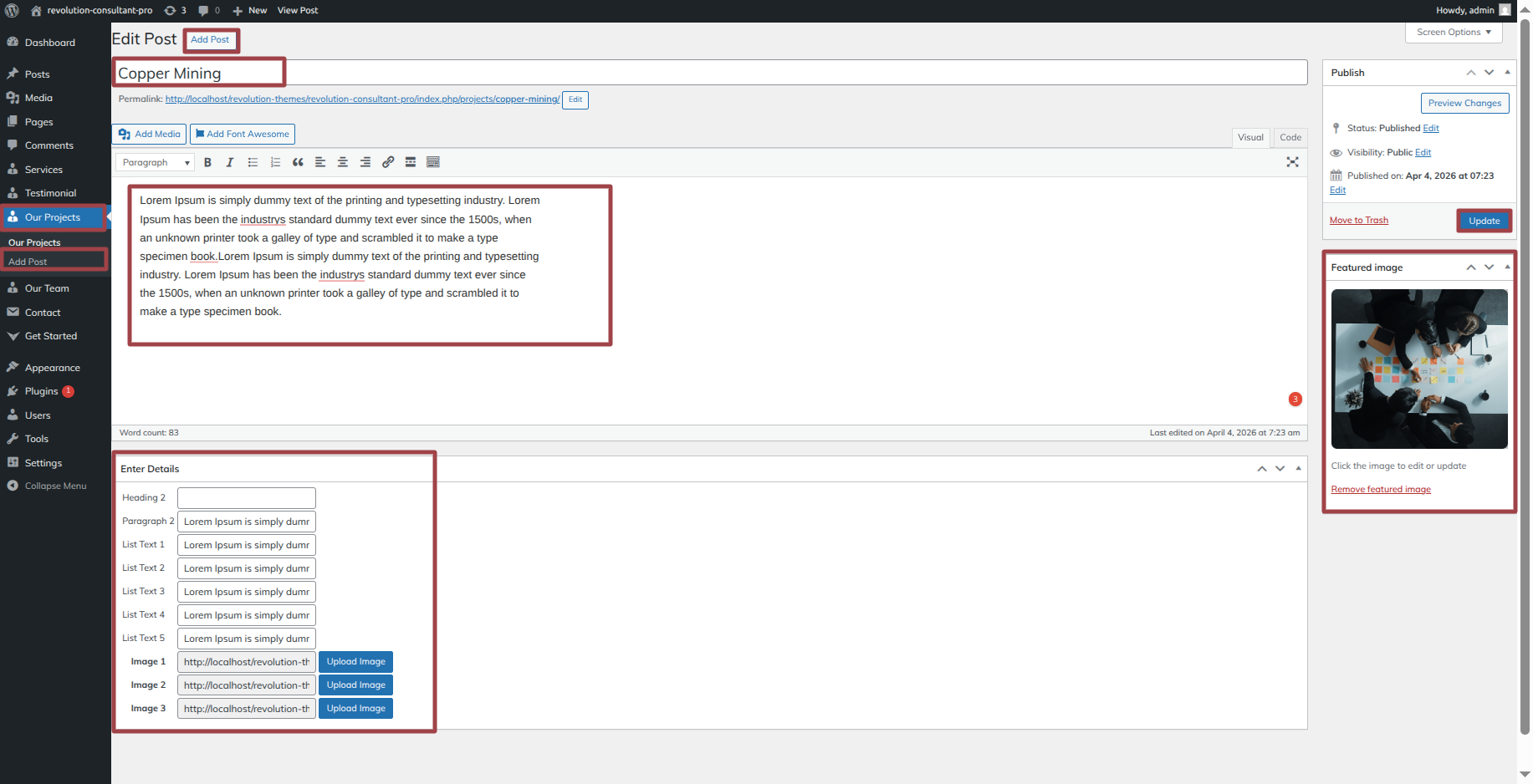
Corporate Consultancy Pro Posttype Plugin installation and activation are prerequisites, Your dashboard will have a Our Project once the plugin has been enabled.
To modify your theme options open"Dashboard" By going to "Our Projects " Proceed to "Add New Posts" .
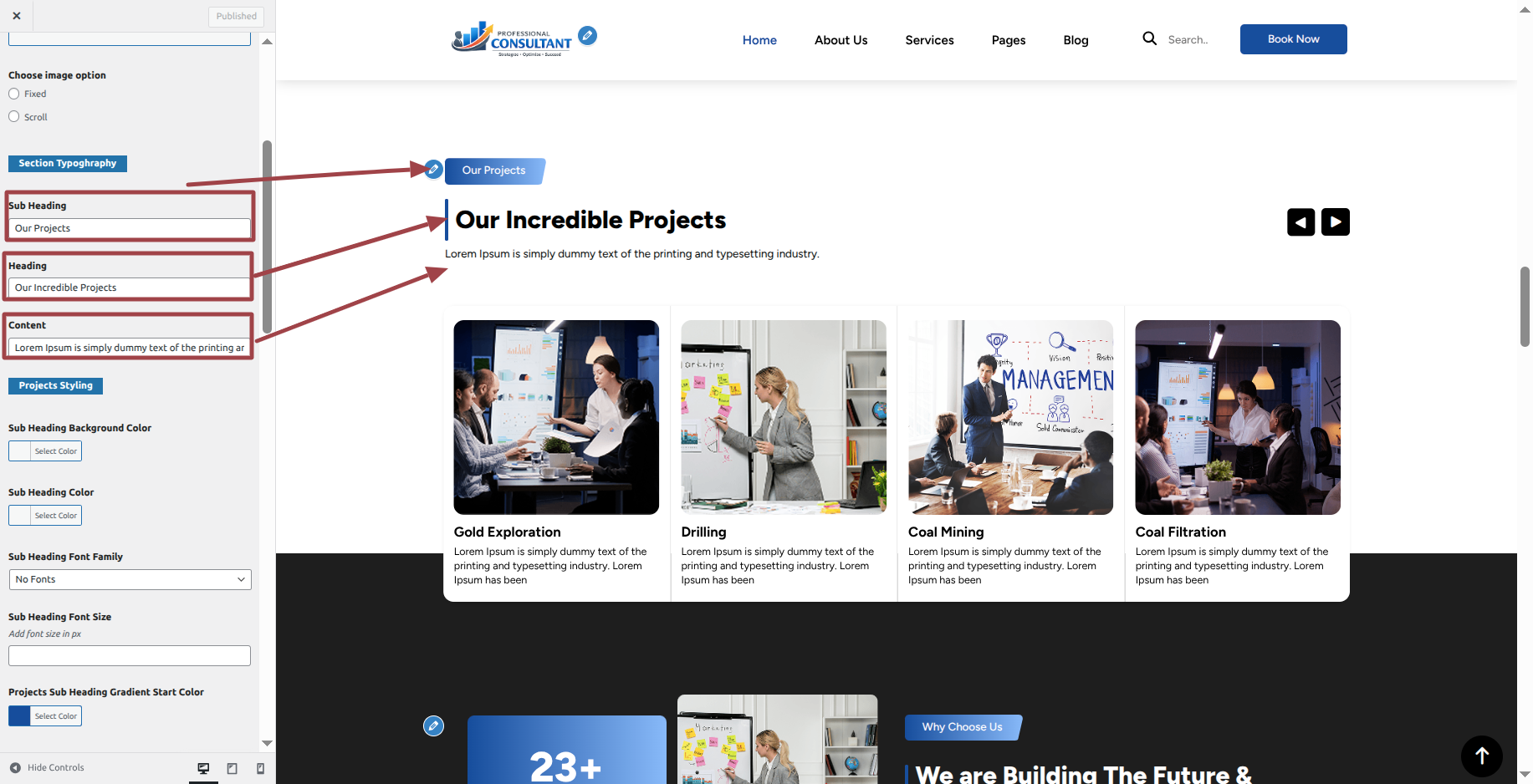
To modify your theme options open"Appearance" By going to "customizing" Head over to " Theme Settings" Proceed to " Our Project Section" .
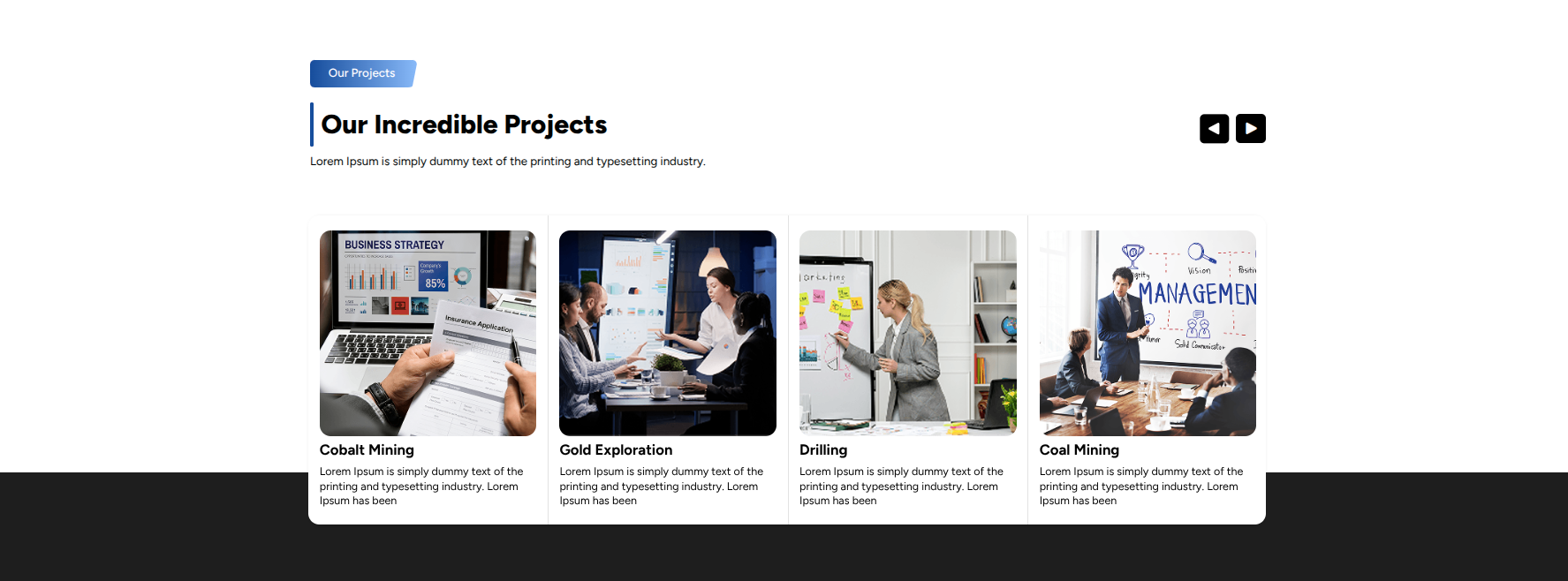
This is how the Our Project section will display it.
Section on Developing Why Choose Us Section
Regarding Why Choose Us Section Configuration.
To modify your theme options open"Appearance" By going to "customizing" Head over to " Theme Settings" Proceed to " Why Choose Us" .
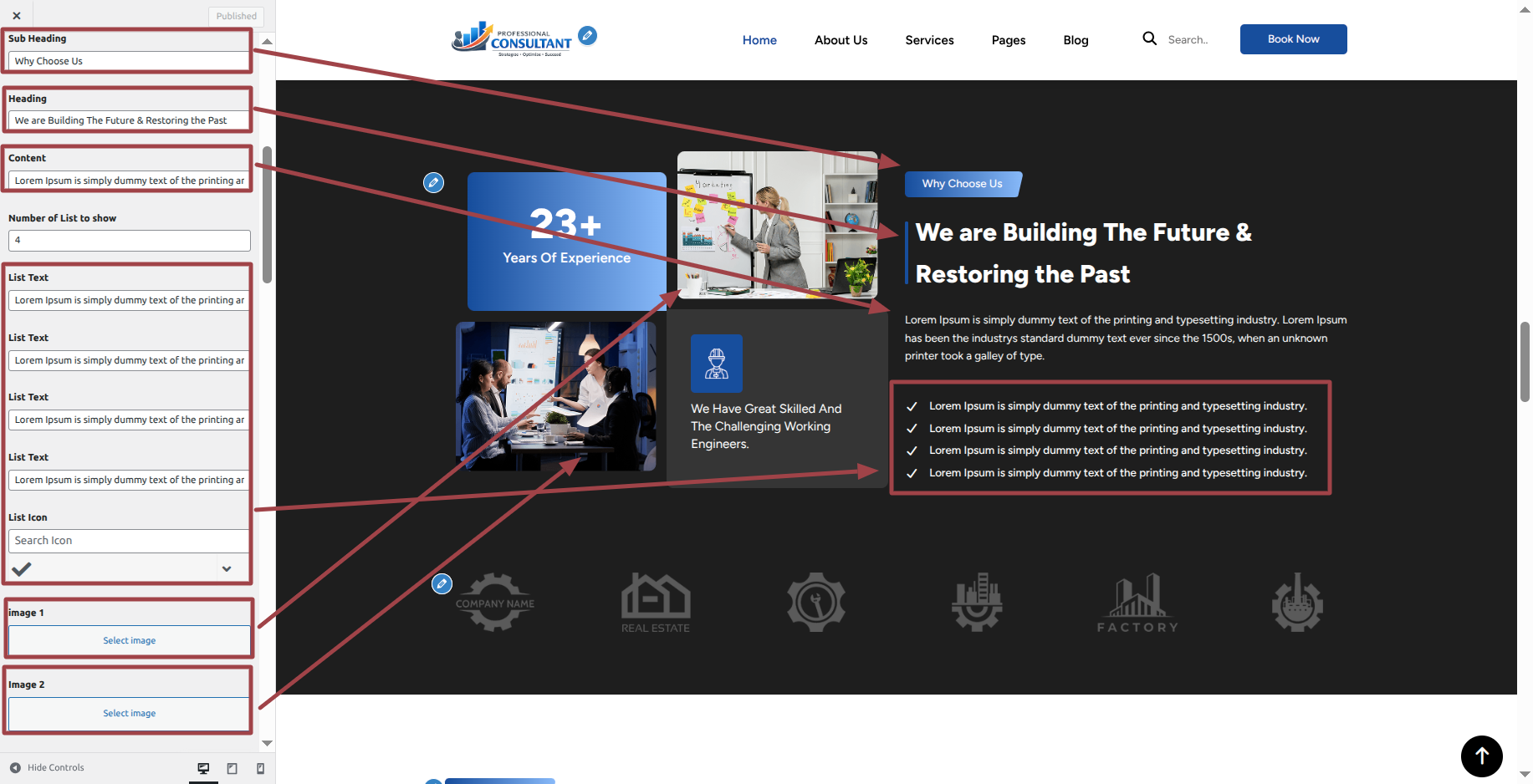
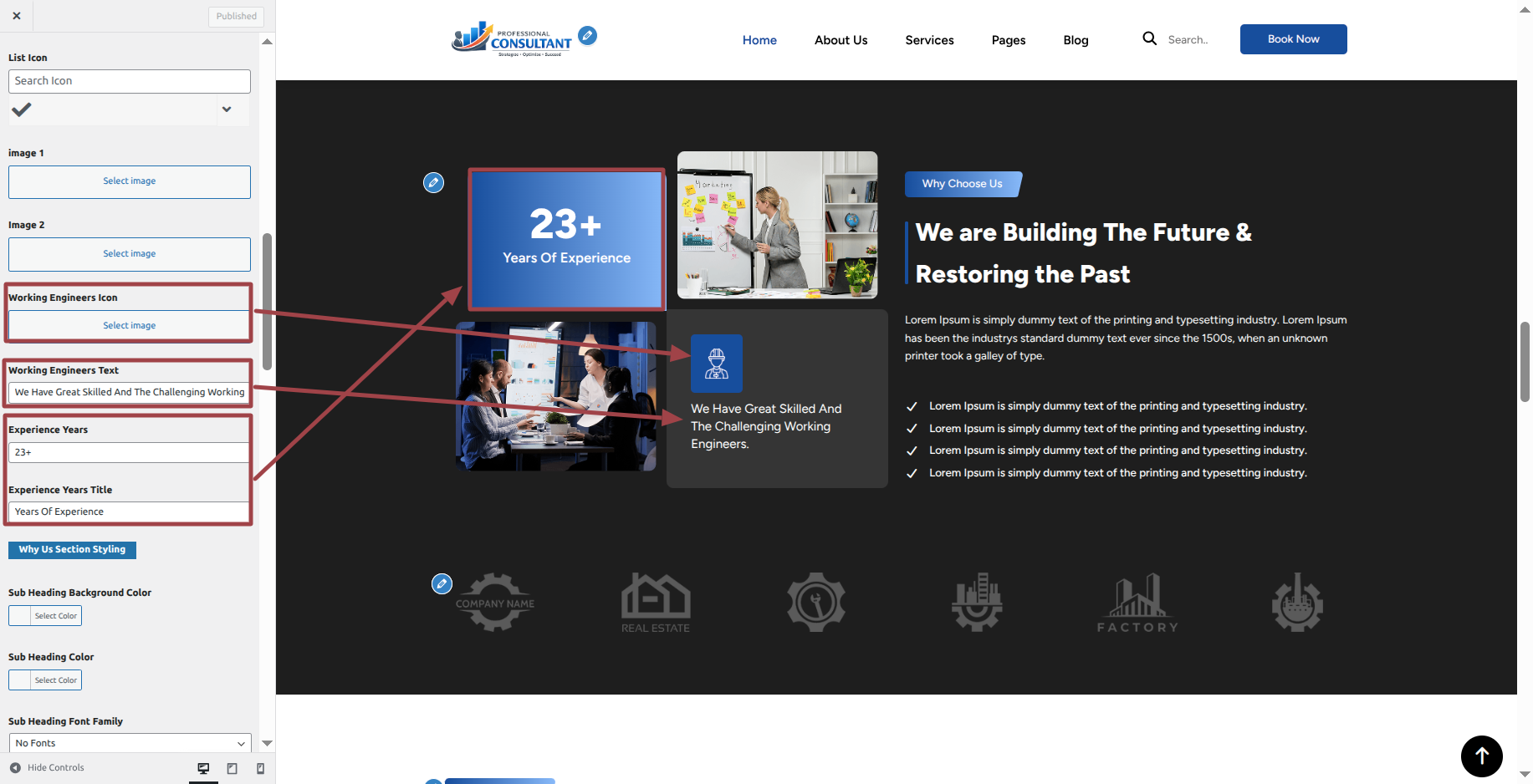
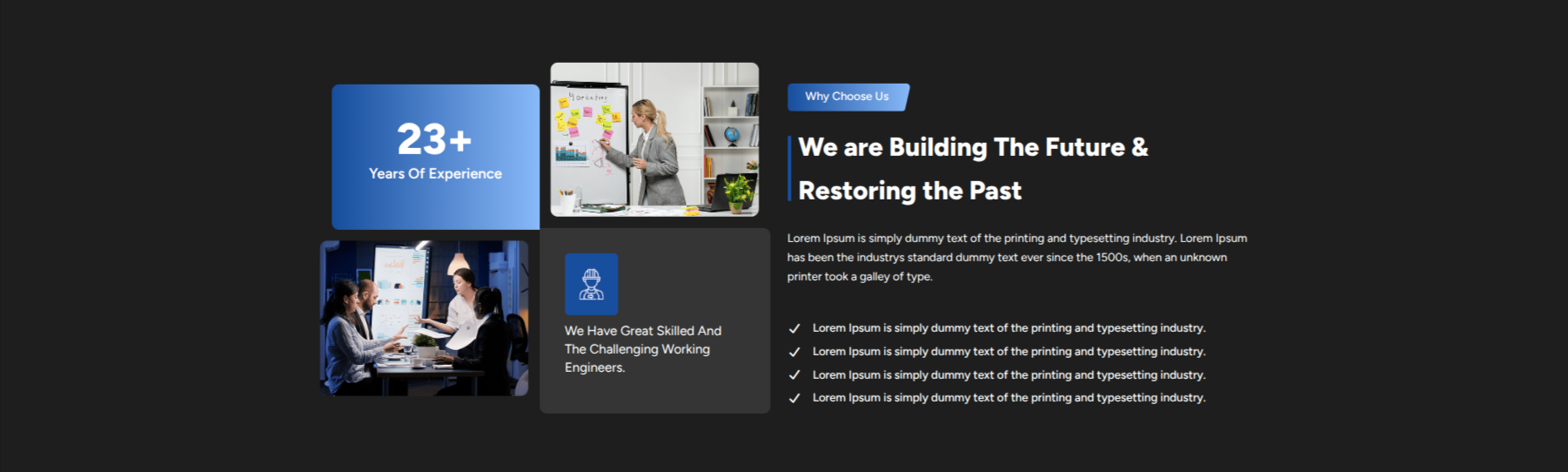
This is how the Why Choose Us section will display it.
Section on Developing Logos Section
Regarding Logos Section Configuration.
To modify your theme options open"Appearance" By going to "customizing" Head over to " Theme Settings" Proceed to " Logos " .
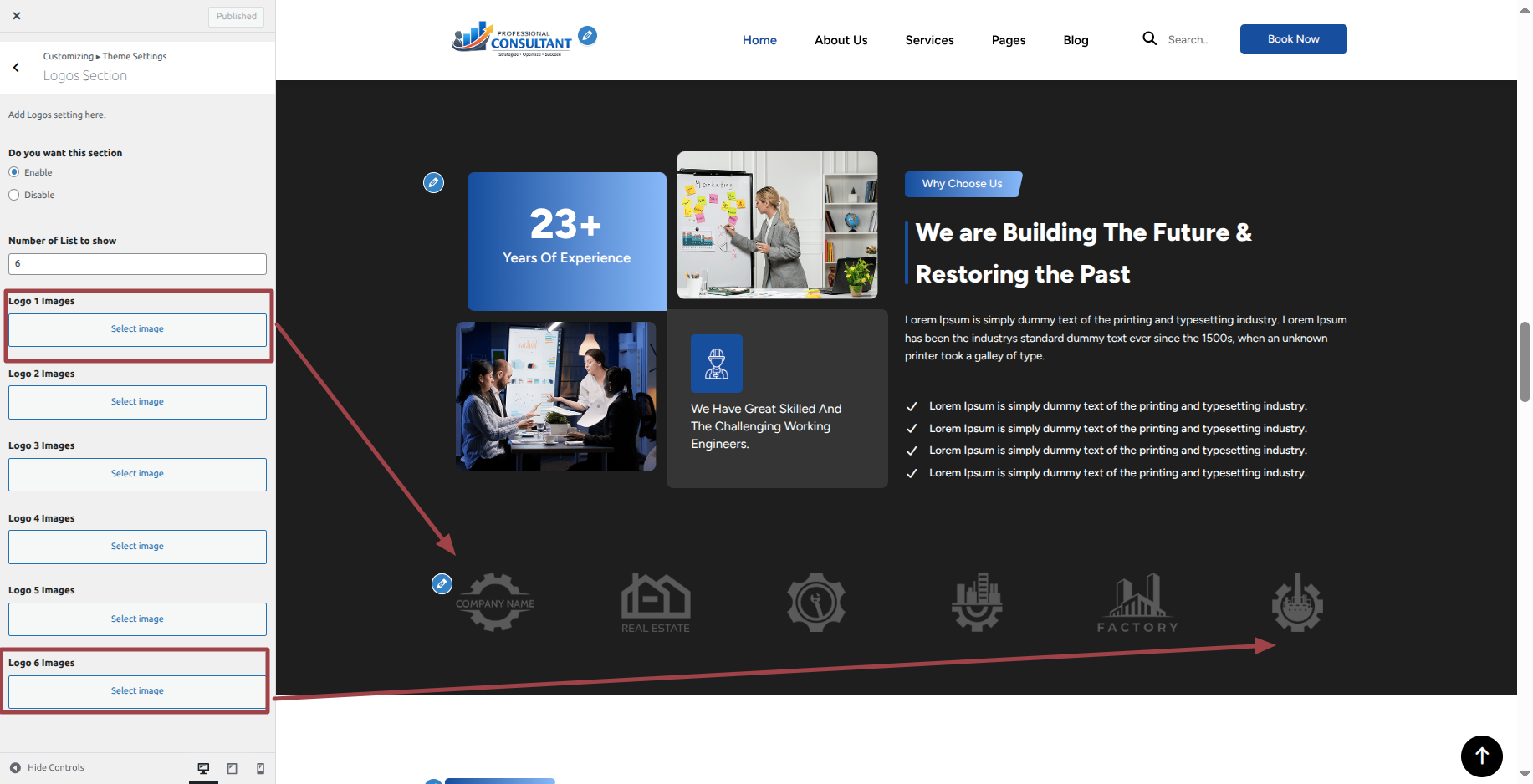
This is how the Logos section will display it.

Section on Developing Our Work Section
Regarding Our Work Section Configuration.
To modify your theme options open"Appearance" By going to "customizing" Head over to " Theme Settings" Proceed to " Our Work " .
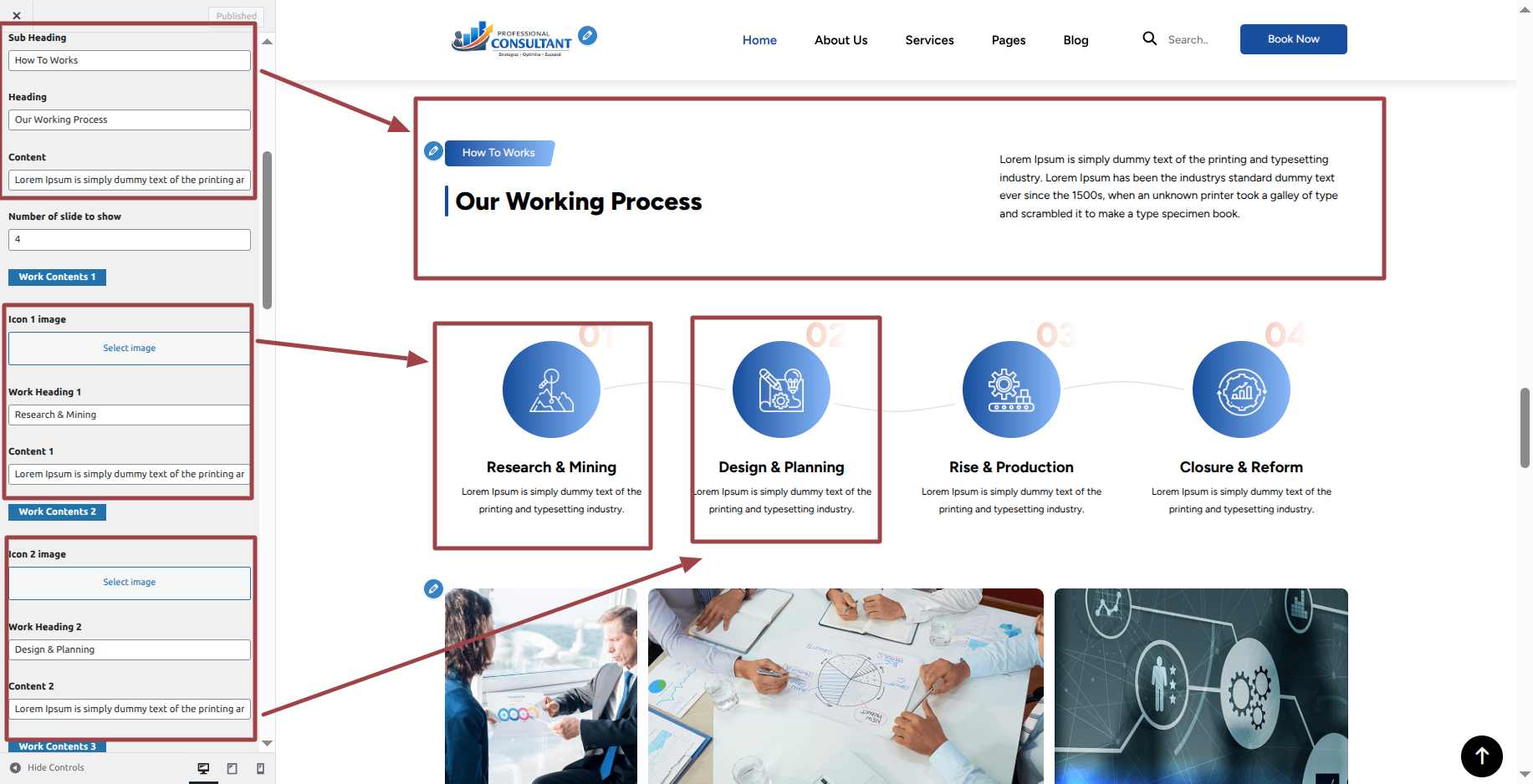
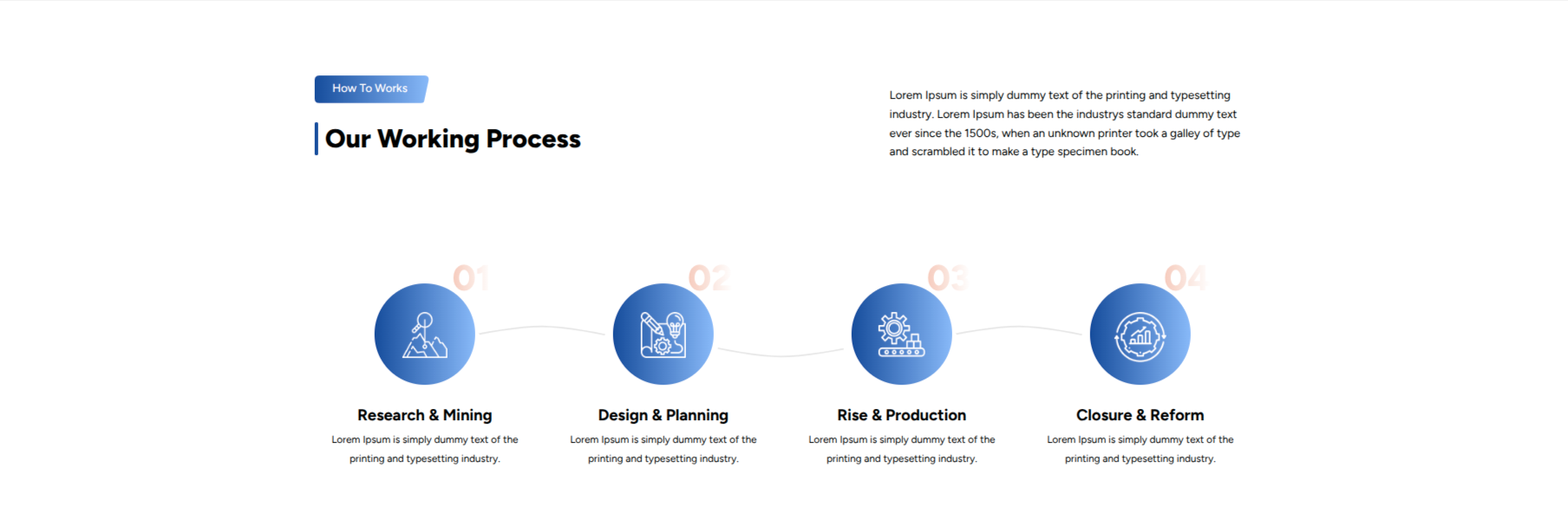
This is how the Our Work section will display it.
Section on Developing Our Gallery Section
Regarding Our Gallery Section Configuration.
To modify your theme options open"Appearance" By going to "customizing" Head over to " Theme Settings" Proceed to " Our Gallery" .
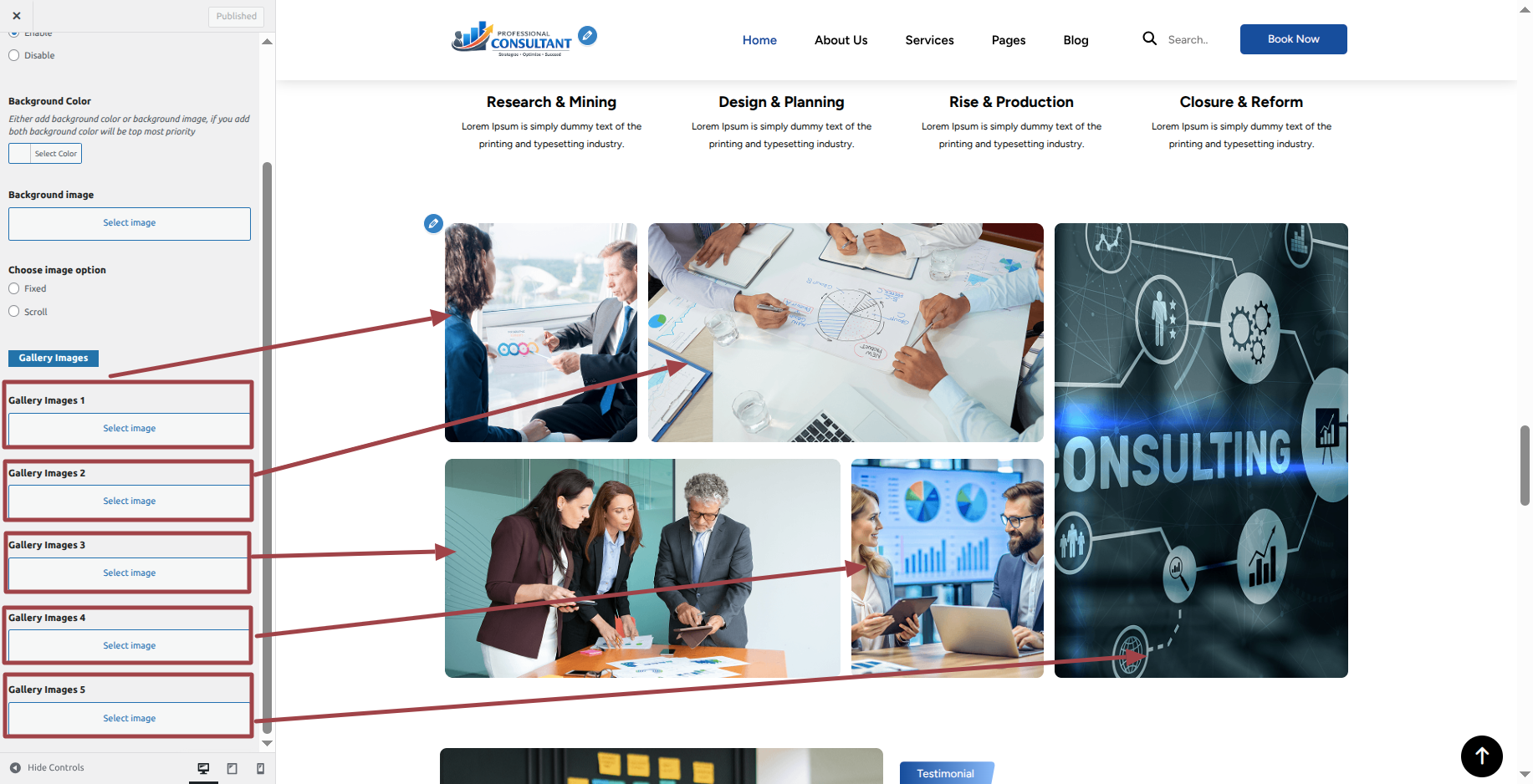
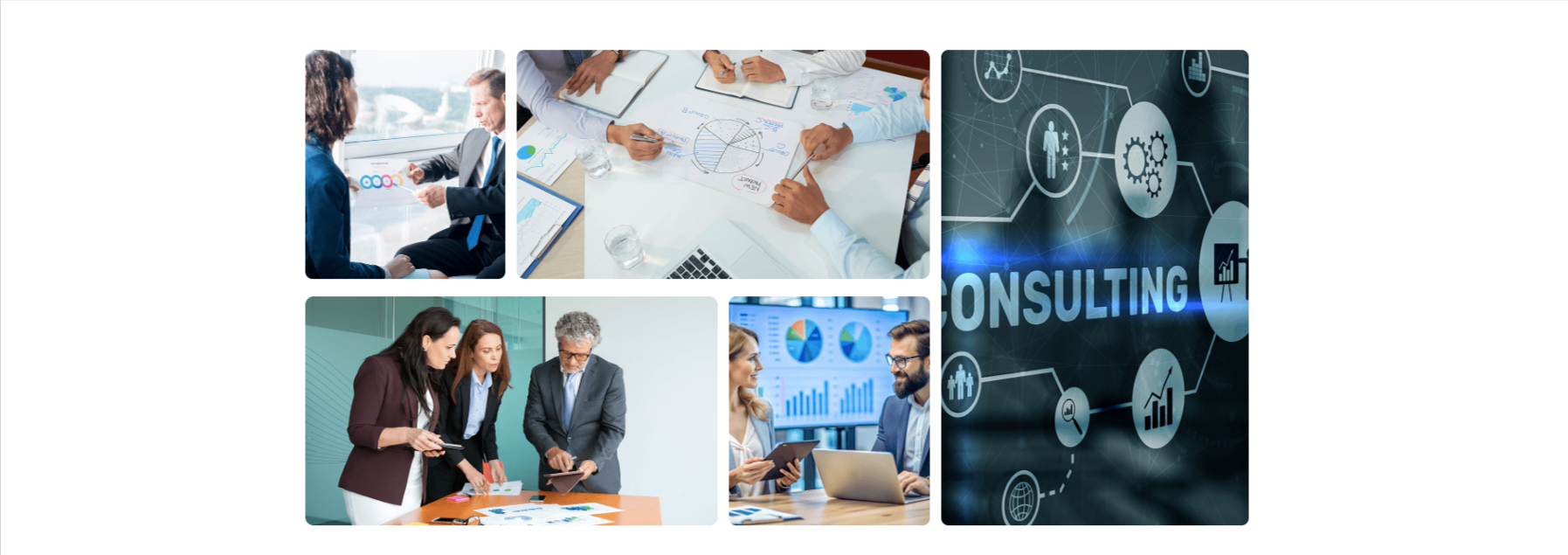
This is how the Our Gallery section will display it.
Section on Developing Our Testimonial Section
Regarding Our Testimonial Section Configuration.
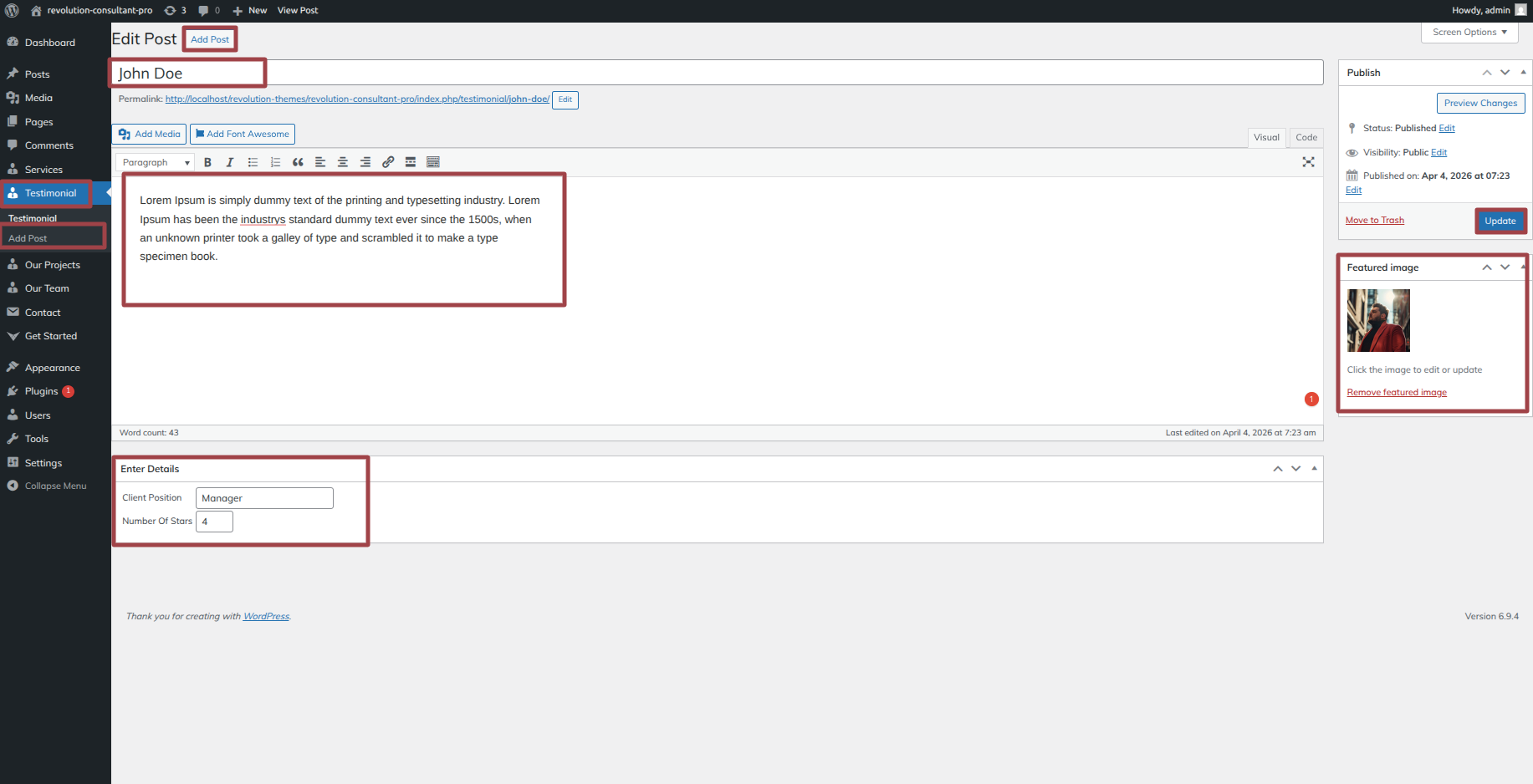
Corporate Consultancy Pro Posttype Plugin installation and activation are prerequisites, Your dashboard will have a Testimonial once the plugin has been enabled.
To modify your theme options open"Dashboard" By going to "Dashboard " Proceed to "Testimonial" .
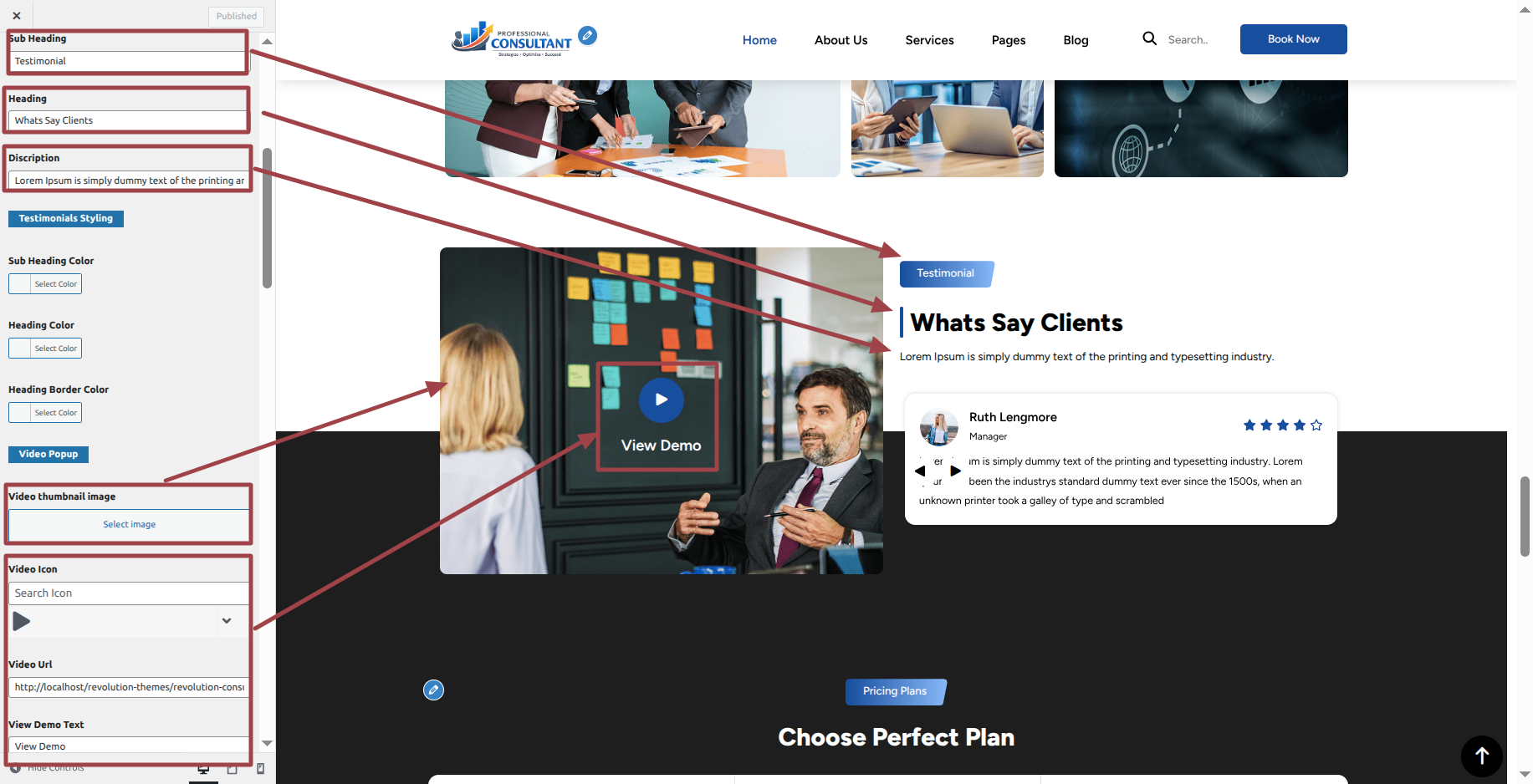
To modify your theme options open"Appearance" By going to "customizing" Head over to " Theme Settings" Proceed to " Our Testimonial " .
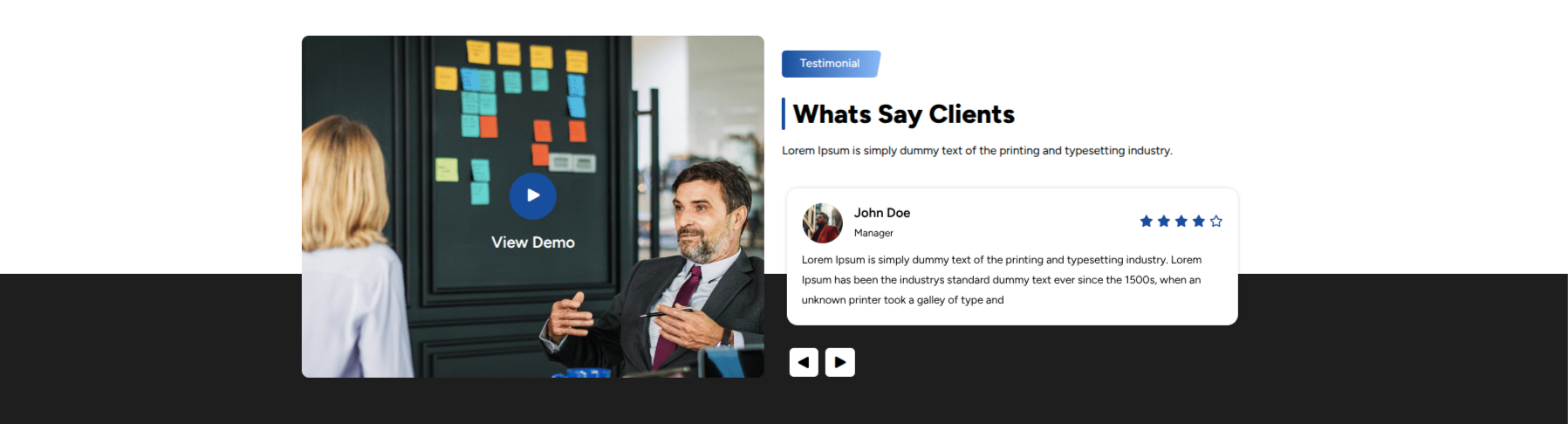
This is how the Our Testimonial section will display it.
Section on Developing Pricing Plan Section
Regarding Pricing Plan Section Configuration.
To modify your theme options open"Appearance" By going to "customizing" Head over to " Theme Settings" Proceed to " Pricing Plan Section" .
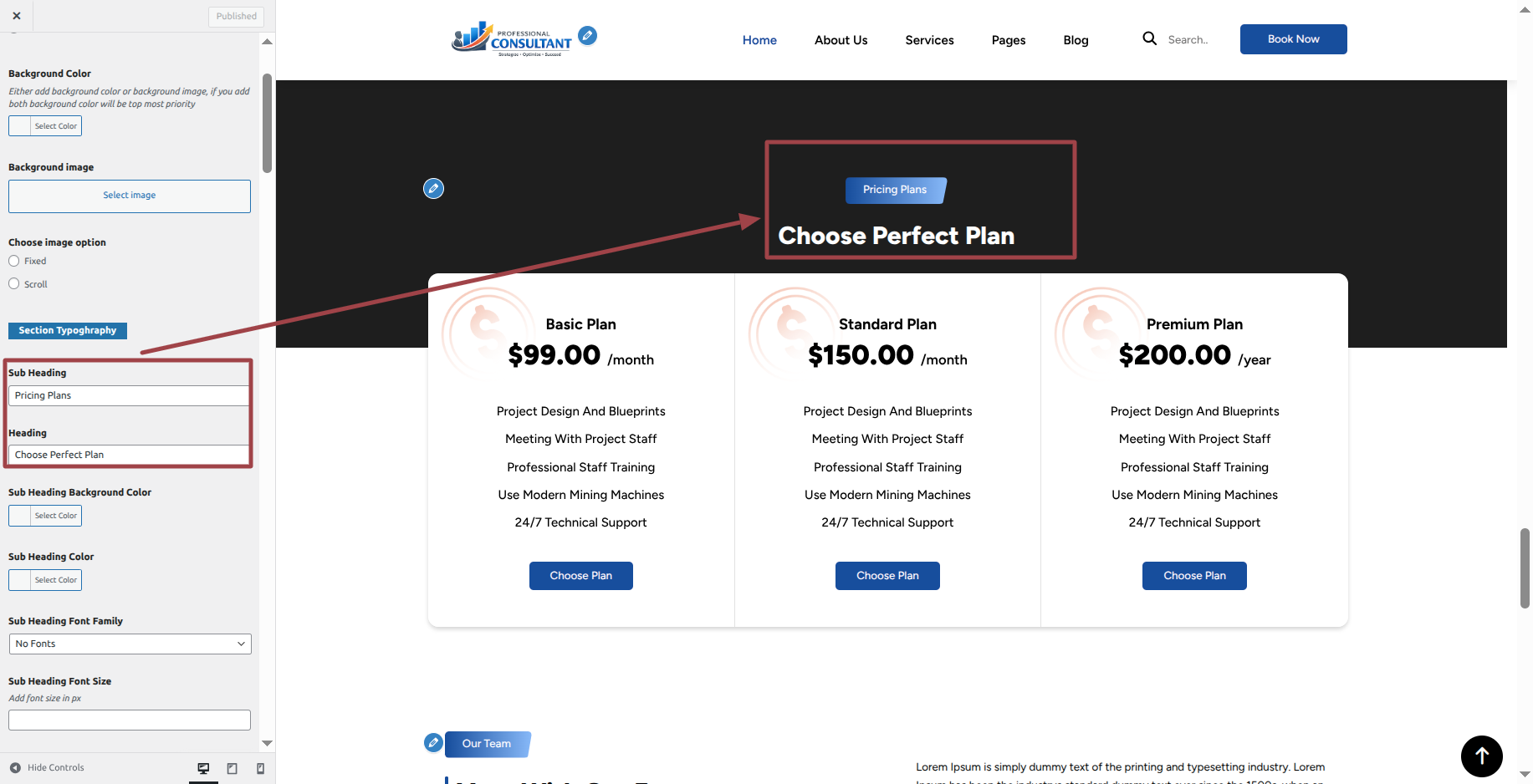
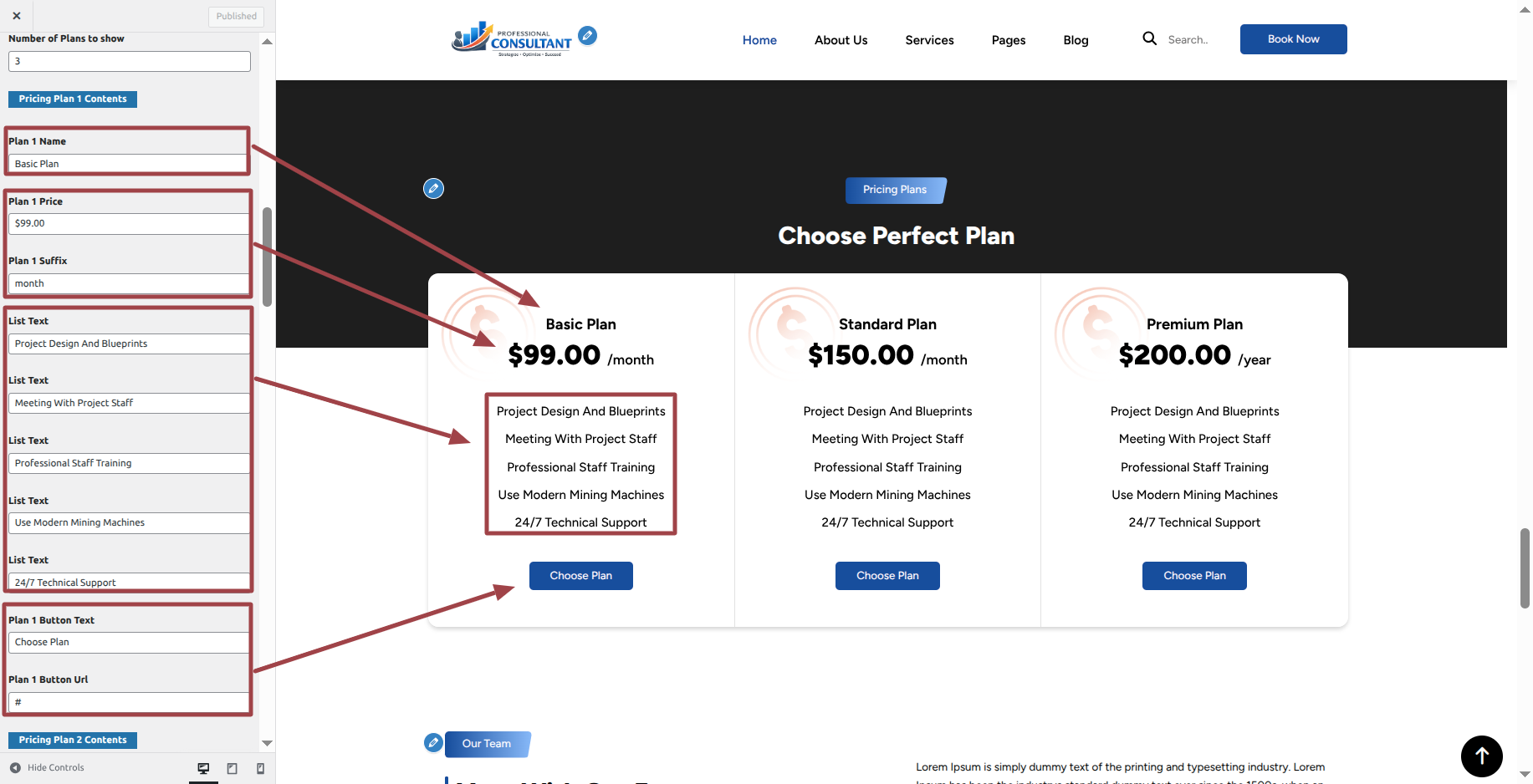
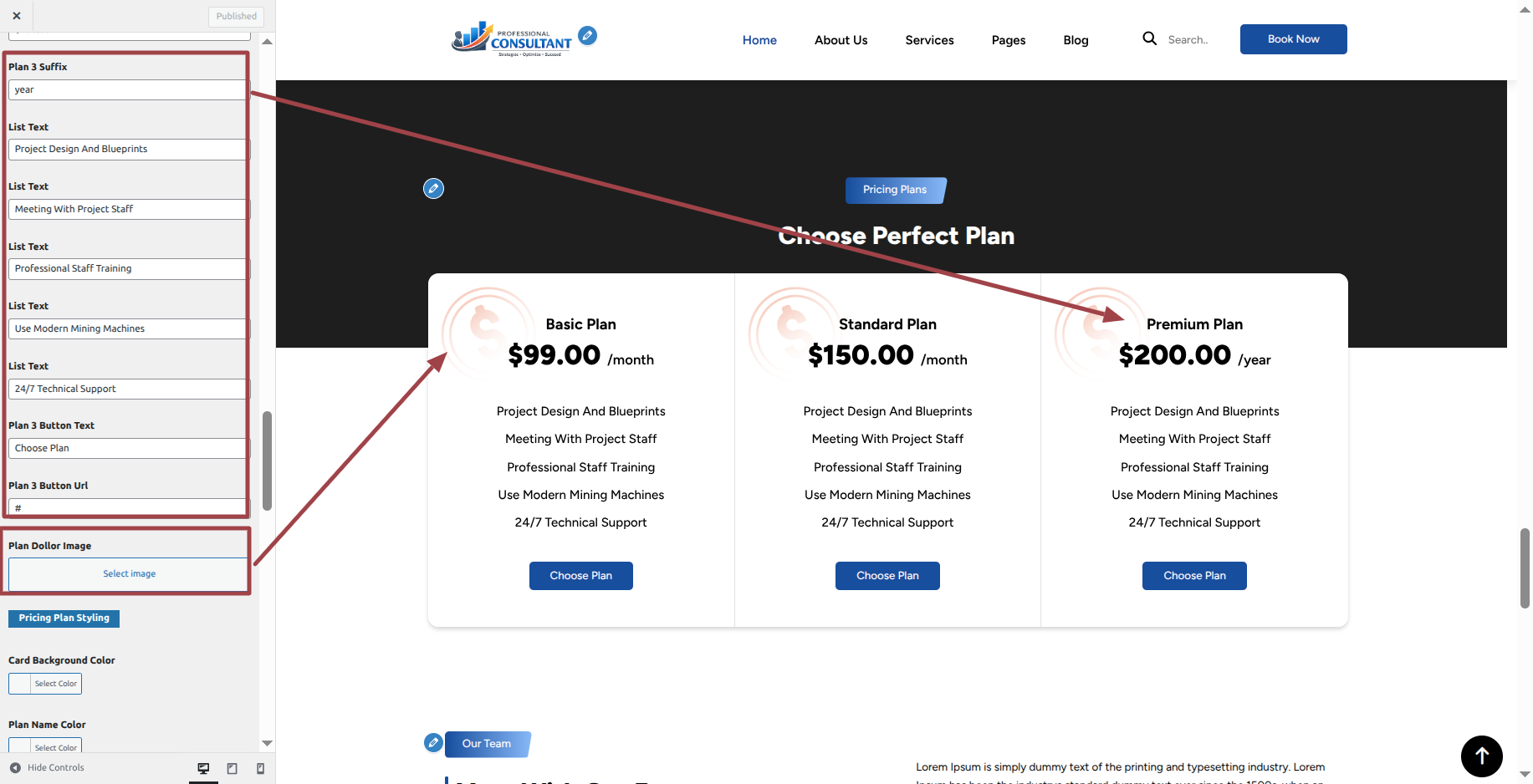
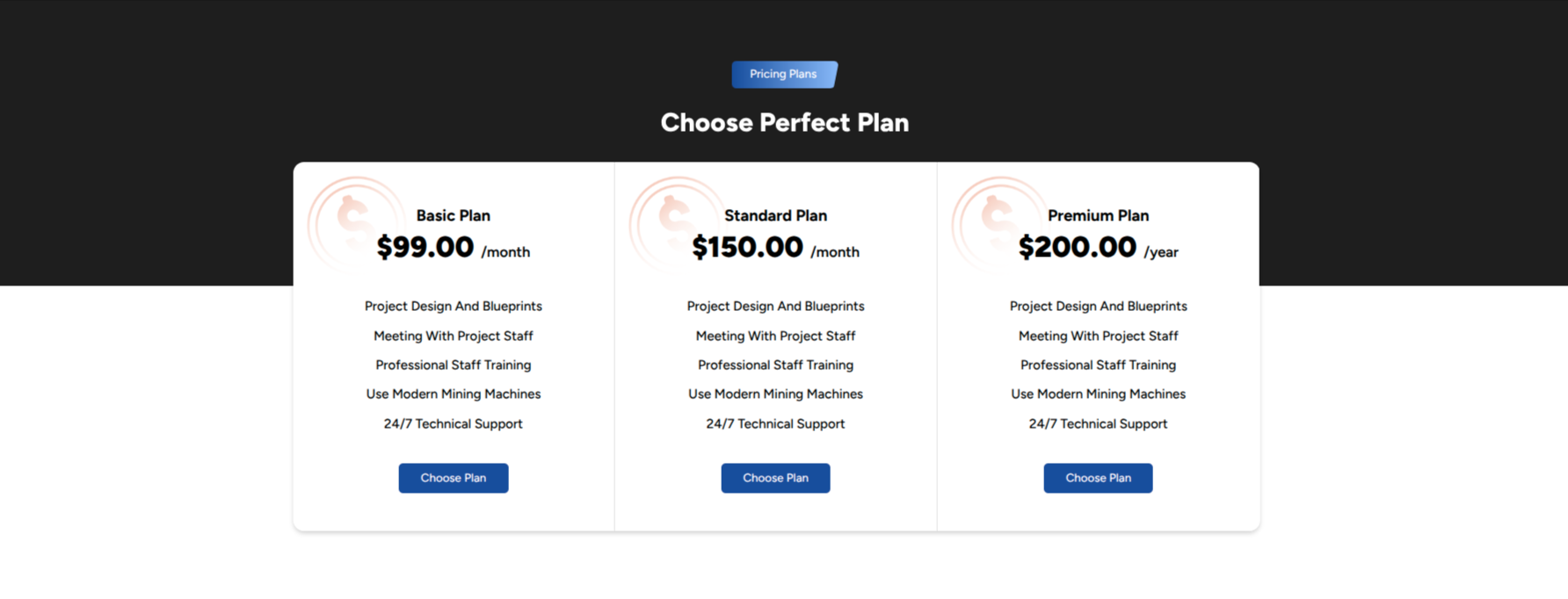
This is how the Pricing Plan section will display it.
Section on Developing Our Team Section
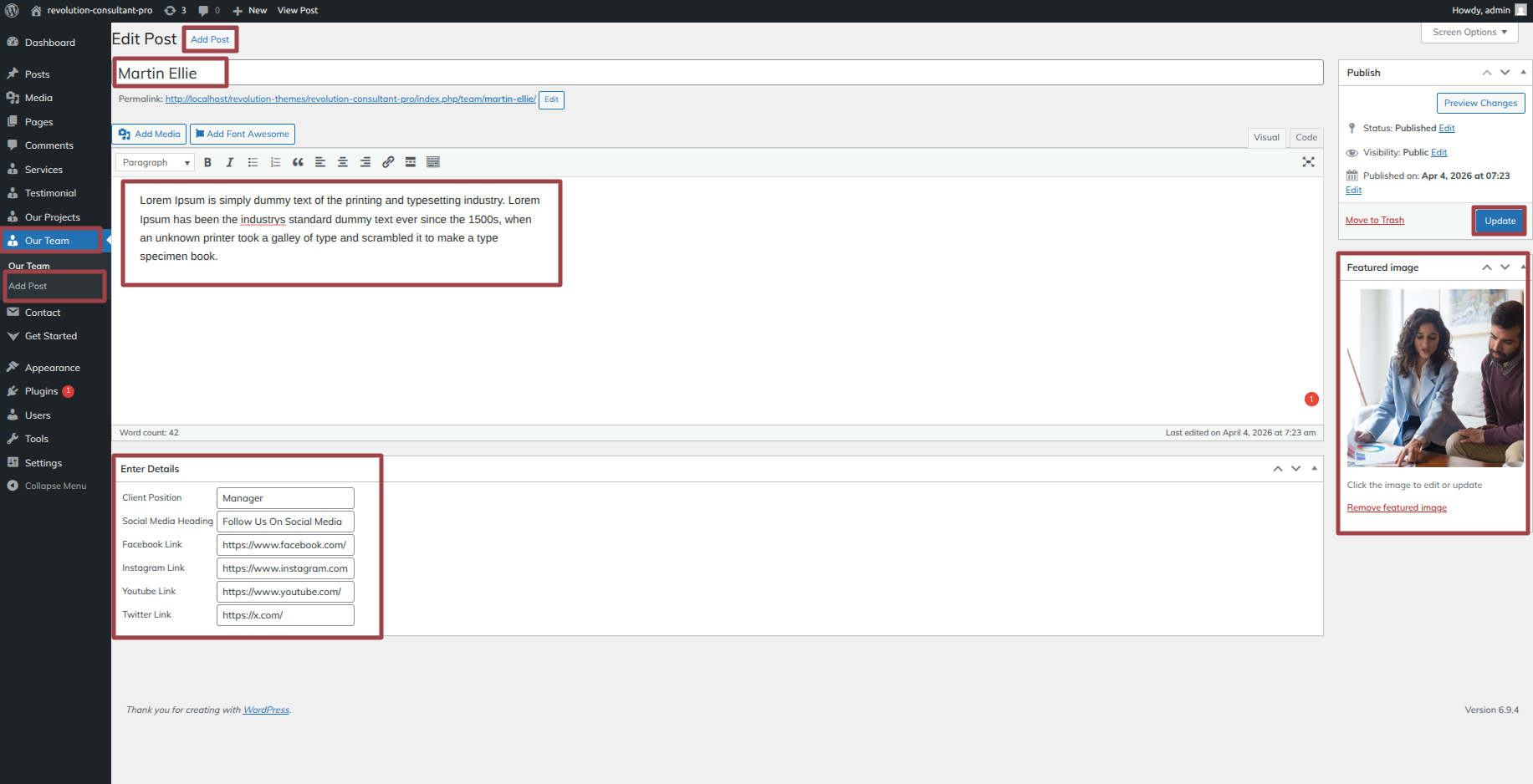
Regarding Our Team Section Configuration.
Corporate Consultancy Pro Posttype Plugin installation and activation are prerequisites, Your dashboard will have a Team once the plugin has been enabled.
To modify your theme options open"Dashboard" By going to "Team " Proceed to "Add New Posts" .
To modify your theme options open"Appearance" By going to "customizing" Head over to " Theme Settings" Proceed to " Our Team Section" .
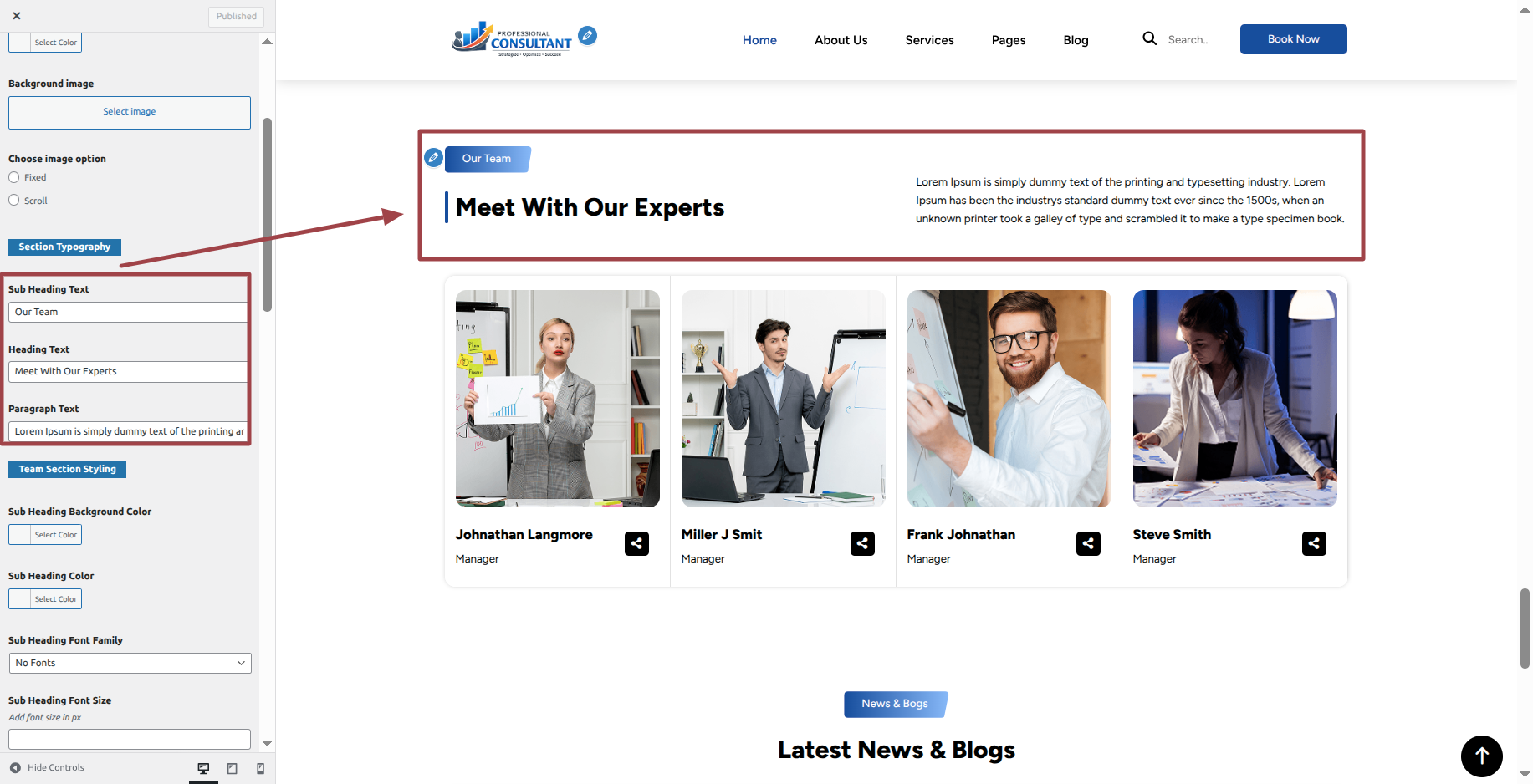
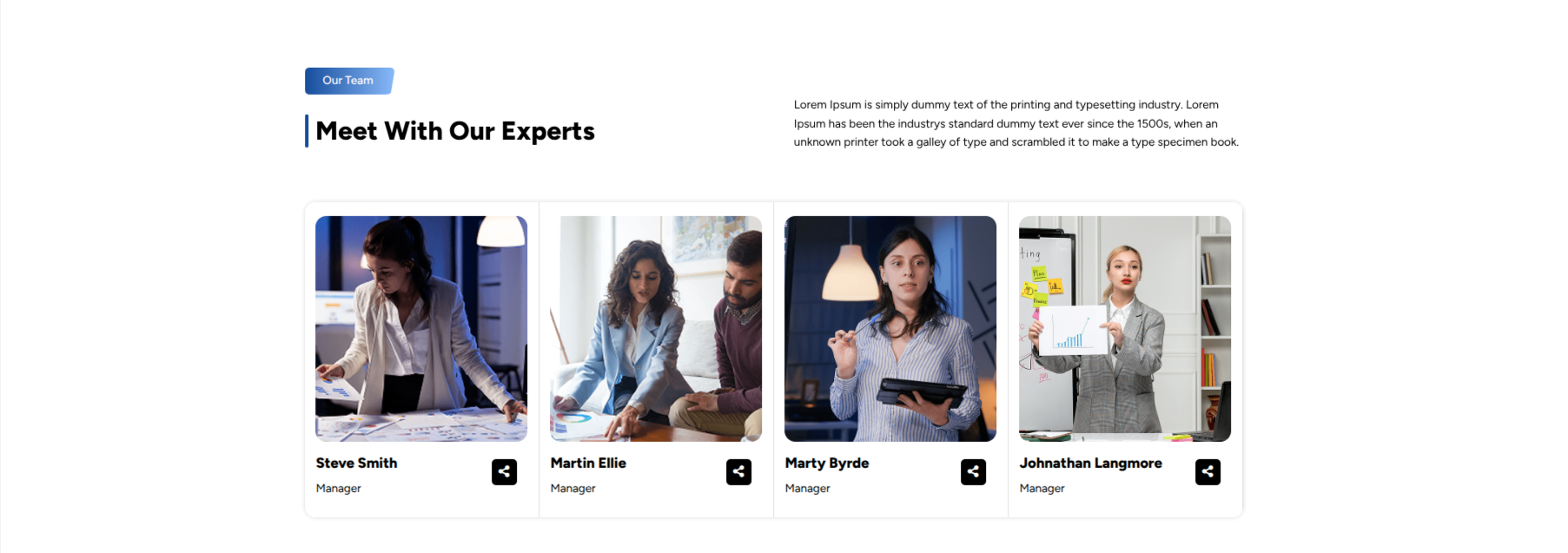
This is how the Our Team section will display it.
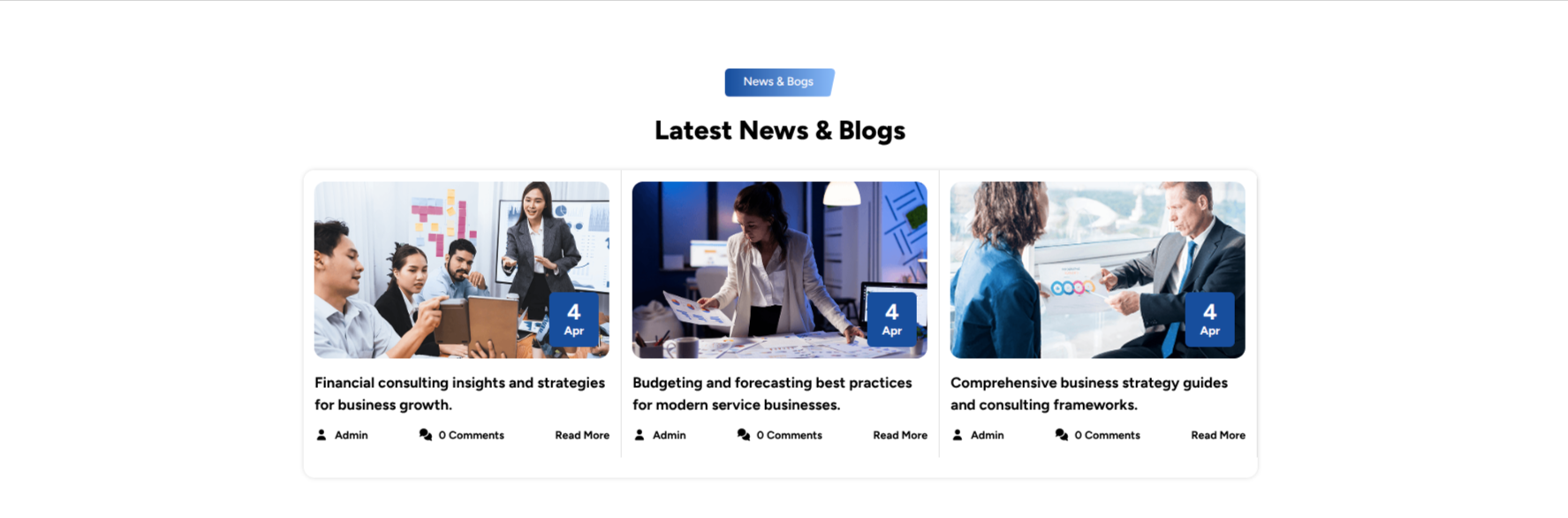
Section on Developing Our Blog Section
Regarding Our Blog Section Configuration.
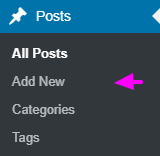
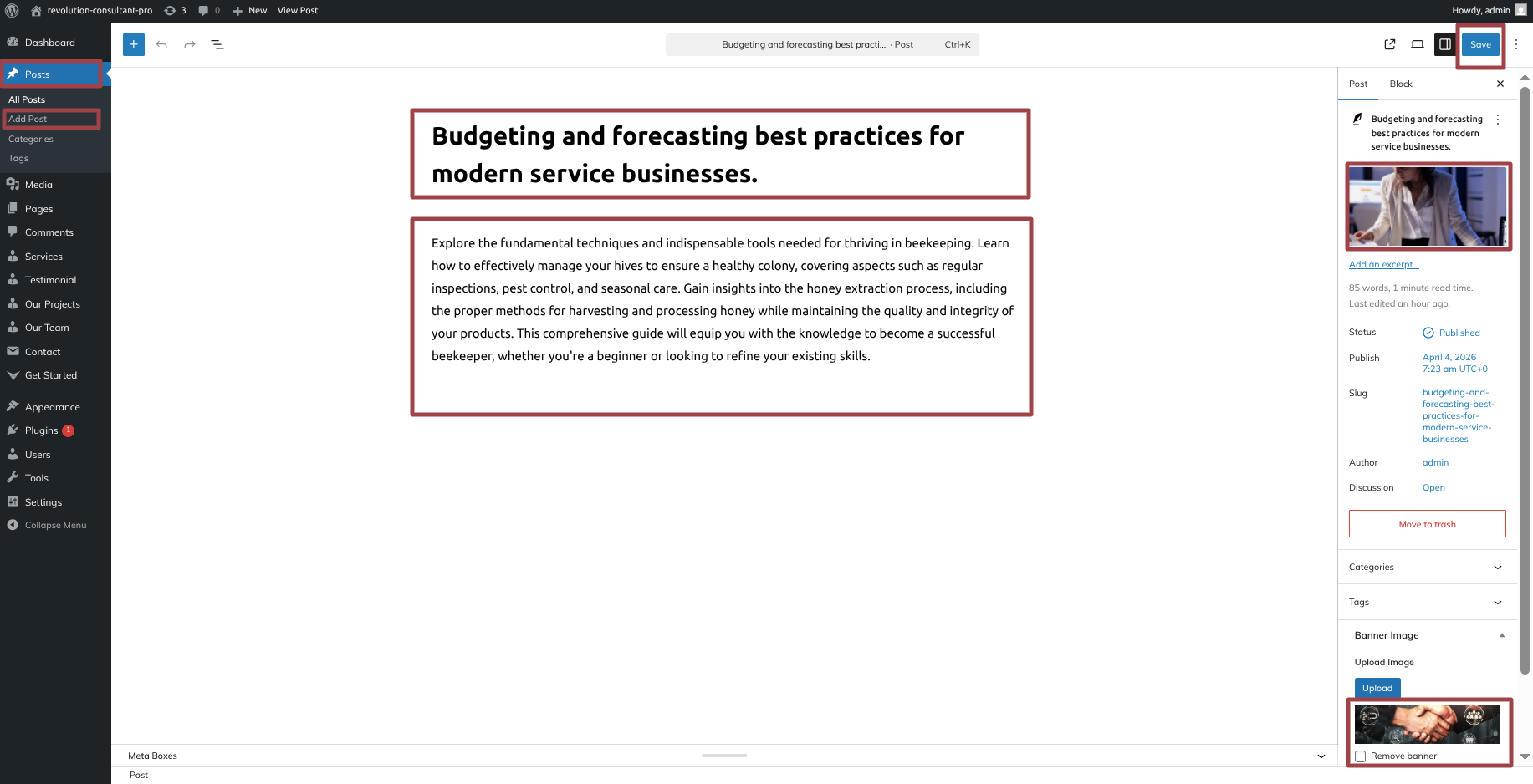
To modify your theme options open"Dashboard" By going to "Posts " Proceed to "Add New" .
To modify your theme options open"Appearance" By going to "customizing" Head over to " Theme Settings" Proceed to " Our Blog " .
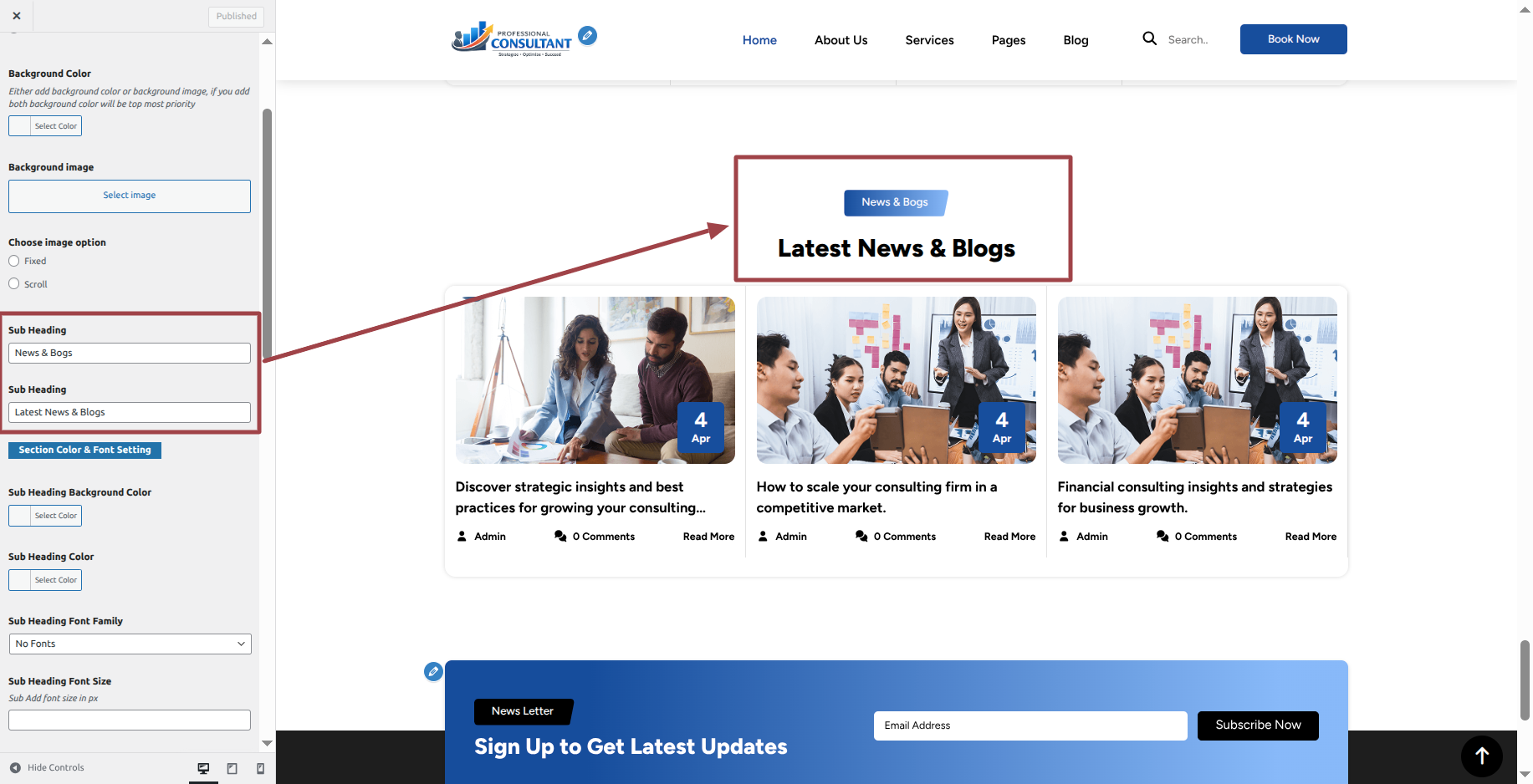
This is how the Our Blog section will display it.
Section on Developing Newsletter
Regarding Newsletter Configuration.
Contact Form 7 Plugin installation and activation are prerequisites, Your dashboard will have a Contact once the plugin has been enabled.
To modify your theme options open"Dashboard" By going to "Contact " Proceed to "Add Contact Form" .
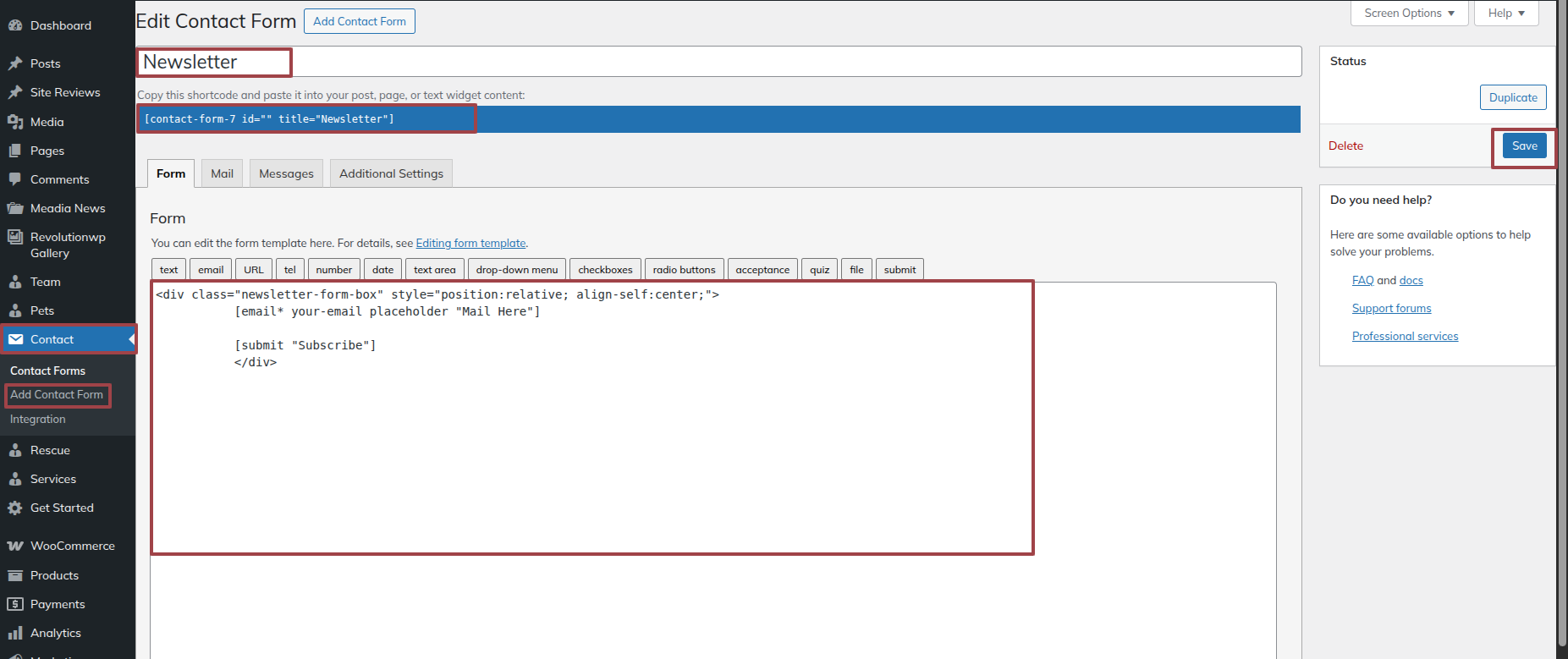
To modify your theme options open"Appearance" By going to "customizing" Head over to " Theme Settings" Proceed to "Newsletter" .
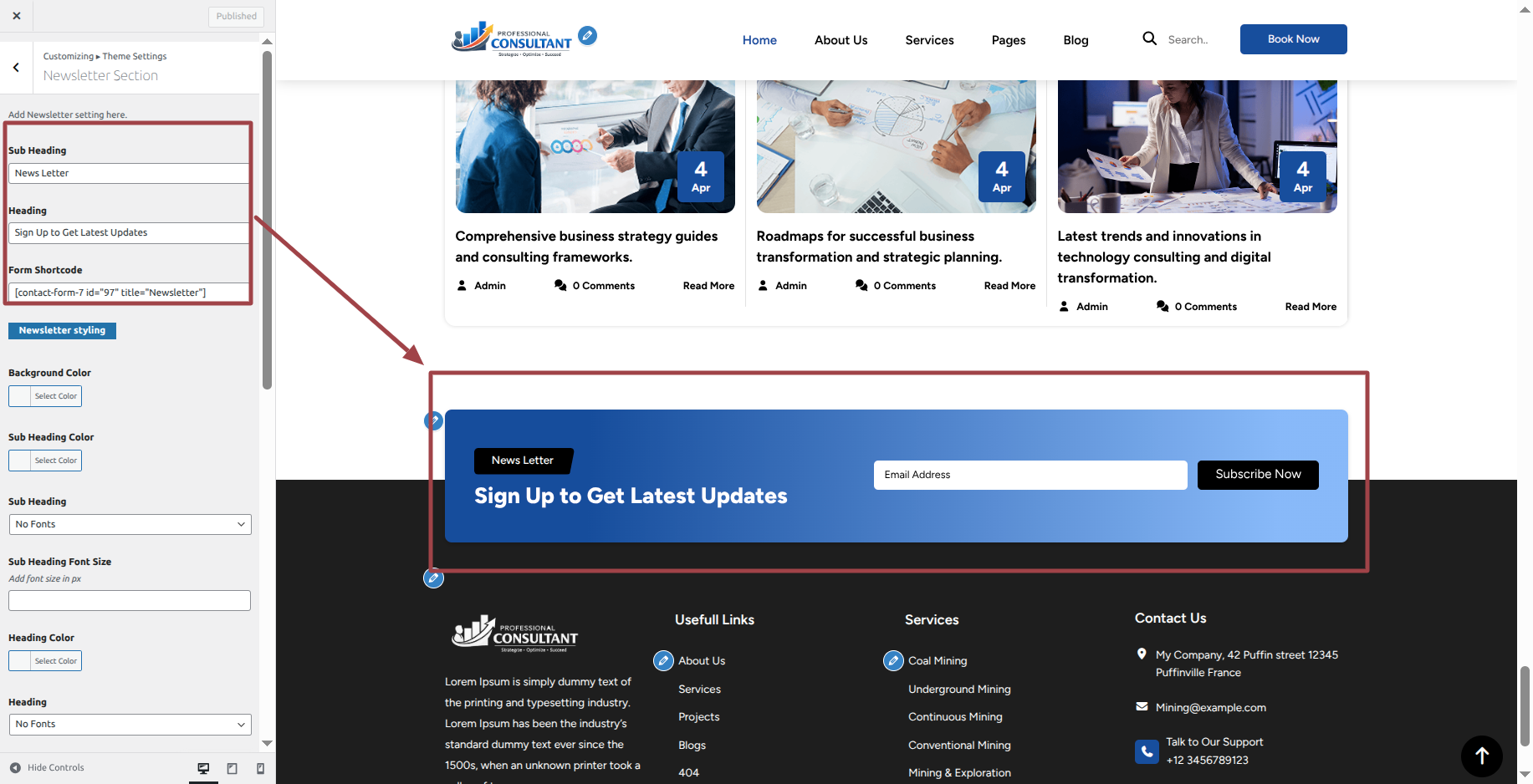
This is how the Newsletter section will display it.

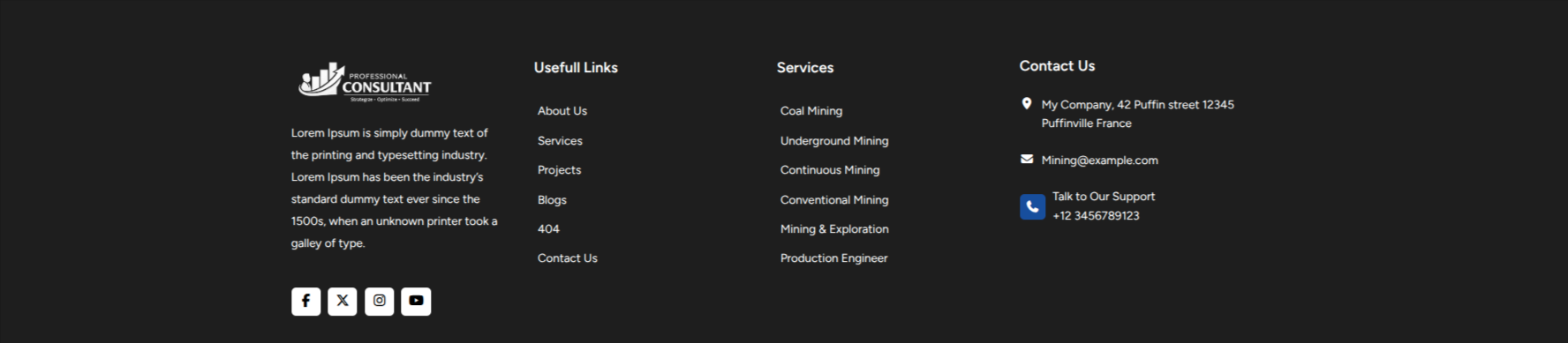
Section on Developing Footer Menu
Regarding Footer Menu Configuration.
To modify your theme options open"Appearance" By going to "customizing" Head over to " Theme Settings" Proceed to "Footer Menu" .
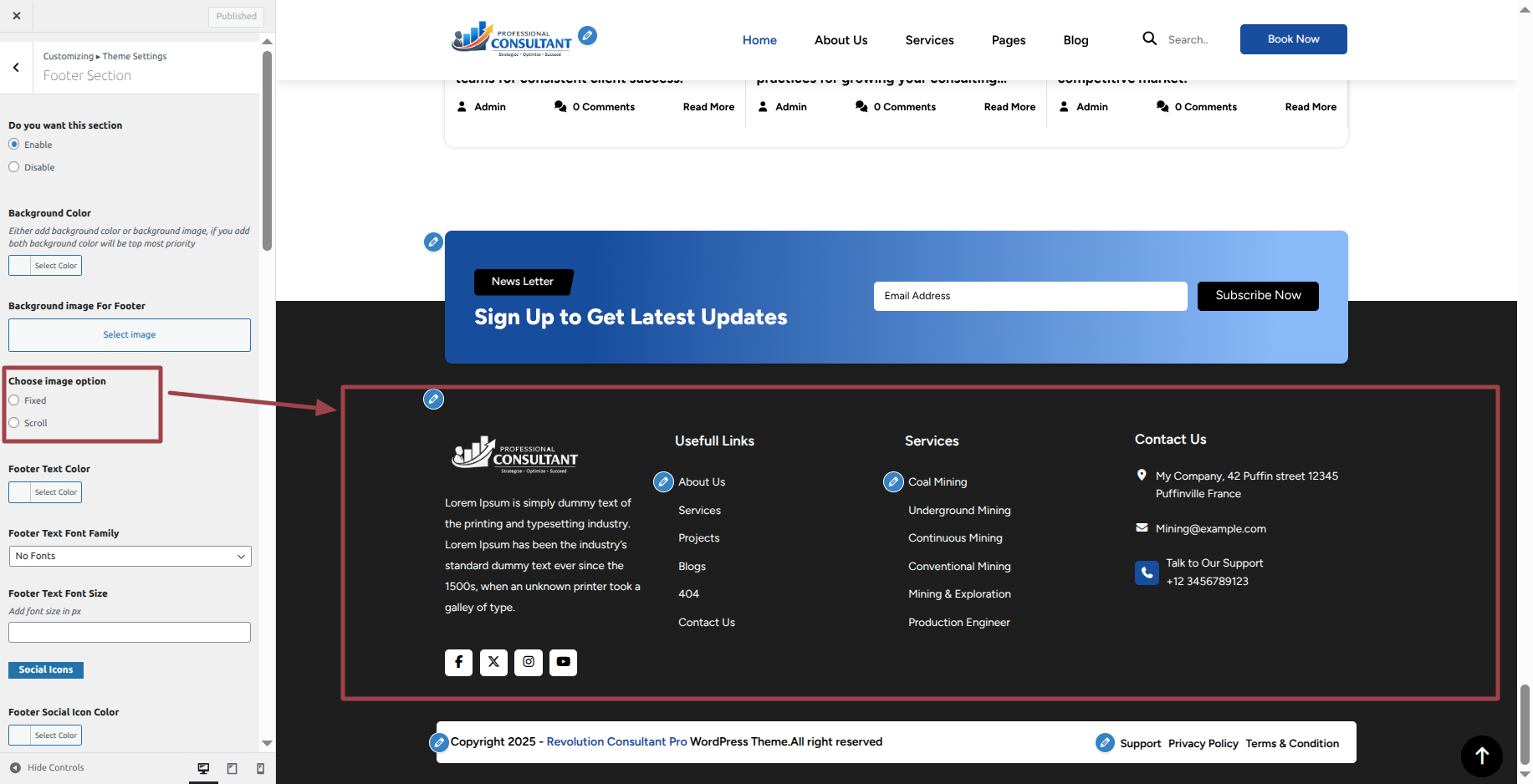
This is how the Footer Menu section will display it.
Post and category knowledge
Ways to Include a Category.
- Enter your login information to access your WordPress dashboard.
- Select Posts from the tab.
- Pick Categories for Organic Posts once you've finished that.
- Your new category's name in the text field
- Next, select Add New Category from the menu.
- From the menu, pick Publish.